When you sign in to BoothDock Studio, the box then connects to your account by itself – no pairing code needed. Here you'll find what happens, how to disconnect a box again or replace it with a new device, and what staff are allowed to do.
Connecting
After signing in (Create an account and sign in from the app), the app briefly shows Pairing the box with your account… and then This box is now connected to your account. Below it you see the name under which the box appears in the Hub – you change the name in the Hub under Boxes.
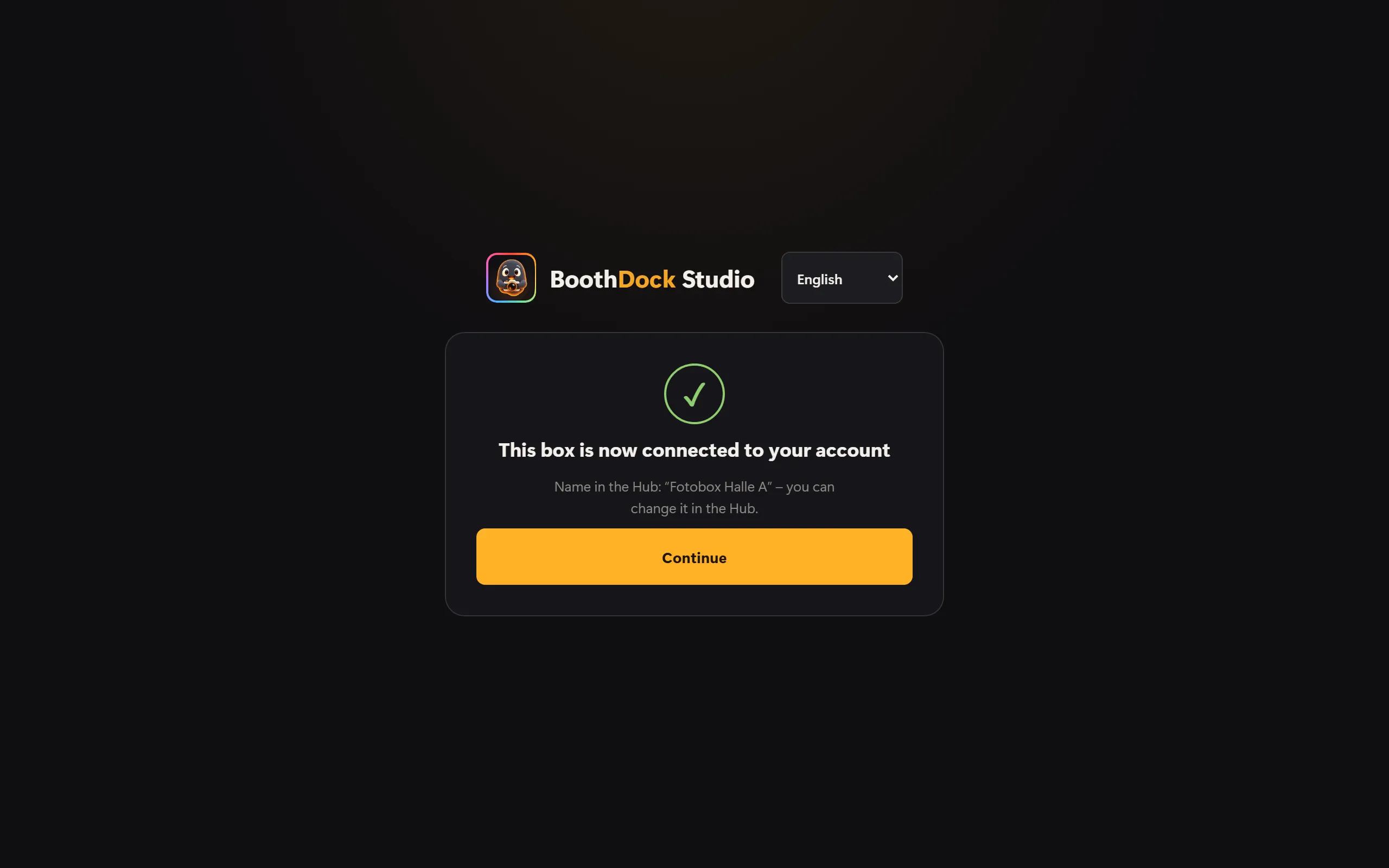
From now on you see the box in the Hub under Boxes, and events from the Hub reach the box. New accounts start their 14-day Pro trial with the pairing.
If connecting doesn't work right away (for example without internet), you still stay signed in: Try again or Pair later. Until then the app keeps running without a connection.
A box already connected with a pairing code can be signed in afterwards: Account & Sync → Create account or sign in. It doesn't need to be paired again.
Plan full: replacing a box
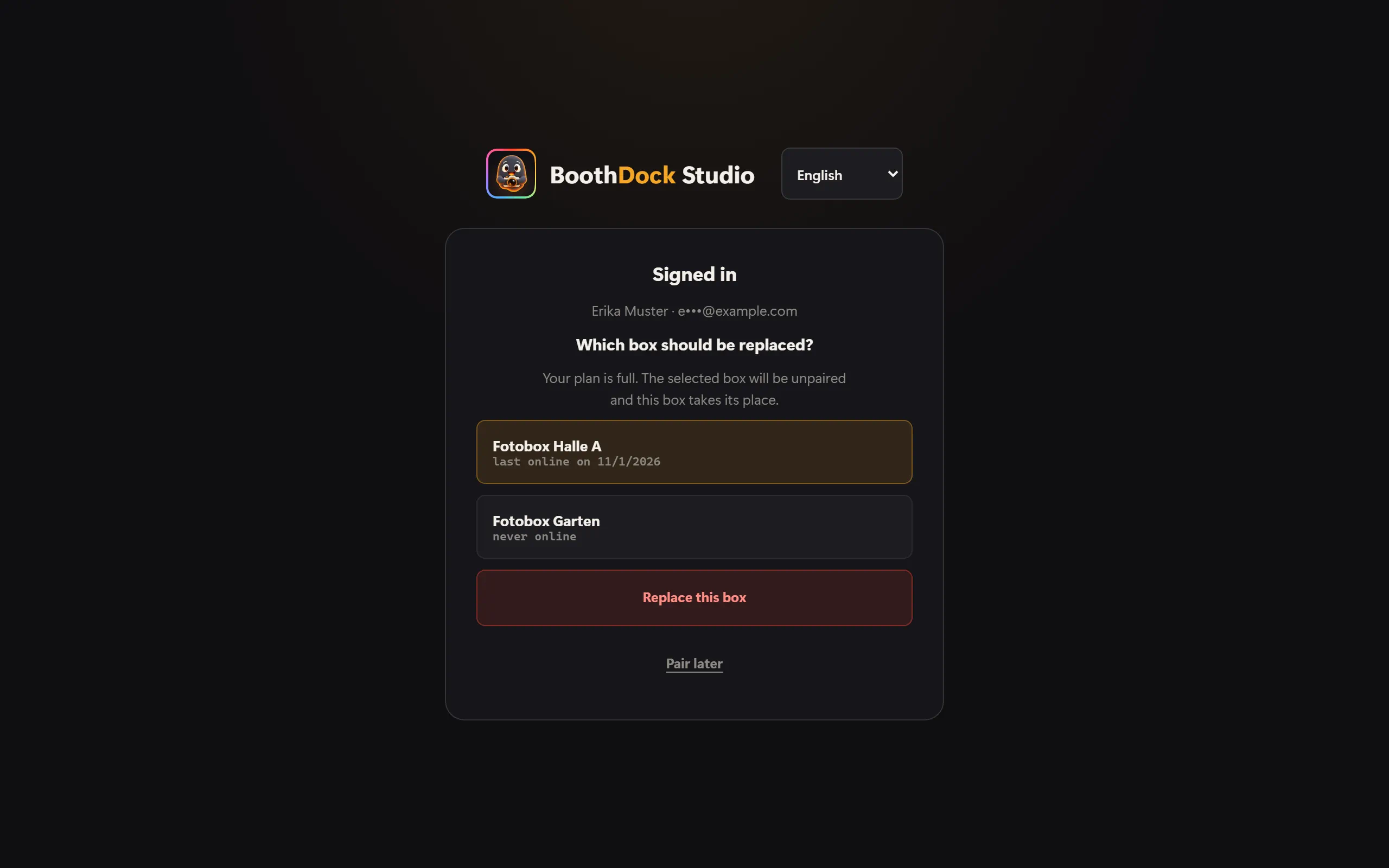
If your plan has no free slot left, the app asks Which box should be replaced? and shows your boxes with the time they were last online. Choose the old box and tap Replace this box. The selected box is unpaired as soon as the new device connects; its photos stay in the Hub.
How to bring events and templates to the new device is described under Switching devices.
Box belongs to another account
If the box is still connected to another account, the app doesn't move it over. Disconnect it first – at the box under Account & Sync with Disconnect, or in the other account in the Hub under Boxes – and then sign in again.
Sign out or disconnect – the difference
You'll find both at the box in the admin area under Account & Sync:
| Button | What happens |
|---|---|
| Sign out (section Account) | Only your account leaves this device. The box stays connected, and events and uploads keep running. |
| Disconnect (section Connection) | The box disconnects from the Hub. If it has events from the Hub, it asks whether you want to keep them as local events or remove them. Photos in the Hub are kept. |
You free the slot in your plan in the Hub: under Boxes, choose Unpair on the box. The box then also disconnects itself at its next contact and signs your account out on that device.
What staff are allowed to do
Team members without management rights (role Staff) can, just like owners and administrators,
- connect boxes to the account – at the box or in the Hub with Add box,
- replace another box when the plan is full,
- unpair boxes.
A box always belongs to the account, never to the person. Renaming and creating pairing keys remain reserved for owners and administrators.
Owners and administrators can see who connected or disconnected a box, or signed in to the app, and when, in the Hub under Account → Security → Account log (expand via More: recent account and box events).