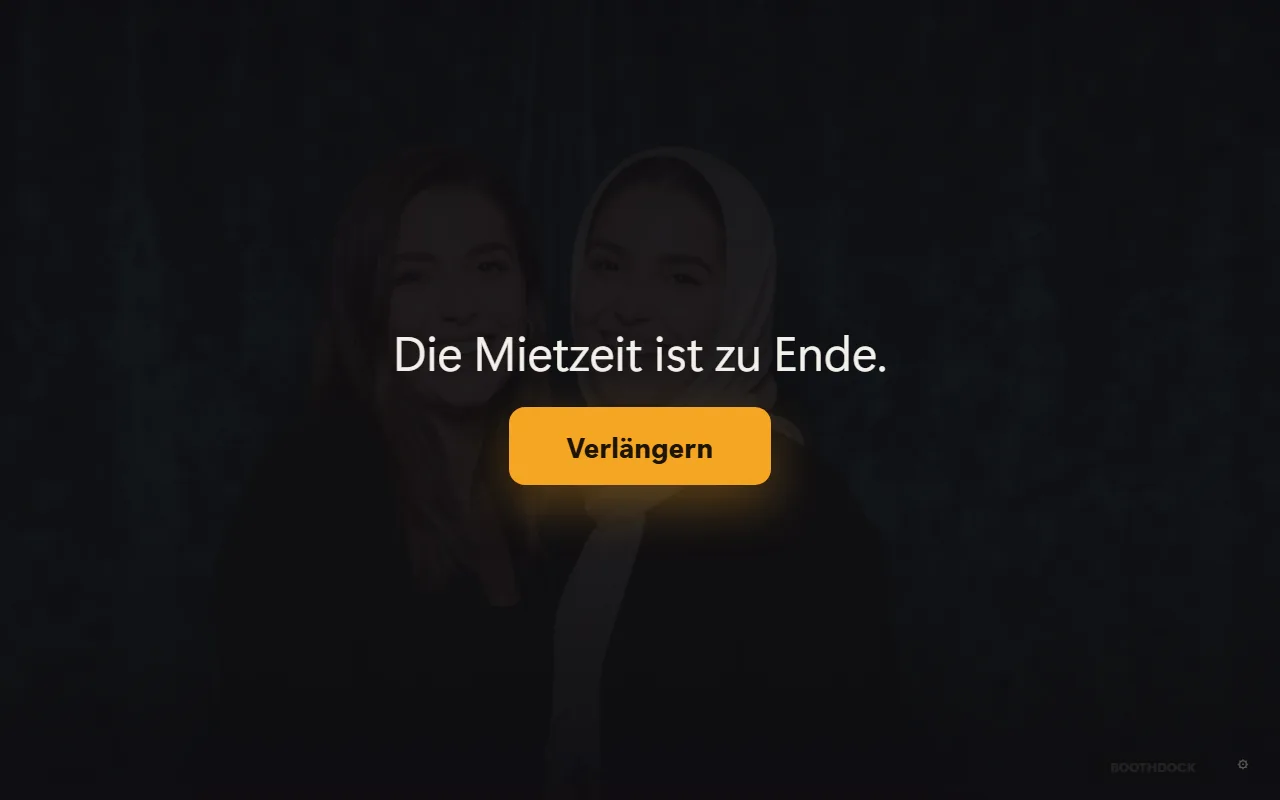
If you rent out your photo booth for a fixed time, it ends the rental time by itself: at the end time the box no longer starts new captures and shows a message. On that same message guests can extend – they pay with their own phone, and the box keeps running straight away. The money goes directly to you.
How to set it up
- In the Hub, open the event and the Details tab.
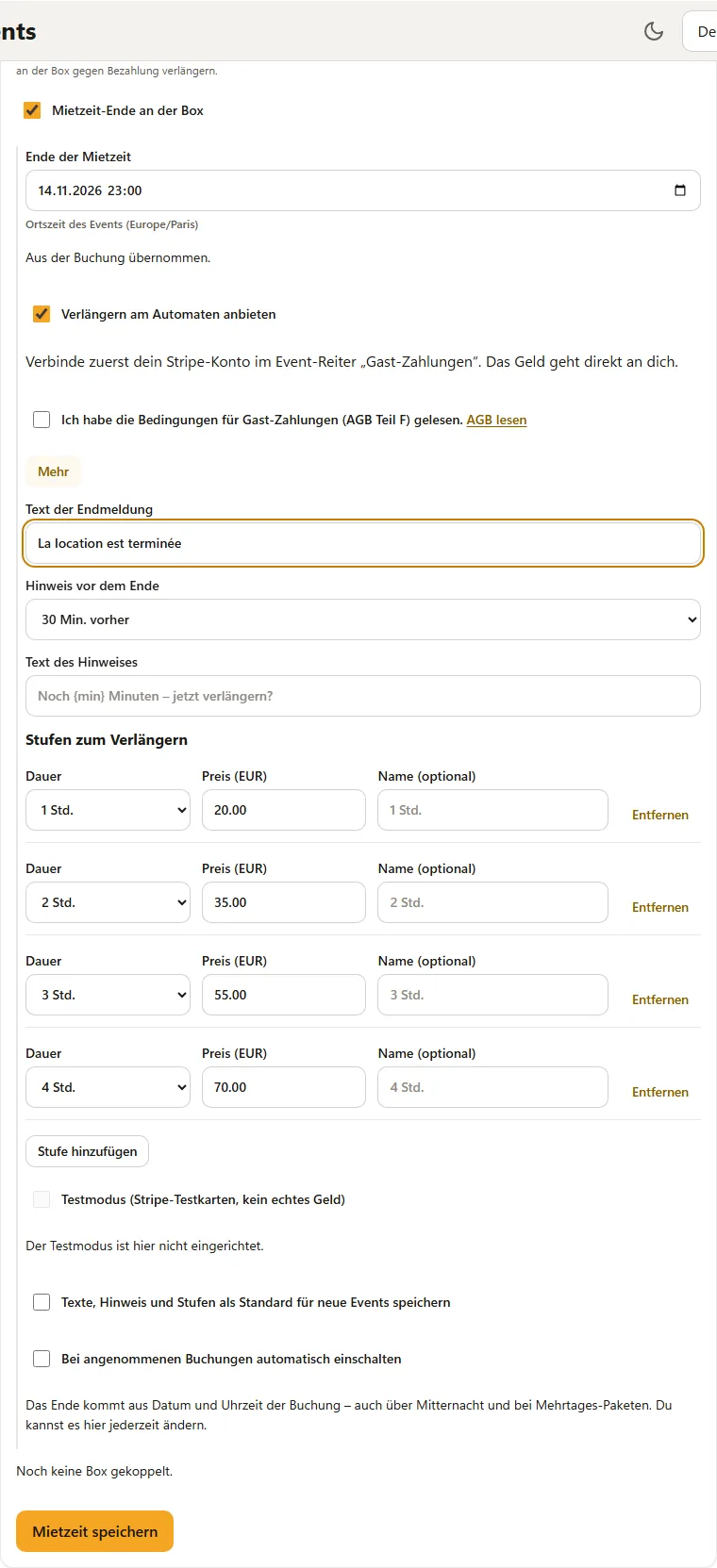
- At the very bottom you'll find the Rental time at the booth card. Switch on End of rental time at the booth.
- Under End of rental time, enter the date and time. The event's local time applies – the time zone is shown below.
- If you want to sell extensions, switch on Offer extension at the booth.
- Open More and set the Extension options.
- Tap Save rental time. The event's boxes pick up the setting right away.
Below the card you can see how many of your boxes already support the feature. If it says “None of your booths can do this yet”, update BoothDock Studio on the box.
End from the booking
When you accept a booking with the booking module, the Hub copies the end into the new event automatically:
- The end time is the booking's “to” time – or the start plus the package duration.
- If the party ends after midnight (for example 20:00 to 02:00), the next day applies.
- For packages spanning several days (for example a weekend), the last day with the “to” time applies.
- If the booking has no time, the end stays empty. Enter it yourself in that case.
Whether the rental time is switched on right away is set under More with Switch on automatically for accepted bookings. It is off by default. You can change the end and the switch in the event at any time.
Extension options
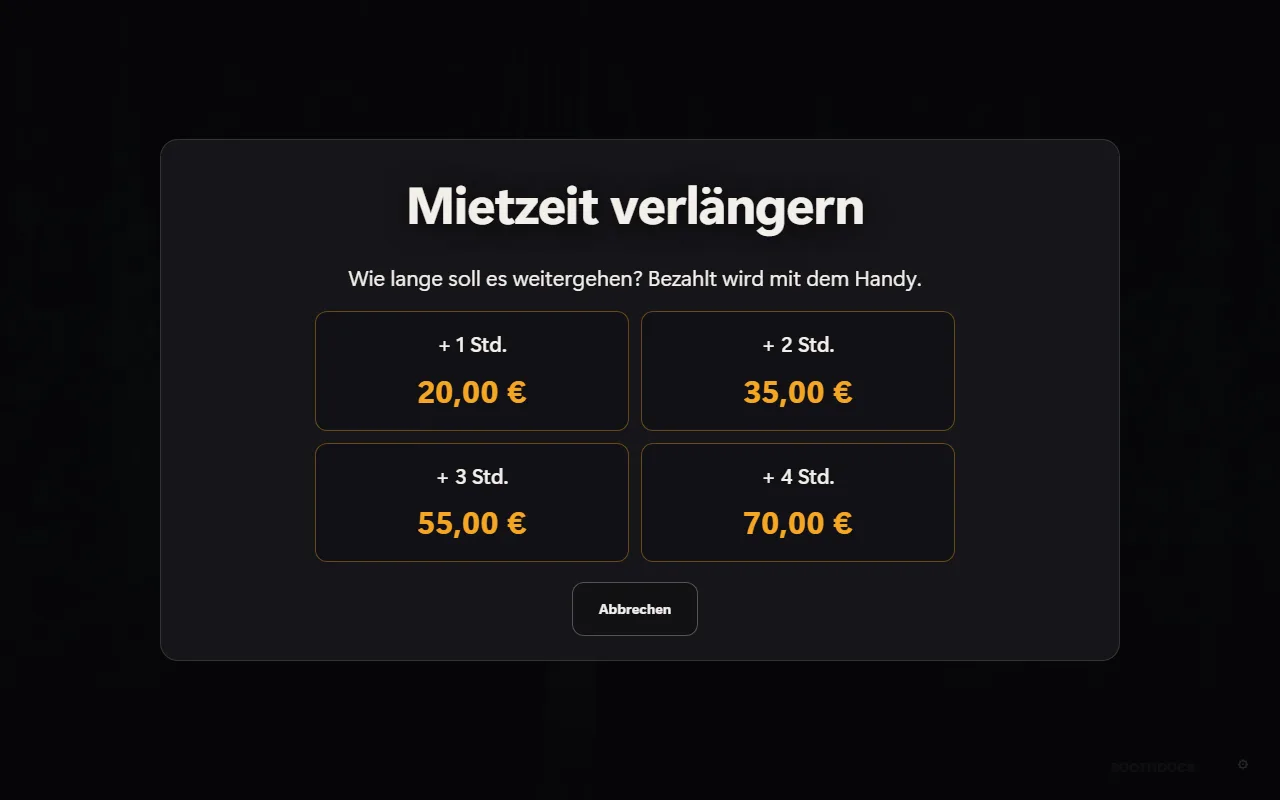
Each option has a Duration (15 minutes to 12 hours), a Price and an optional Name. Prices are up to you – for example 1 h for €20, 2 h for €35, 3 h for €55 and 4 h for €70. You can add up to 6 options. Without a name the box shows the duration, such as “+ 2 h”.
With Save texts, notice and options as default for new events, every new event – including those from bookings – takes over these values.
What guests see at the box
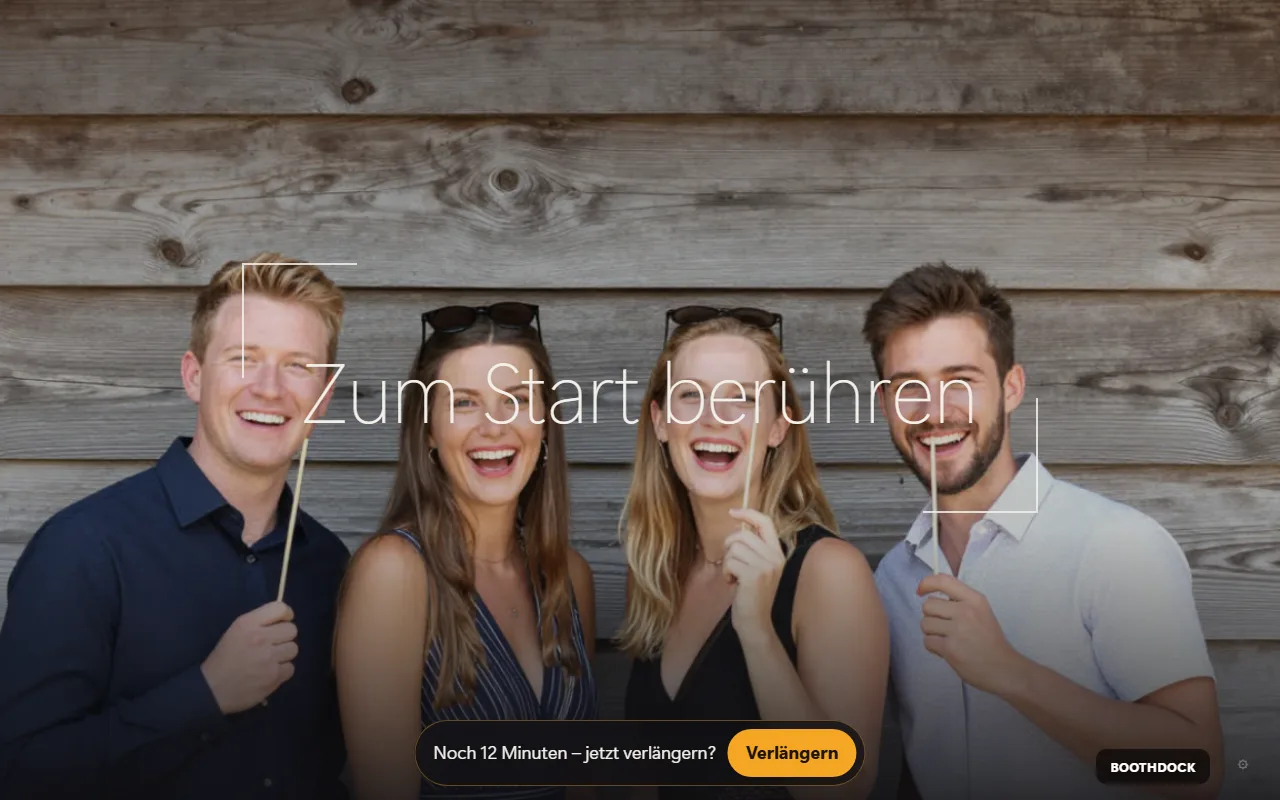
- Shortly before the end a small bar appears on the start screen, for example “15 minutes left – extend now?”, with the Extend button. You choose when it appears under Notice before the end (or No notice).
- At the end time the box shows the end message. A capture already in progress is finished – the message appears as soon as the guest is back at the start screen.
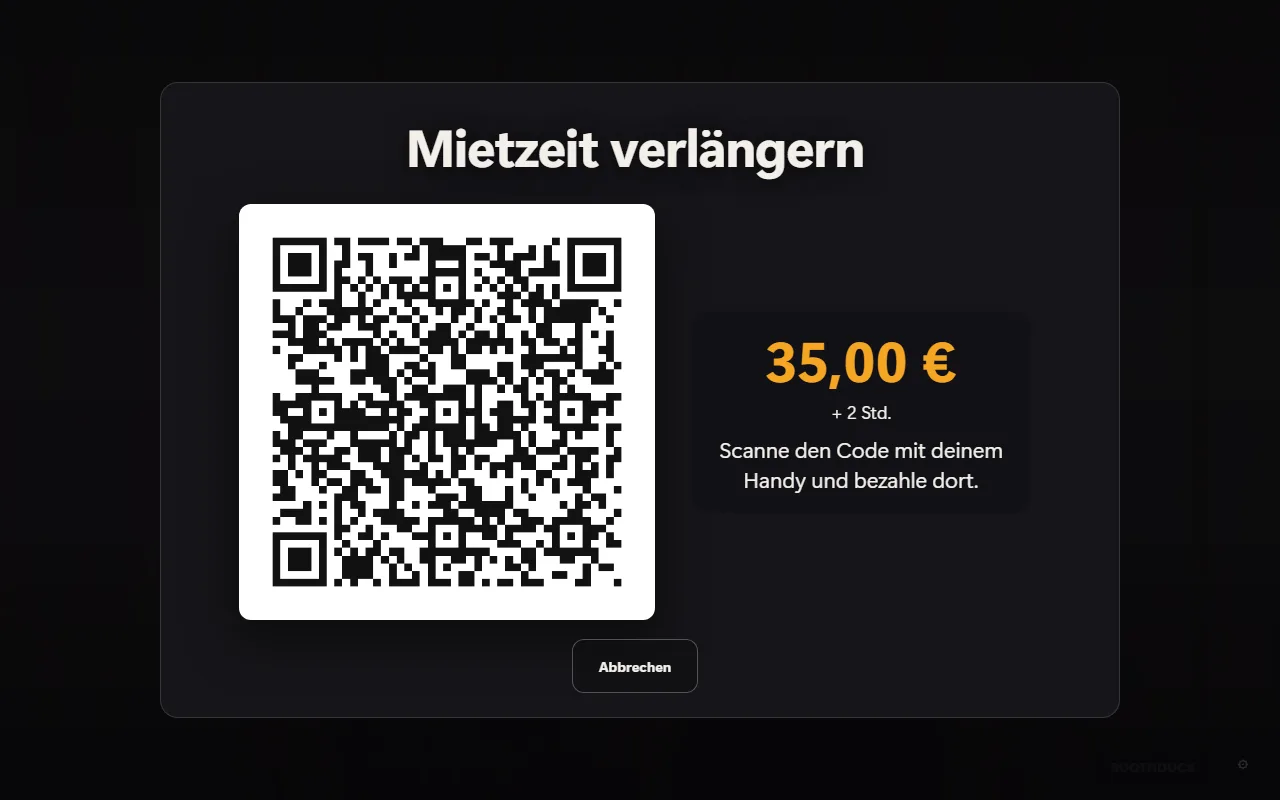
- After Extend the guest picks an option, scans the QR code and pays on their phone. The end then moves back by the time purchased, and the box keeps running straight away. Several extensions add up.
You can write the text of the end message and of the notice yourself under More. In the notice, {min} is replaced with the remaining minutes. If you leave the fields empty, the box shows a default text in the guest's language.
Requirements for extending
Extending runs through Guest payments and needs the same things:
- an account with Pro,
- a connected Stripe account (in the event tab Guest payments),
- when switching it on for the first time, ticking the box for the guest payment terms.
There is no commission; Stripe's fees are paid by your Stripe account. To try it out, More offers a Test mode with Stripe test cards (for example 4242 4242 4242 4242) – switch it off again before the event.
The rental time alone (end without extending) also works without Stripe.
Frequently asked questions
What happens without internet? The end still takes effect – the box knows it. Extending needs internet; without a connection a notice is shown instead of the button.
I need to unlock the box again after the end. Tap the lock at the bottom of the message and enter your operator PIN, or lift the lock in the Hub under Boxes. The box then stays open until the next change.
Can guests still view or reprint photos after the end? No – like any lock screen, the end message sits on top of the start screen.
Where do I see the payments? In the event tab Guest payments in the monthly overview, and in your Stripe account. In the Details tab the card shows by how many minutes guests have extended.
See also: Create an event, Set up the booking page, Online payment with Stripe.