Under Templates you find your photo layout library for all events. With groups and themes you keep track even of hundreds of templates, and you import finished template packages in a few clicks – including collections with many templates at once.
The library
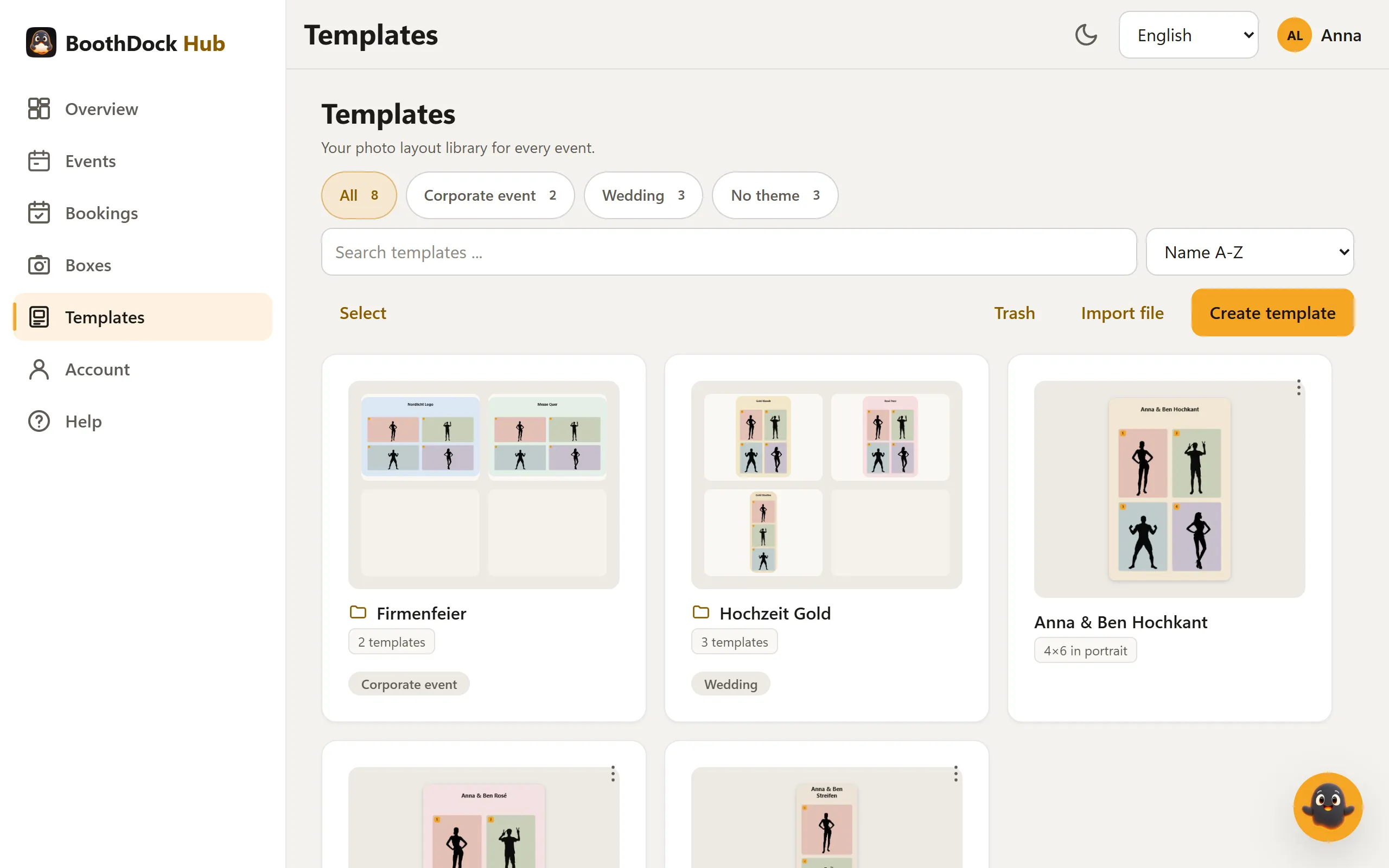
- Groups appear as folders with a small preview of their first templates, the number and their themes. A click opens the group; All templates takes you back.
- Themes such as wedding or corporate party appear as filters at the top: All, one button per theme with the number, and No theme.
- With Search templates ... you find a template by name; Sorting switches between Name A-Z, Recently changed and Paper format.
- Via the menu on each template (Actions) you open it in the editor with Edit, see its History, create a copy in another format, back it up with Save as file or put it into a group with Move to group ….
- Event copies – when you assign a template to an event, the event gets its own copy; it appears in the event's Templates tab. In the library, all copies sit collapsed at the very bottom under Event copies – including those whose event was deleted.
Deleted templates go to the Trash and can be restored from there.
Groups and themes
- Click Select and mark the templates (and groups) you want to organise. Select all marks everything currently shown.
- In the selection bar, choose what should happen:
- Move to group … – put them into an existing group or create a new one right away with New group ….
- Remove from group – the templates then appear in the overview without a group again.
- Add theme … or Remove theme … – attach a theme to individual templates.
- Move to trash – delete the selection; selected groups are dissolved.
- With Done you end the selection.
In an open group you can rename it with Rename group, set its themes with Themes (separate several with commas) or dissolve it with Dissolve group – the templates are kept. A group theme applies to all templates in it.
Importing template packages
Import file accepts ZIP files:
- a BoothDock bundle (a template backed up with Save as file),
- a single template in the common photo booth format – a ZIP with a template.xml, as used by dslrBooth and LumaBooth,
- a collection with many such templates, also as a ZIP inside a ZIP or with subfolders for Mac and Windows.
Here's how:
- On the Templates page, click Import file and choose the ZIP file (up to 1 GB).
- For a collection, the window suggests a New group … named after the file under Into group. You can change the name, choose an existing group or No group.
- Under Theme (optional) there is a Suggestion that the Hub detects from the templates' texts. Accept it, change it or leave the field empty.
- Click Import.
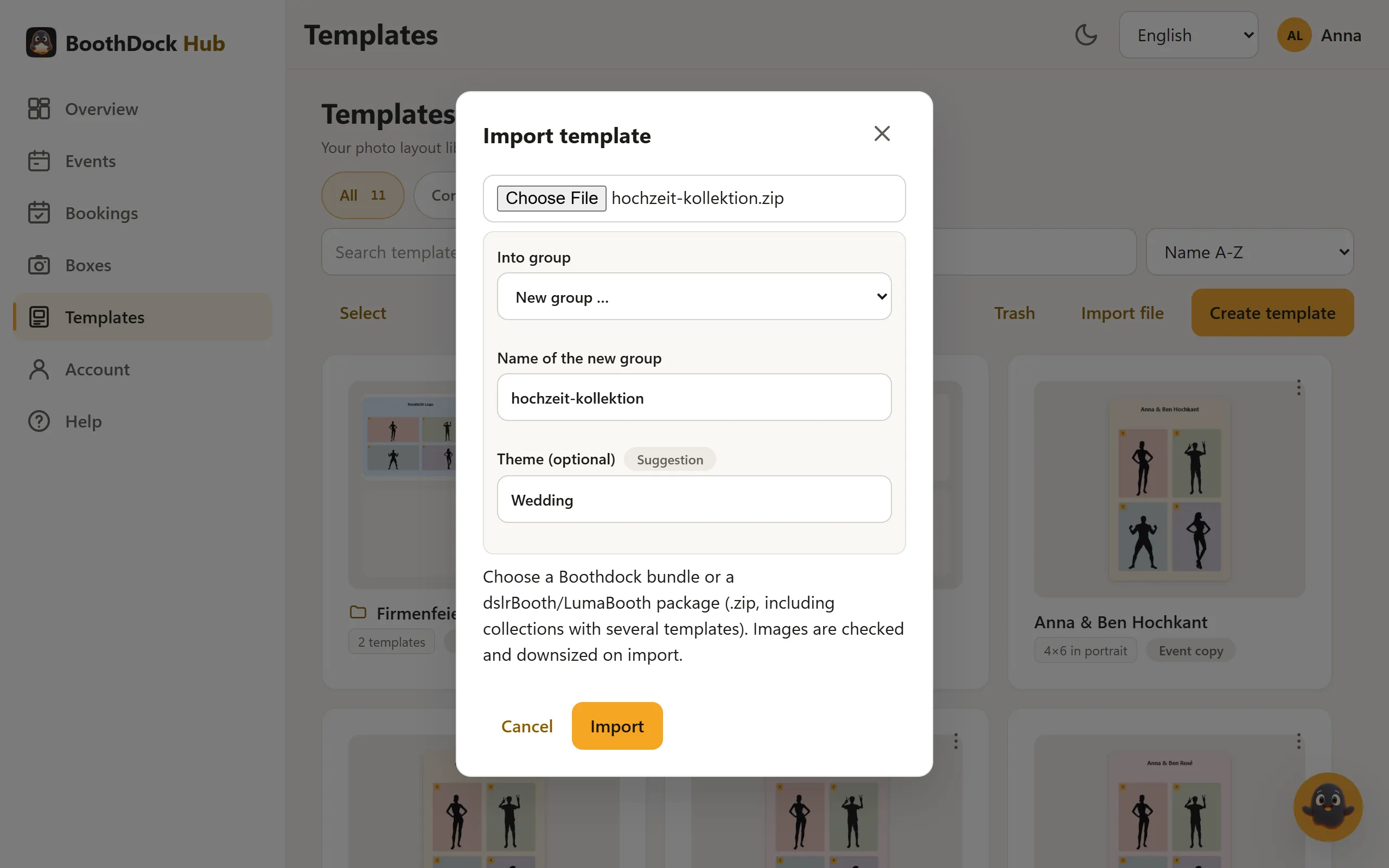
The package is read in your browser and each template is created individually – so even large packages don't need a long upload. During the import, the window shows which template is being processed, and afterwards a list: how many templates were imported, which duplicate files were skipped and what was skipped without a template (for example instructions or a PSD file). If the theme of individual templates clearly differs from the package, they get their own theme.
Photo fields, frame image and texts arrive as separate elements that you can keep editing in the editor. Images are checked and downsized on import. The template picker of an event also offers Import file – newly imported templates are then selected for the event right away.