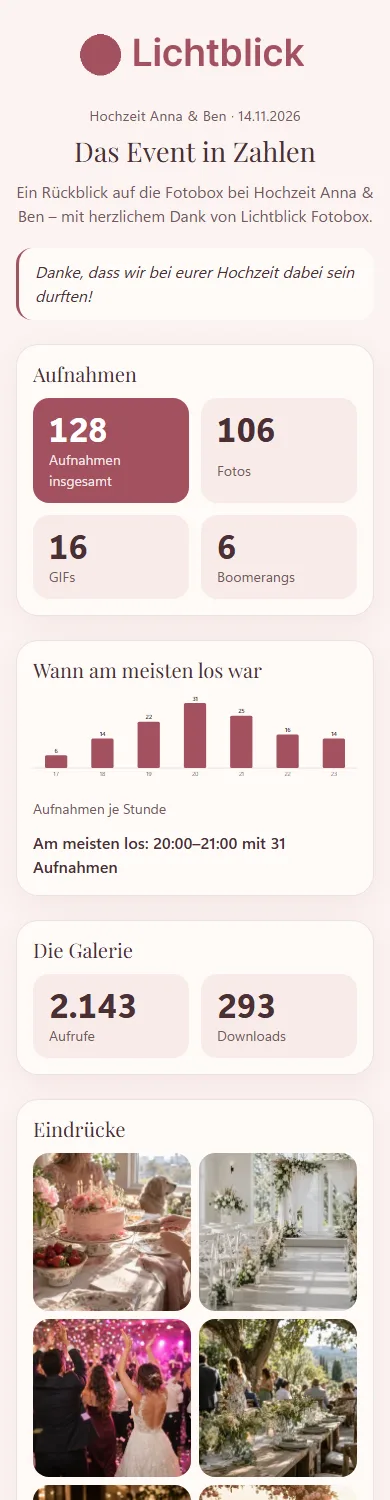
With the Report for the customer you send the couple or the company a look back after the event, in your own look: how many shots were taken, when things were busiest, how often the gallery was viewed and downloaded, a few pictures, the link to the gallery and your Book again button. It is a lovely keepsake – and a good reason to book you again.
Turning on the report
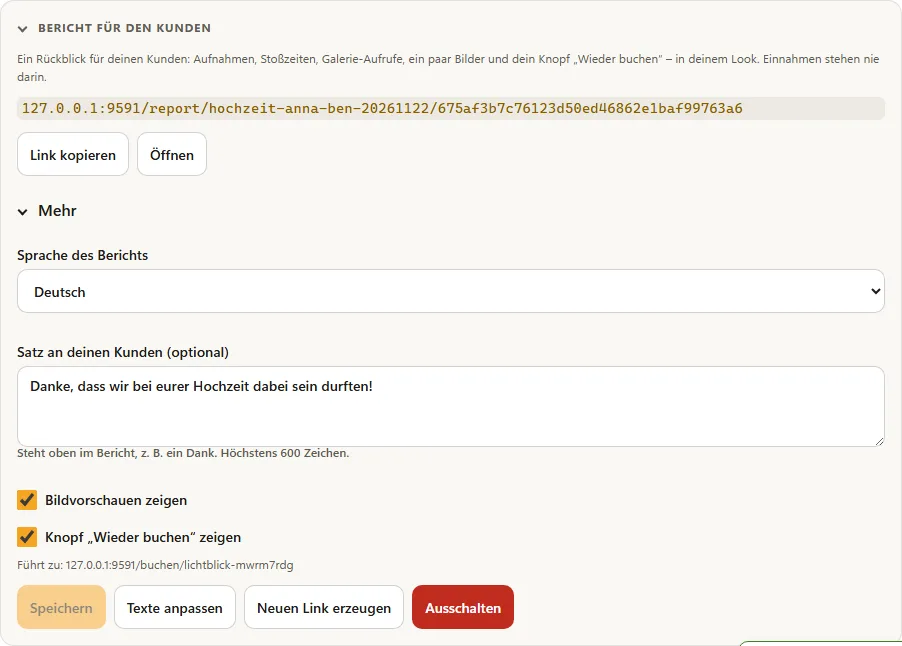
- Open Events and choose the event. At the bottom of the Overview tab you find the Report for the customer section. Expand it.
- Click Turn on report. The Hub creates its own link that nobody can guess.
- Pass the link on: Copy link, Open to view it, or Send by email straight to your customer.
The report only contains totals: shots by type, shots per hour, gallery views and downloads. Revenue is never shown in the report, and there is no information about individual guests. On the page, your customer can also Save as PDF.
Your look
The report automatically uses your logo from your billing details (otherwise your brand logo), plus the colour and design of your booking page. At the bottom it shows your contact details as well as your legal notice and privacy policy, if you have set them up.
Send by email
Send by email opens a window with Your customer's email address, Email language, Subject and Text. The address is only used for this one email and is not stored. Placeholders: {eventName}, {brand} and {link} (link to the report). With Save as my default text for this language, your text is used for every report email in this language from then on. The email arrives with your logo and a preview image.
More: language, personal line, buttons
Under More you can set:
- Report language – the default is your account language. When you send it by email, the email's language applies.
- A line for your customer – appears at the top of the report, for example a thank-you (at most 600 characters).
- Show picture previews – up to six pictures, those with the most hearts first. Previews are only available if your customer may see all photos anyway: with the Link for the host or when the gallery is shared for the whole event.
- Show “Book again” button – leads to your booking page if it is online, otherwise to the website from your business card.
- Customise texts – change every visible text of the report and the email in every language. Leaving a field empty means: default text. Your texts apply to all your reports in that language.
- Create new link – the previous link stops working afterwards.
- Turn off – the link no longer shows anything. If you turn the report on again, the same link works again.
Good to know
- The numbers come from the uploaded shots and the gallery statistics. New shots and views appear the next time the report is opened.
- The hours are shown in the event's time zone.
- Anyone who opens a wrong or old link sees a neutral page.