Besides the ready-made AI styles, you can create custom styles – for example a look that matches a wedding or your company colours. Your boxes offer them to guests next to the ready-made styles.
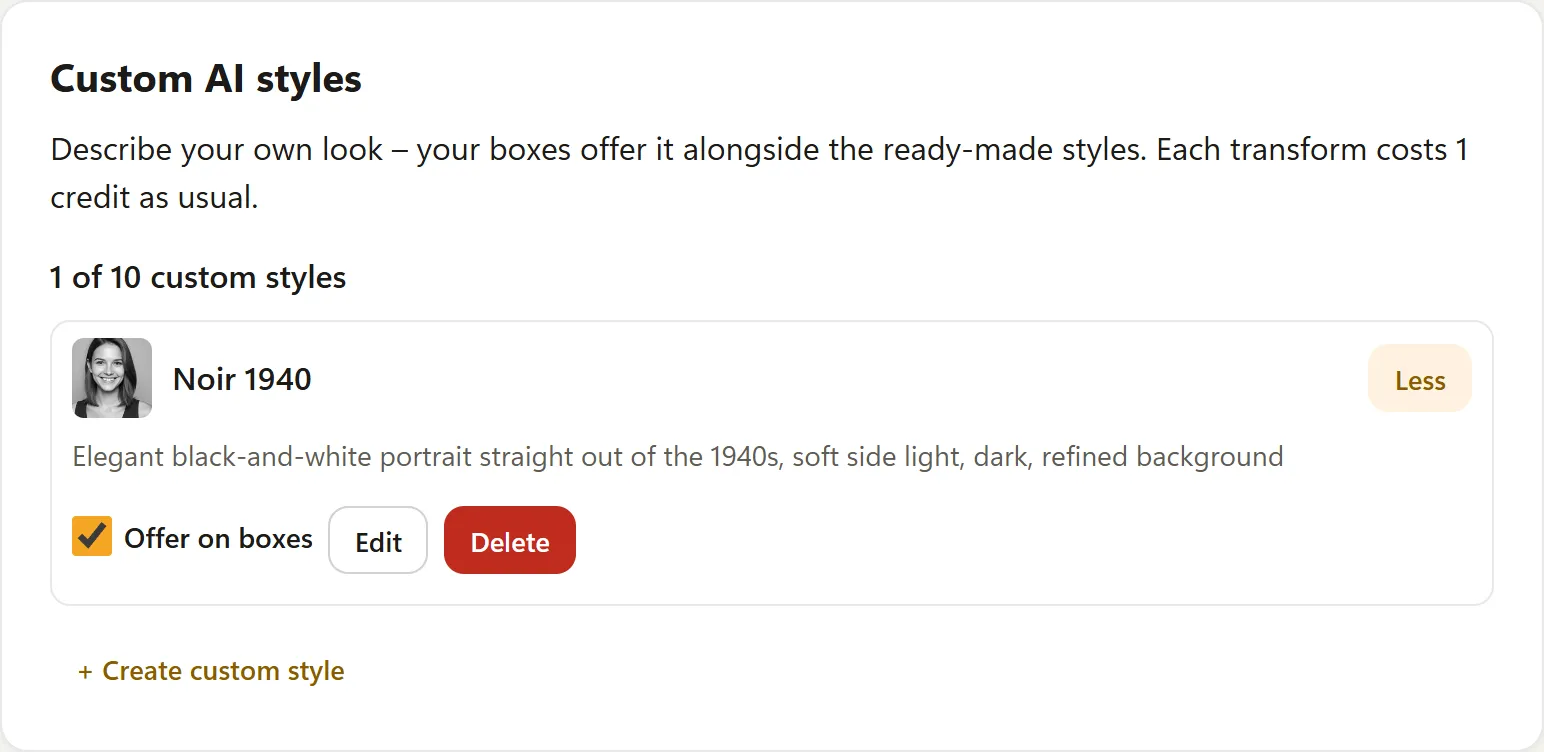
Create a style
- In the Hub, open Account → AI Credits and tap Create custom style in the Custom AI styles card.
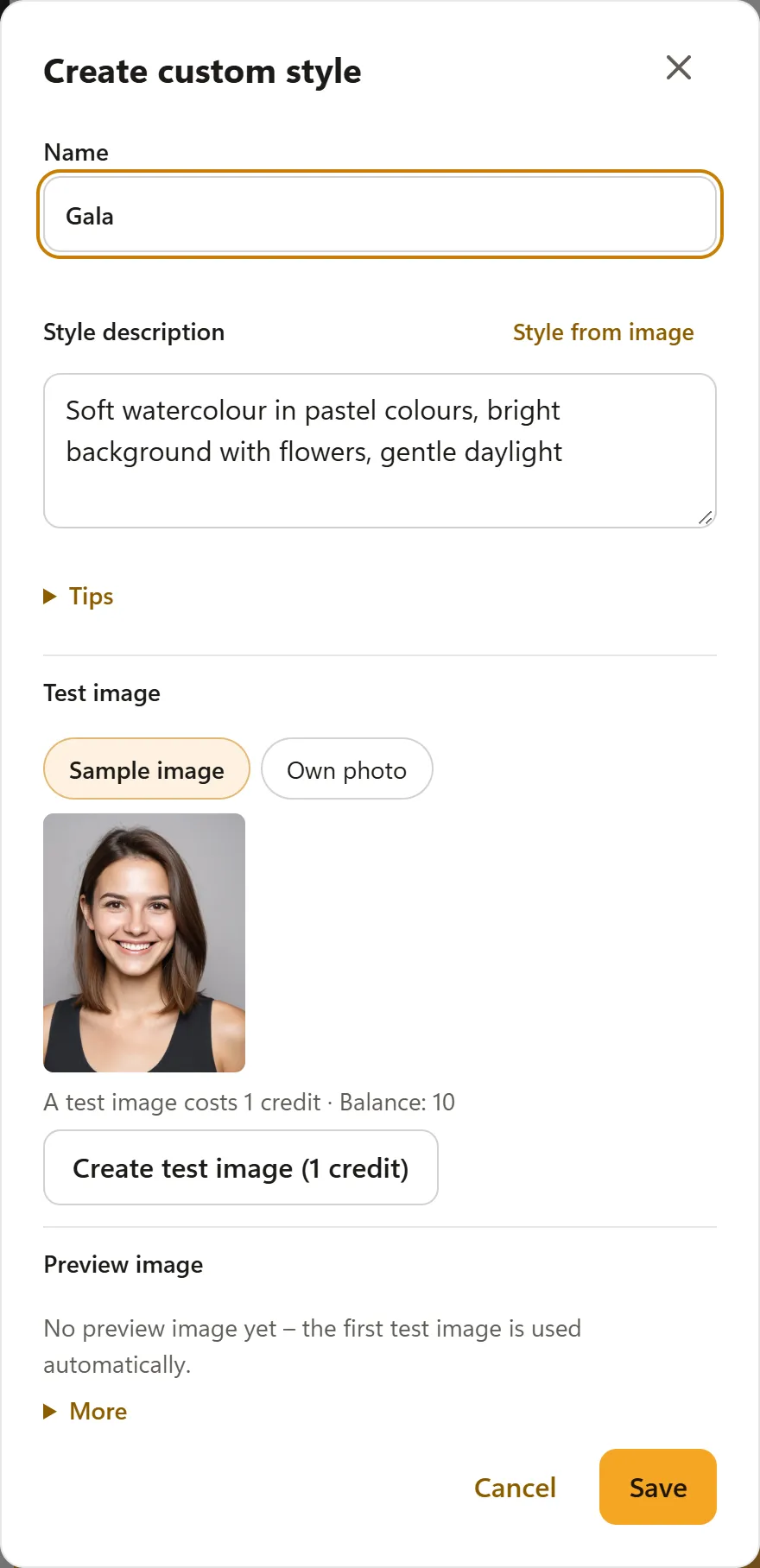
- Enter a name – guests see it at the box.
- Under Style description, describe the style, colours, light and surroundings – not the person. Tips has hints and examples you can copy.
- Tap Save. The boxes pick up the style at the next sync.
The Hub checks the name and description automatically: brand and artist names are rewritten neutrally, impermissible content is rejected. If a style changes how guests look (for example costume or age), the Hub shows a yellow hint and asks before saving.
Style from image
Have a picture whose look you like? Tap Style from image next to Style description and choose the picture (JPEG, PNG or WebP). The AI describes only the style – technique, colours, light and mood, no people and no subjects – and fills in the description in your language. Check it and adjust it if needed. The picture is not stored and costs no credit.
Test image and preview image
Under Test image you can see how the style looks before saving – with the Sample image or with your Own photo. A test image costs 1 credit. The first test image automatically becomes the Preview image that guests see in the style selection at the box; use Use as preview image to take a later one. Under More you can upload a preview image of your own.
How many styles?
| Plan | Custom styles |
|---|---|
| Free | 1 |
| Pro | 10 |
| Business | 25 |
If you switch to a smaller plan, your styles stay saved. Only the oldest up to the limit are offered; the others are listed as Paused (plan). Offer on boxes pauses a style without deleting it.
Credits
A transformation with a custom style costs 1 credit like any AI style, with one free retry. A test image costs 1 credit; the check and Style from image are free.
Requirements
The AI mode must be switched on at the box, and the box needs a current version of BoothDock Studio. If the card shows the hint about a Studio update, update the box.
See also: AI style transformation and credits.