Connect your BoothDock account to your AI assistant and ask, for example: “How many requests did I get this week?” or “Which box has a problem right now?”
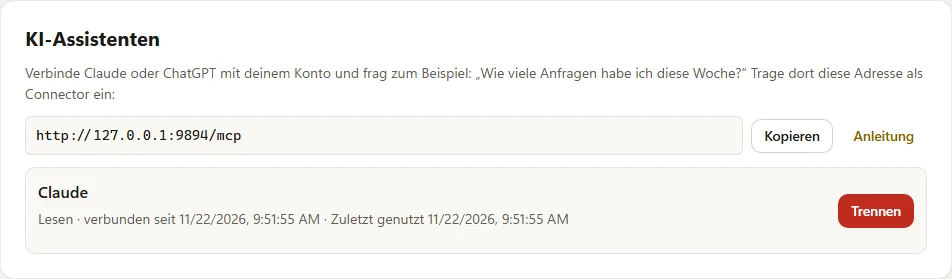
The address
In the Hub under Account → Security you find the AI assistants card with the address to copy: https://boothdock.cloud/mcp
Set up in Claude
- In Claude, open Settings → Connectors and choose Add custom connector.
- Enter a name, for example BoothDock, and as URL
https://boothdock.cloud/mcp. - Tap Connect, sign in to the Hub and allow access with Allow.
Set up in ChatGPT
- In ChatGPT, open Settings → Apps & Connectors → Advanced and turn on Developer mode.
- Choose Create, enter a name and as MCP server URL
https://boothdock.cloud/mcp. Authentication: OAuth. - Connect, sign in to the Hub and allow access with Allow.
- Select the BoothDock app in the chat and ask your question.
Custom connectors depend on the provider’s plan; labels may differ slightly between versions.
What you can ask
Events and gallery links, requests and bookings, customers, invoices, templates and the status of your boxes – for example “Send me the gallery link of the Miller wedding” or “Anything new since yesterday?”.
Taking action (Pro only)
With Pro the assistant can also act: create and change events, accept or decline requests, create quotes, send galleries, write in the customer chat, send box commands and adjust the booking page. It always shows you a preview first and only acts after your explicit yes. Deleting, payouts and card payments are never possible. Refunding deposits and changing prices only if you tick “Money” on the connection in the Hub (owners and admins only) – with a daily limit, explicit confirmation of amount and recipient, cancellation on any deviation, a log and an email to you. The assistant can never do more than you can in the Hub.
With Pro it can also design for you: the design, blocks and labels of your booking page, package names and descriptions (never prices), the gallery look, and texts, colours and fonts of your photo templates. Before each such change it backs up the previous state – just say “undo that”.
Before an event it checks on request whether everything is ready (date, template, boxes online, print limit, photo tasks), sets boxes, print limit and photo tasks including the live wall, and turns a customer email into a request with a quote draft – nothing is sent to the customer. Countdown announcements and capture modes are set at the box.
If you paste customer emails into the chat, your AI provider processes this data on your behalf – you need your own agreement with that provider for this.
Insights, help and customers
Also ask for key figures of a month (requests, bookings, top packages, sessions – revenue is only shown to owners and managers), a weekly review, the live state of an event, a diagnosis of a box with suggestions, free boxes on a date, contracts and the customer file with notes and past bookings. The assistant answers how-to questions from this wiki. For re-bookings and reviews it suggests customers and writes drafts – sending only after your yes, with an opt-out note.
With Pro you can also: set or remove the gallery PIN, change the gallery lifetime, send the event report to the customer, create a custom AI style from a description, invite team members or change their role and write notes on customers – each with preview and confirmation.
Disconnecting
Under Account → Security → AI assistants you see every connection with its rights and disconnect it with Disconnect. The assistant immediately loses access.
Privacy
What you ask, including the answers, goes to the provider of your assistant – also data of your customers. Check that you have a suitable contract with this provider.