A station is a second device next to the box: an iPad, iPhone, Mac or Windows PC running the BoothDock Station app. Guests start their capture there, see the event’s pictures, print and share them – or the station simply shows the latest pictures as a slideshow, for example on a TV. One station can serve several boxes, and several stations can be connected to one box.
BoothDock Station is released together with the next version of BoothDock Studio – only that version can connect stations to the box.
What you need
- Box and station on the same Wi-Fi. The station talks to the box directly, without a detour through the internet.
- On the box, in the admin area under System → Automation → Stations (BoothDock Station), turn on the Allow stations switch.
- If the box runs on Windows, the network there must be classified as private; on a “public” network the box doesn’t let any devices in. The box then shows a notice.
Pair a station
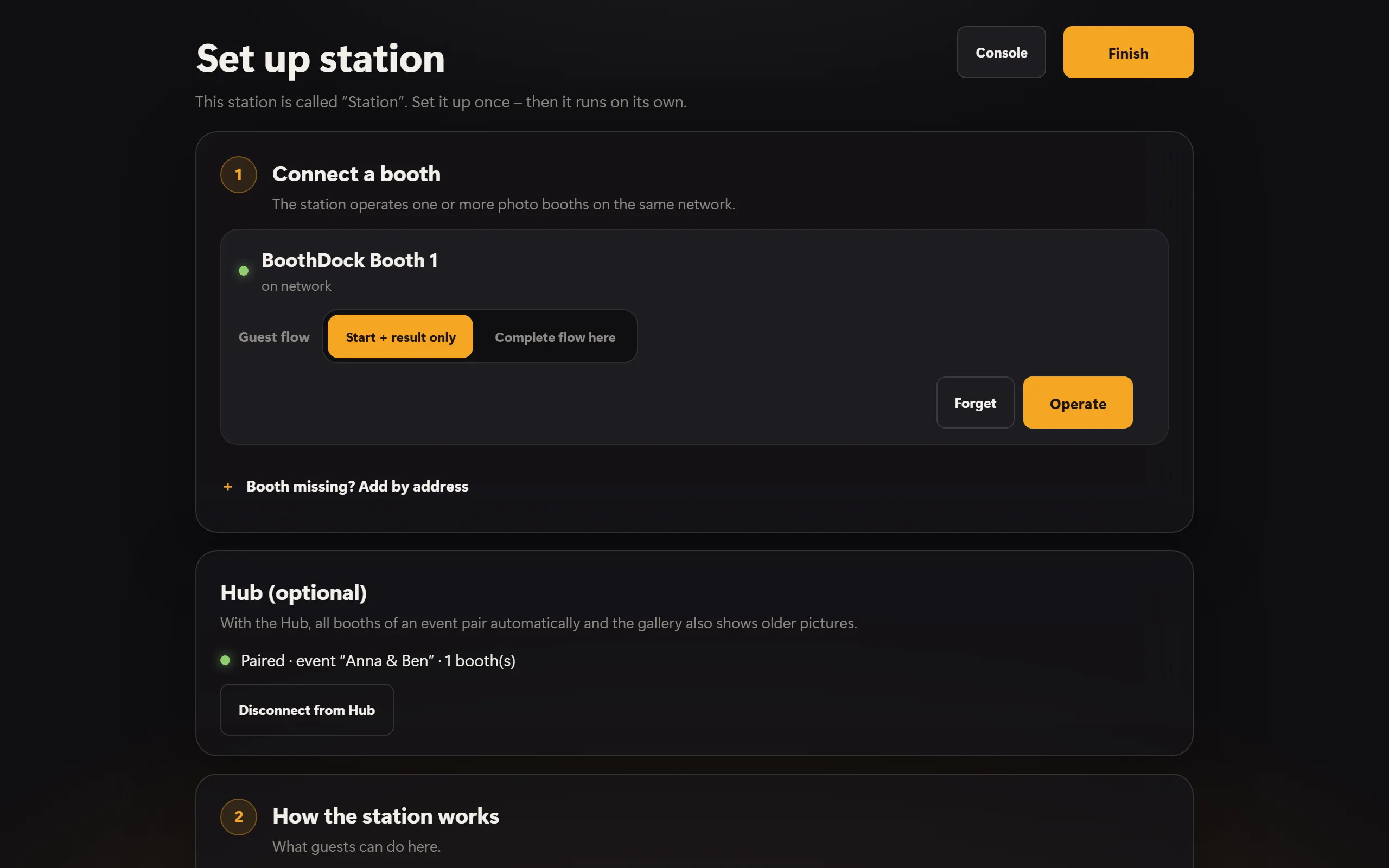
On first launch, the station opens the setup. Under Connect a booth, the boxes it finds on the network appear.
- Tap Pair next to the box you want.
- On the box, under System → Automation → Stations, tap Show pairing code. The six-digit code is valid for ten minutes.
- Enter the code on the station and give the station a name, for example “Bar”.
Each station gets its own key in the process – the box’s password never leaves the box. On the box, all paired stations are listed under Paired stations; you can remove each one individually there.
If the station can’t find the box, the Wi-Fi is usually blocking discovery (common on hotel and guest Wi-Fi). In that case, choose Booth missing? Add by address: the address and port are shown on the box under System → Automation → Stations.
Pair with the Hub (optional)
With the Hub, all boxes of an event pair with the station automatically, and the station’s gallery also shows older pictures from the event. Stations in the Hub are part of the Pro plan.
- With the Companion app: In the setup under Hub (optional), the station shows a QR code. In the BoothDock app, tap Pair booth/station and scan the code.
- Without a phone: In the Hub under Boxes → Stations, enter the code shown below the QR code. The code is valid for ten minutes; after that, Get a new code fetches a new one.
The station then pairs on its own. In the Hub, you assign it to an event; you disconnect it there or on the station with Disconnect from Hub.
How the station works
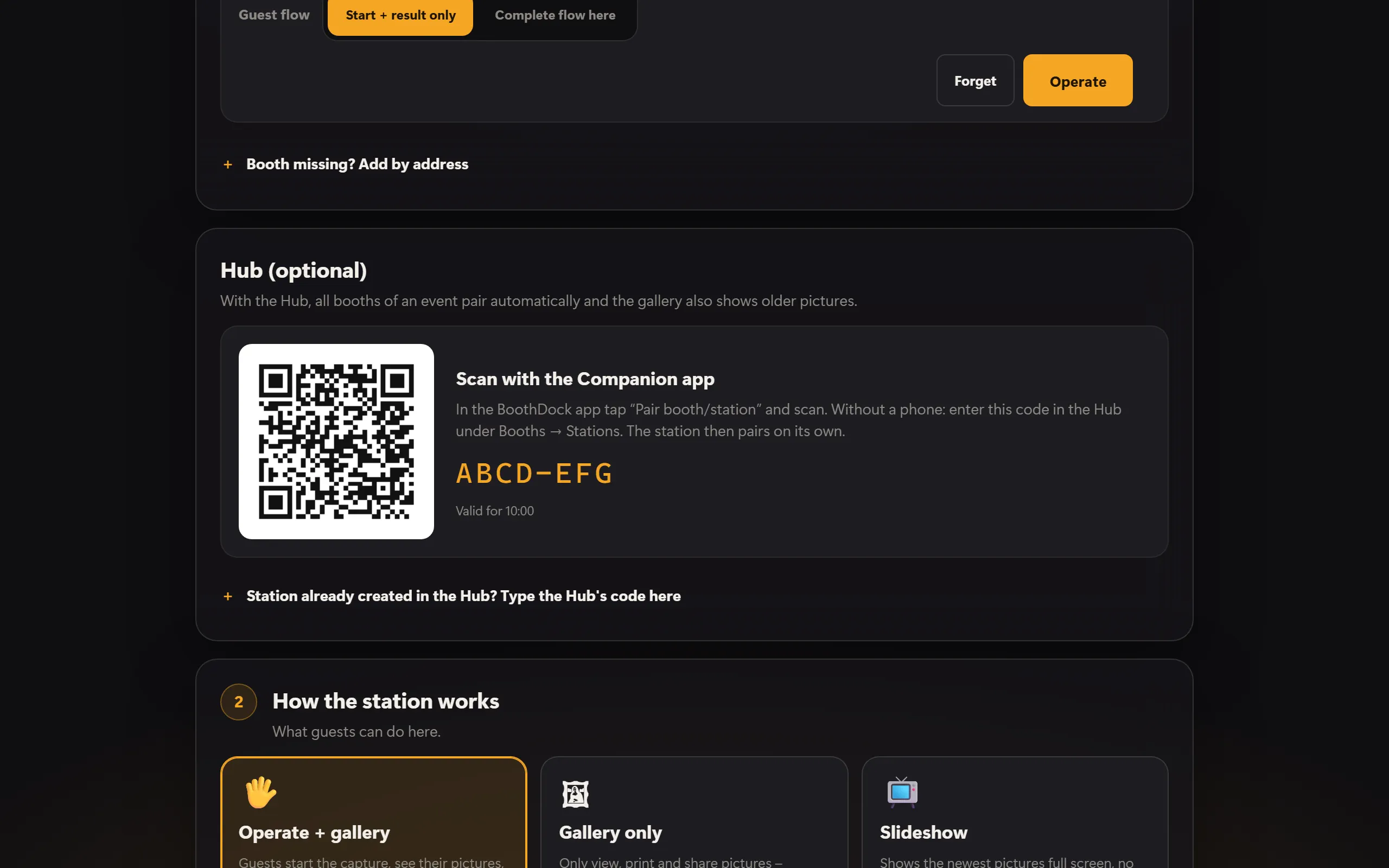
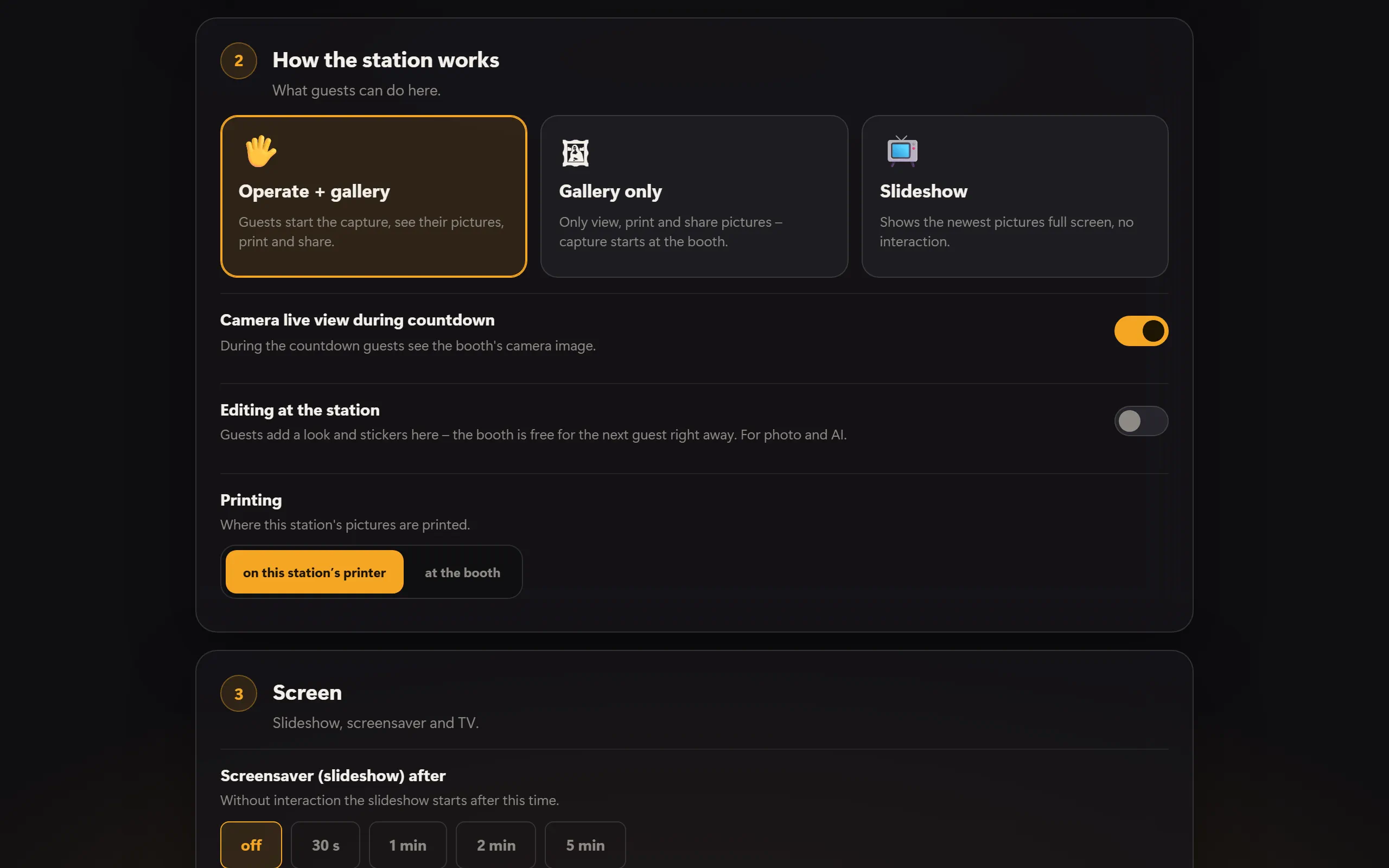
Under How the station works, you decide what guests can do here:
- Operate + gallery – guests start the capture, see their pictures, print and share.
- Gallery only – only view, print and share pictures; capturing is started at the box.
- Slideshow – shows the latest pictures full screen, without interaction.
For each box, you also choose the Guest flow: Start + result only (choosing the layout, background and style stays at the box) or Complete flow here (everything at the station). With Camera live view during countdown, guests at the station see what the camera sees – for this, Live view on stations must be turned on at the box.
Under Printing, you decide where to print: on this station’s printer or at the booth.
Gallery, printing and sharing
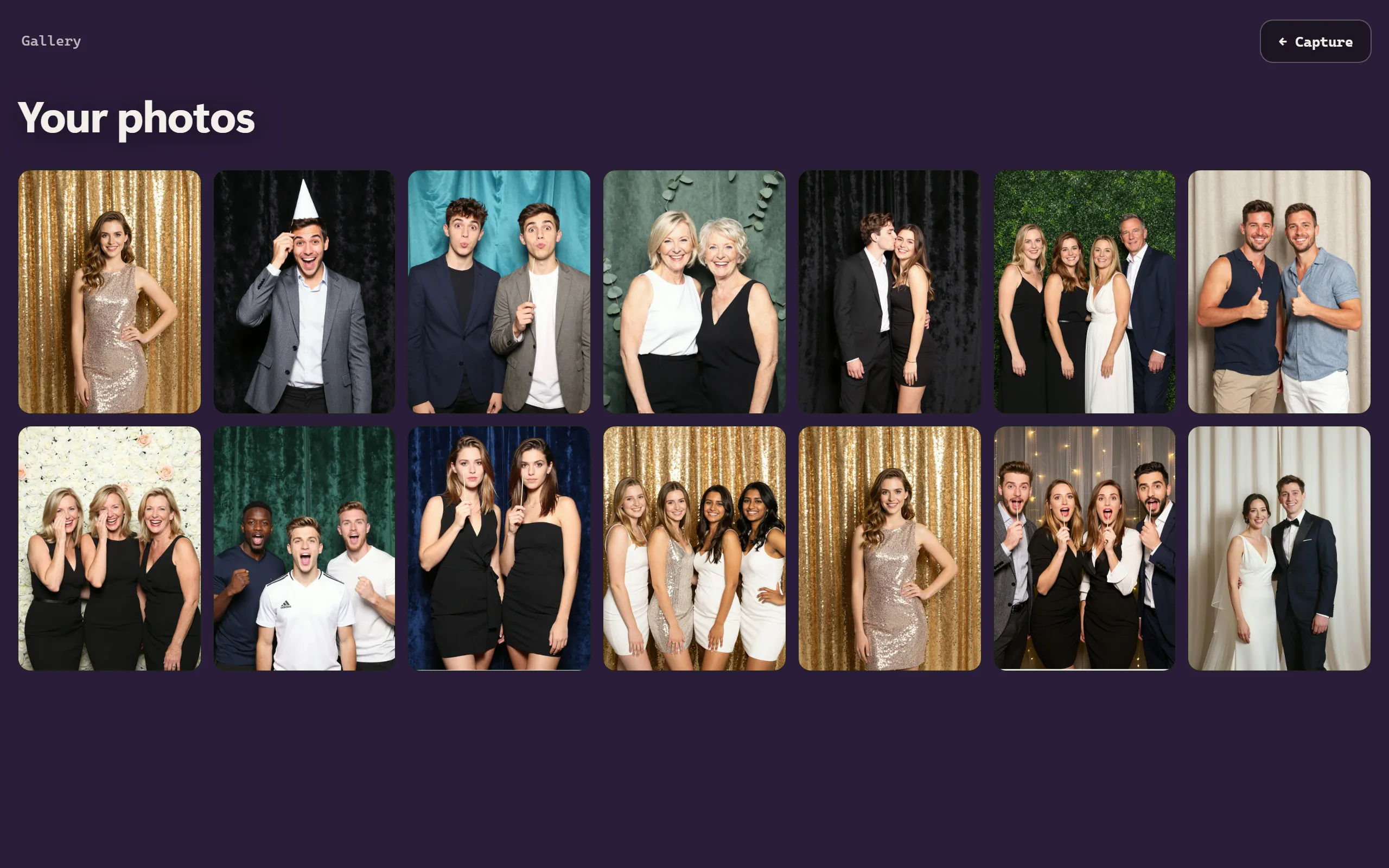
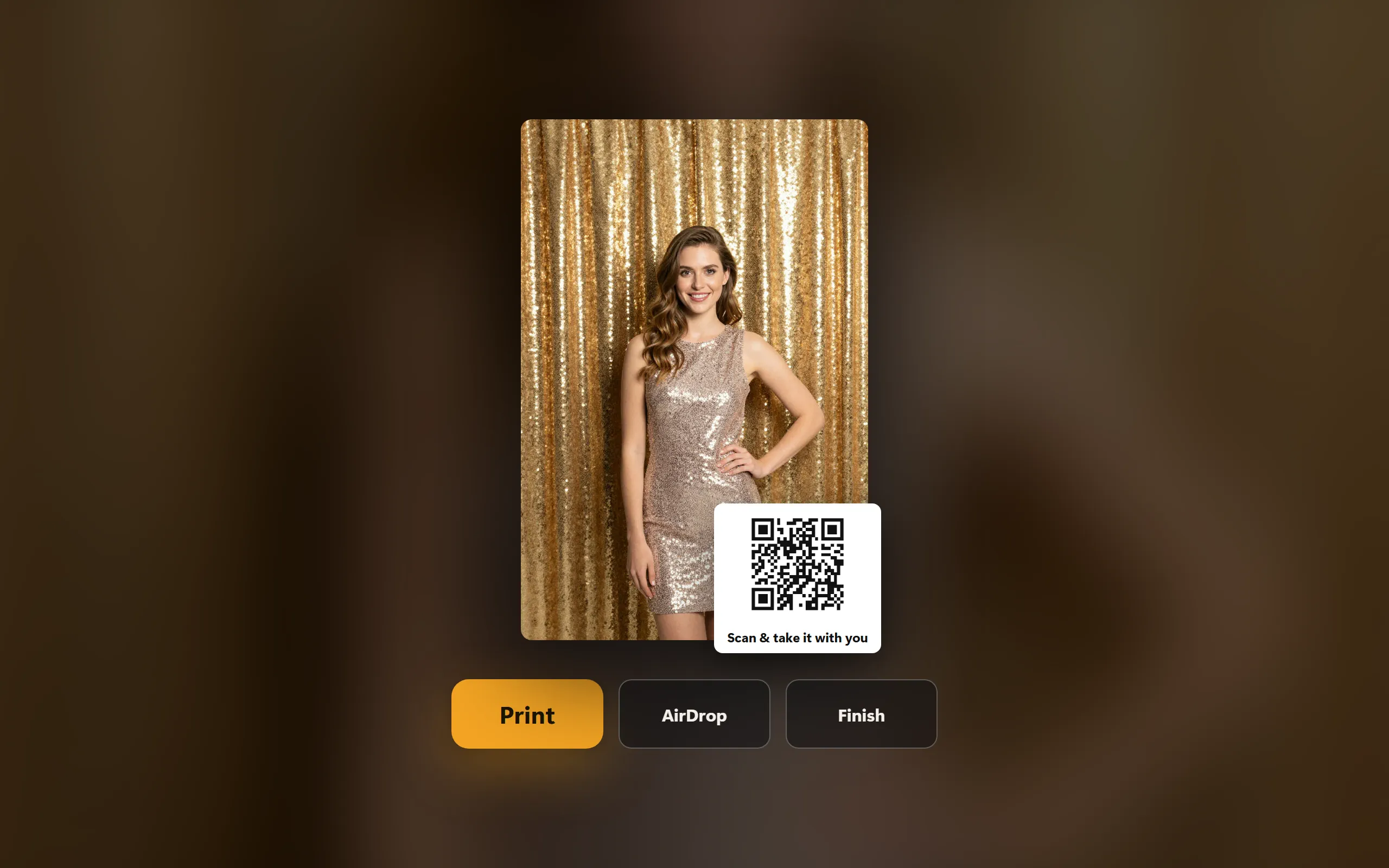
The gallery shows the pictures of the active event. Tapping a picture opens it large – with Print, the QR code to the online gallery and, on iPad, iPhone and Mac, AirDrop.
Editing at the station
If you turn on Editing at the station in the station’s setup, the guest gives their picture a look and stickers at the station after the capture – meanwhile, the box is already free for the next guest. This applies to photo and AI. The box holds the picture back until then; after five minutes without a result, the unedited original goes to the gallery and delivery. Only the station where the capture was started can edit. The setting is off by default.
Slideshow and TV
- Screensaver (slideshow) after – without interaction, the slideshow starts after this time.
- Slideshow: time per picture – how long each picture stays on screen.
- TV / second screen – on iPad and iPhone via an HDMI adapter or AirPlay (“Screen Mirroring”), on Mac and Windows via a second screen. The slideshow then runs there while the station keeps being operated.
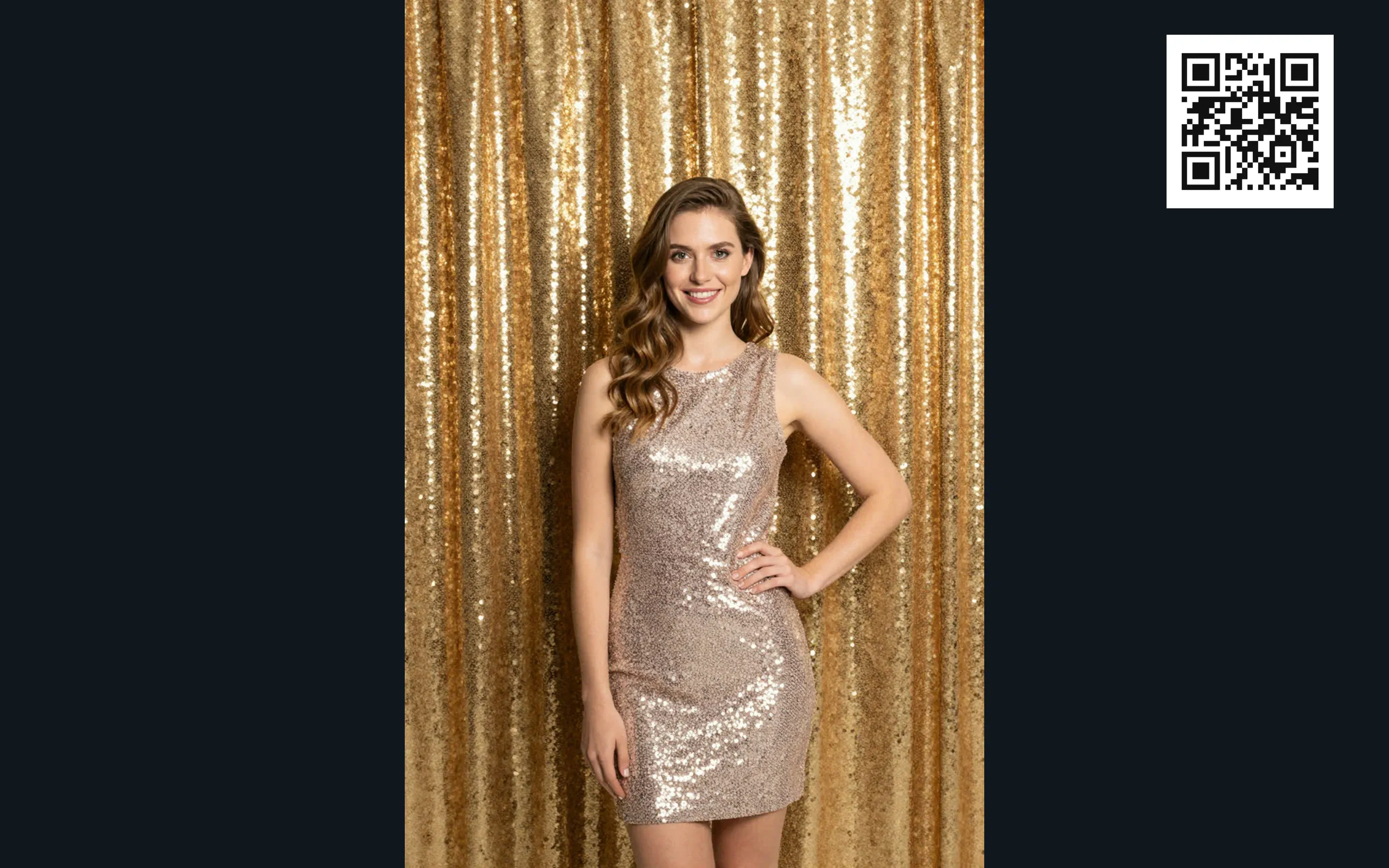
Design, colors and QR code of the slideshow come from the box’s design.
Console
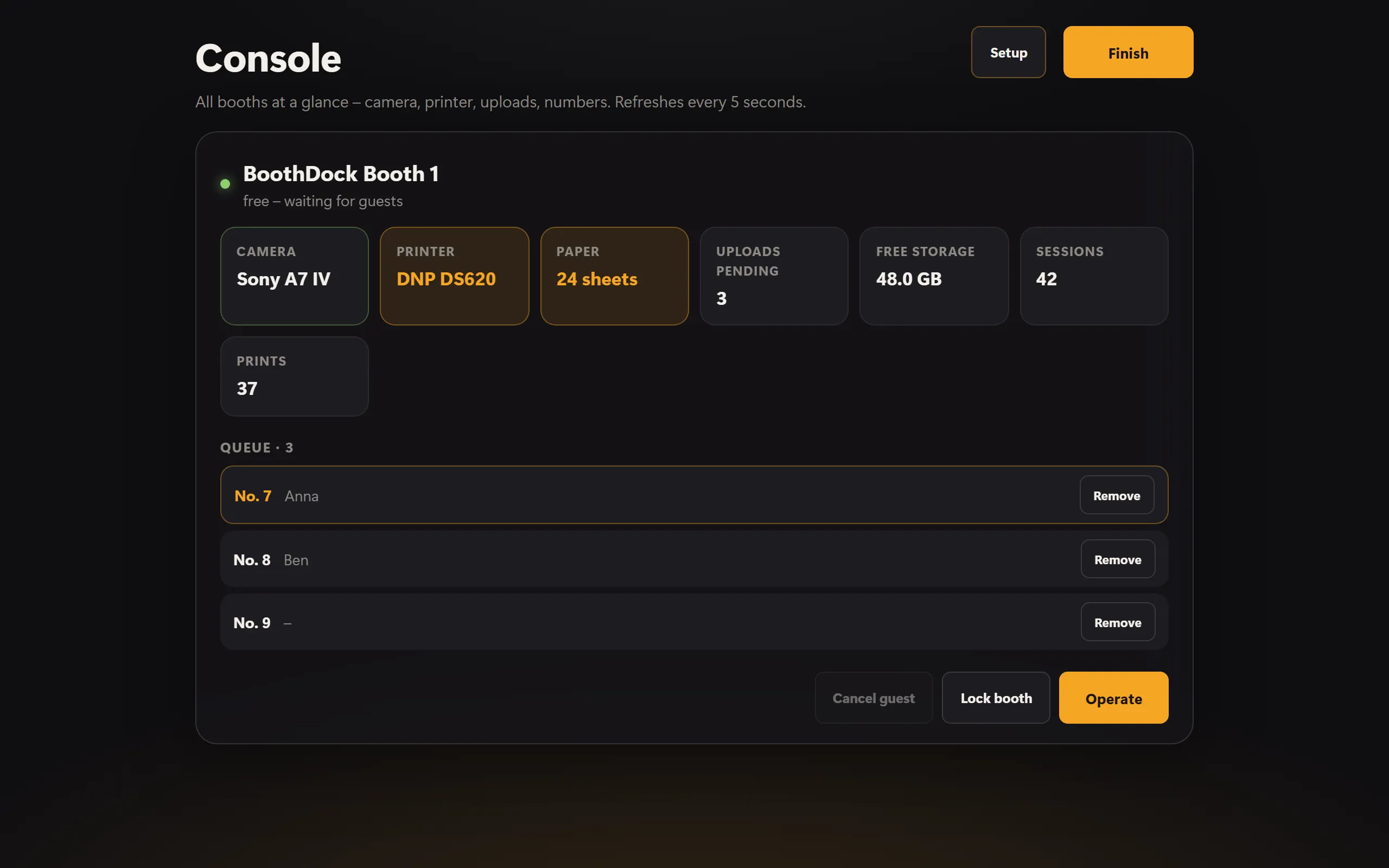
The Console shows all paired boxes at a glance: camera, printer, paper, pending uploads, free storage, sessions and prints. The values refresh every five seconds. From here, you can lock a box with Lock booth and release it again with Unlock booth, or cancel a running session with Cancel guest. You open it at the top of the setup with Console.
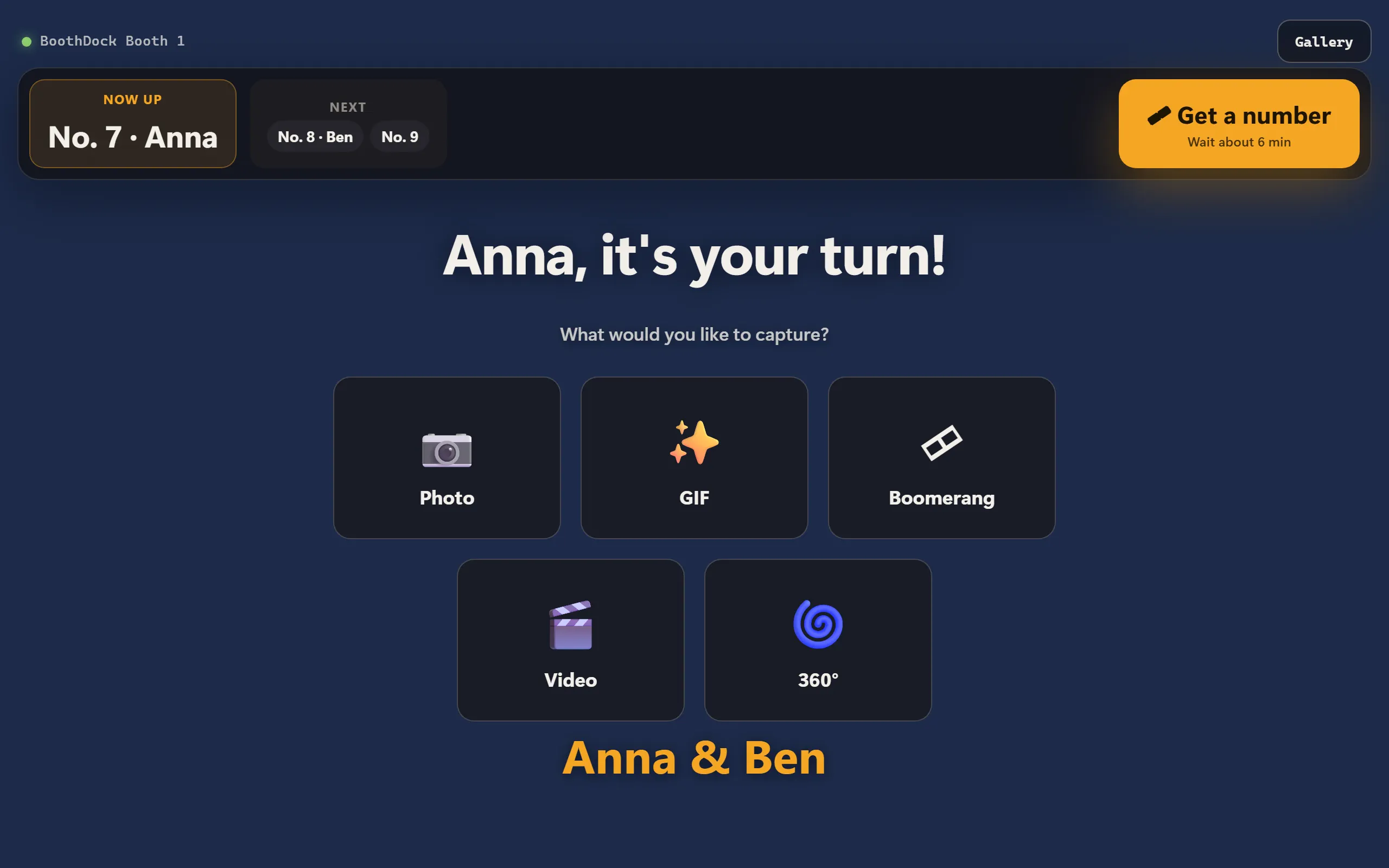
If the Queue is turned on at the box (System → Automation → Stations), guests line up at the station when it gets busy and take a number; the box’s start screen shows whose turn it is. In the console, you see the queue and can remove entries with Remove.
Language and protection
- Language – Automatic (device) follows the device’s language; otherwise, pick one of the 24 languages as a fixed setting.
- Admin PIN – 4 to 8 digits. Without a PIN, anyone can get into the setup by tapping the title. Set a PIN for live use.
- Kiosk lock – during guest use, full screen without Dock, menu bar or window switching; the app can’t be quit. The admin area (with PIN) lifts it.
Windows: startup and updates
On Windows, the setup also has the Startup & updates card:
- Start with Windows – the station starts by itself after the computer is switched on. If it crashes, it restarts itself.
- Automatic updates – the station installs new versions at night between 3 and 5 a.m., if nobody has used it for half an hour. Check for updates and Update now do it right away; the station briefly restarts in the process.
- Quit app – closes the station. With the kiosk lock on, this is only possible here.
On Windows, BoothDock Station is installed for the signed-in user, without administrator rights. Updates come only from boothdock.cloud and only with Boothdock’s signature.