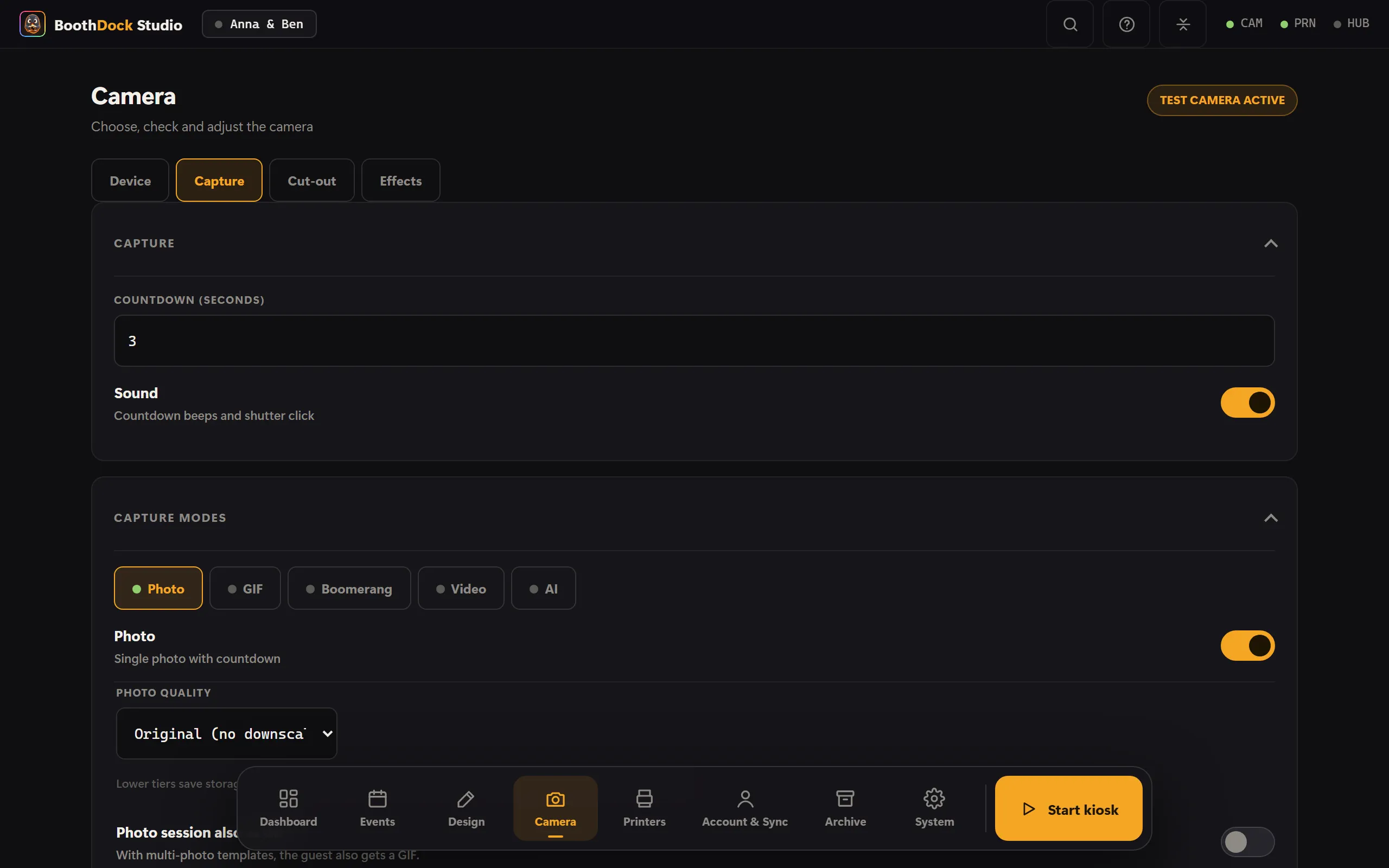
Photo is always active. You can enable additional modes in the admin area under Capture modes – the mode selection is only shown to the guest when more than one mode is active.
The modes
| Mode | Description |
|---|---|
| Photo | Single or multi-shot capture based on a template. Always active. |
| GIF | Several individual shots as a flipbook animation. Number of frames and interval configurable. |
| Boomerang | Short back-and-forth loop. Capture duration configurable. |
| Video | Short video with sound. Maximum duration and quality level configurable. |
| AI | A single photo is transformed into a style via AI (AI & credits). |
| 360° | Fixed-length clip with speed changes – for 360° platforms and slow motion (360° / Slow motion). On Windows, and on iPad and iPhone from version 1.4.0. |
Quality levels
For photo and video you choose a quality level (e.g. Original/High/Balanced/Data-saving). Principle: downscale with a cap, never upscale – the file is never larger than the source.
Video and sound
- System camera (Canon) records real camera video with sound; Sony/webcam use the live-view/webcam stream.
- Optionally, video can come from a separate device (e.g. photo via system camera, video via webcam) – this only appears when more than one video device is detected.
The hint shown while the shutter fires
With a system camera, the bridge switches off the live view for the real exposure. During that time the last frame stands still - the guest sees themselves frozen and doesn't know whether anything is happening.
That is why BoothDock puts a bright surface with text and an arrow over it while the shutter fires. It not only covers the frozen frame, it also brightens the face: at that moment the screen is the largest light source in front of the guest.
Adjustable under Design → Screens → Capture:
- Show - on or off. The default is on.
- Text - for example "Smile!".
- Arrow - up, down, left, right or none. It shows the guest where the camera is; with most setups people otherwise look at their own picture instead of into the lens.