Gallery templates give your event's guest gallery a look of its own: a cover with your best photos, matching colours and fonts – on a phone just as much as on a big screen. You set everything up in the Hub, and the live preview shows you straight away how it looks.
Where to find it
- In the Hub, open Events and choose your event.
- Click the Branding tab.
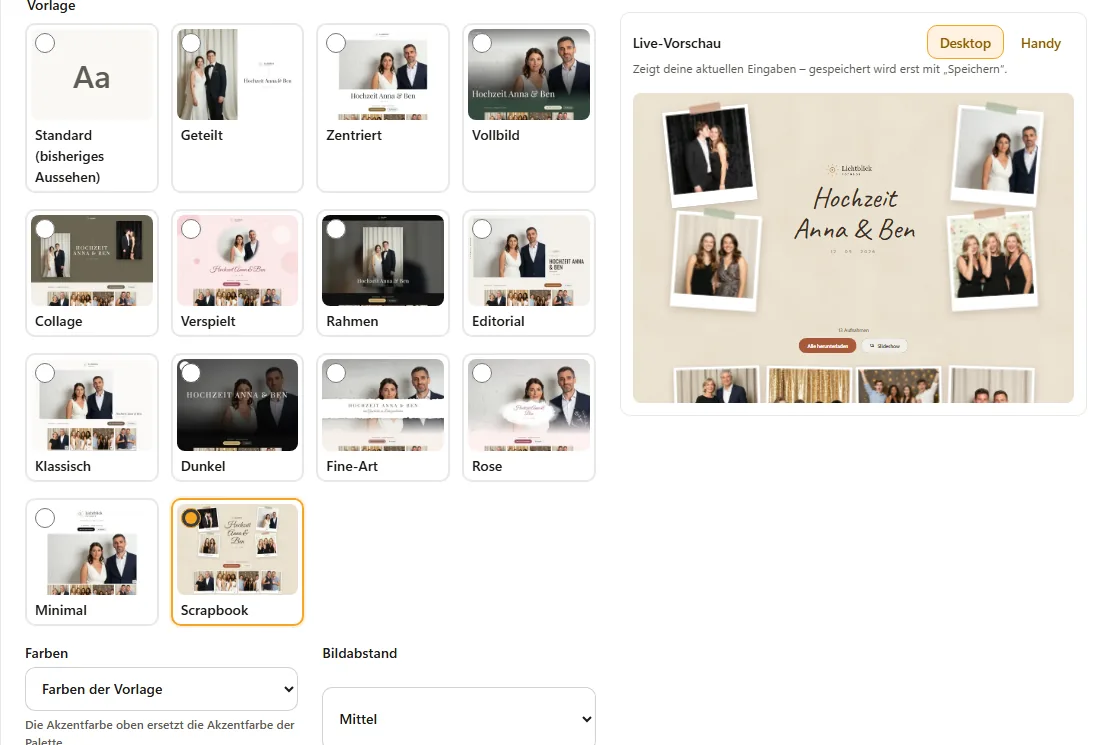
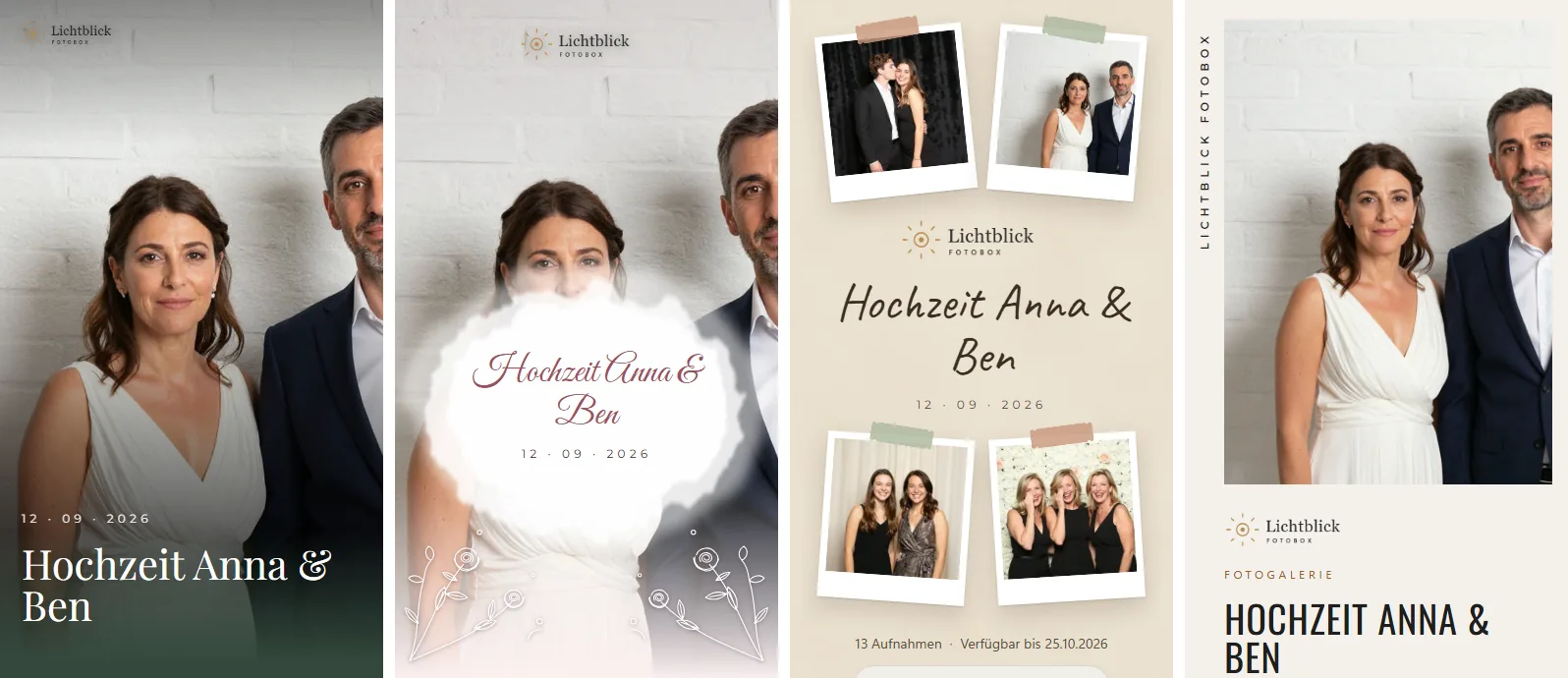
- Pick a template under Gallery template. The Live preview next to it shows the gallery with your real photos – switchable between Desktop and Phone.
- Click Save at the top right. Only then do your guests see the new look.
Display name, logo, accent colour, font, your own links and legal links are set in the same tab – see Gallery in your own look (branding).
The 13 templates
A template designs the top of the gallery; the photos below stay as they are. With Standard (current look) the gallery stays as it was.
| Template | What it looks like |
|---|---|
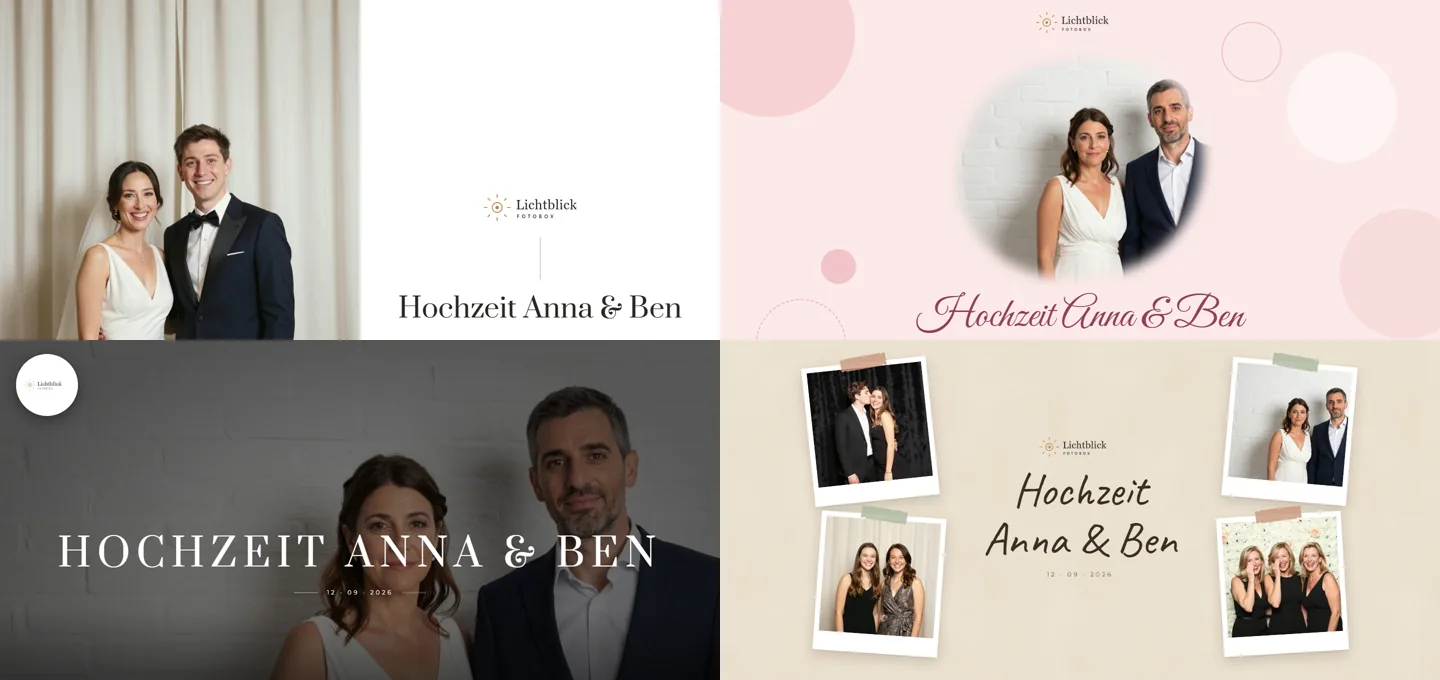
| Split | cover photo on the left, logo and title next to it on the right |
| Centred | large cover photo, the title centred below |
| Full screen | cover photo across the full width, the title sits in the picture |
| Collage | two cover photos to the left and right of the title |
| Playful | round cover photo, script lettering and colourful circles |
| Frame | framed cover photo on a dark background |
| Editorial | magazine look with a big headline next to the picture |
| Classic | large picture with the title in script beside it |
| Dark | dark stage, the title in large letters over the picture |
| Fine art | torn paper edge, fine capitals and a line in script |
| Rose | watercolour wash and delicate floral lines around the title |
| Minimal | no cover photo: logo, title and straight into the photos |
| Scrapbook | four instant photos with tape around the title |
Every template brings its own light or dark base look: Full screen, Frame and Dark are dark, all the others light.
Colours, spacing and layout
| Setting | Effect |
|---|---|
| Colours | Template colours or a palette. Light templates: Cream, Sage, Rosewood, Mist, Sand, White. Dark templates: Night, Fir, Slate, Bordeaux. If the accent colour is switched on, it replaces the palette's accent colour. |
| Photo spacing | Small, Medium or Large – the space between the photos. |
| Layout | Grid (equal tiles) or Masonry (whole photos, staggered). |
| Show decorations | Shows or hides circles, flowers and tape. Available for Playful, Fine art, Rose and Scrapbook. |
| Show your brand in the cover photo | Places your logo (or your name) small in the cover photo. Not for Minimal, which has no cover photo. |
| Script line | Only for Fine art: the line in script below the title, 80 characters at most. Empty = a suggestion in the gallery's language. |
| Captions | Scrapbook only: None, Time of the photo or Own text per cover photo (max. 30 characters). The time also appears below the gallery tiles – in the Time zone you set in the Details tab. |
Cover photos and the crop for phones
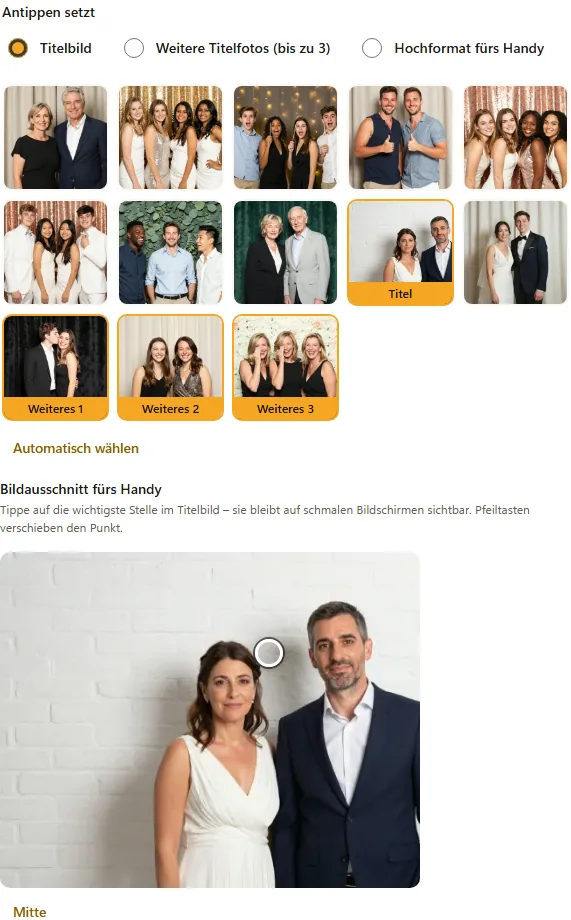
Under Cover photos you decide which shots appear at the top of the gallery. First choose under Tapping sets what a tap does, then tap a photo:
- Cover photo – the large photo at the top.
- More cover photos (up to 3) – for templates with several photos: Collage shows two, Scrapbook four.
- Portrait photo for phones – a separate photo for narrow screens.
If you choose nothing, the gallery automatically takes the photos with the most hearts, otherwise the newest. Choose automatically resets your choice.
Under Phone crop you tap the most important spot in the cover photo, for example between two faces. That spot stays visible on phones, even when the picture is cropped narrower there. Centre resets the point.
App icon, business card and default for new events
- App icon – the icon shown when guests add the gallery to their home screen. Square, at least 512 px. Without an icon of its own, the logo is used.
- Business card – Contact person, Phone, Email and Website. As soon as one field is filled in, a small contact card appears at the bottom of the gallery.
- Default for new events – with Save as default for new events every newly created event takes over your brand, including template and business card, automatically. Existing events stay unchanged; with Apply default you put the default into an existing event and then save it.
What your guests get
- Hearts – guests mark their favourite photos with a heart. If you haven't chosen any cover photos, the most popular ones automatically move to the top of the gallery.
- Slideshow – the button in the gallery plays all photos as a slideshow, at 4, 6 or 10 seconds per picture and in Full screen. With Live: show new photos automatically new shots join in by themselves during the event – ideal for a TV or projector.
- Web app – guests add the gallery to their home screen (“Add to home screen”) and have it back with one tap – with your app icon or logo.
- Guest email – when guests have their photos sent by email, the email comes in your brand's look: with logo, accent colour, preview picture and business card.
Most popular pictures and gallery figures
In the event, above the tabs, you see Gallery views, Downloads, ZIP downloads and Total favourites, and below that, under Most loved photos, the photos with the most hearts. Everything is counted anonymously – without IP addresses and without cookies.
QR card for printing
With Print QR card at the top of the event you get a print-ready card with a QR code to the gallery – with your brand's logo, name and accent colour.
- Choose the Format: A6 table card – two per A4 sheet, with crop marks or A5 portrait.
- Choose the Card language.
- Click Open card – the card opens together with the print dialog.
The QR code leads via the Short address (boothdock.cloud/g/…), which is also printed on the card for typing in. If the gallery is protected with a PIN, the card asks guests to get the PIN from the host. The button is there when Gallery scope “Whole event – all guests see all photos” is selected in the Gallery & guests tab.