BoothDock prints directly at the event – with format binding, multiple printers and limits that protect paper and ribbon.
Formats
Templates are bound to a print format (e.g. 10×15, 2×6 strip, 6×20 panorama). The printout matches the preview 1:1 (WYSIWYG across editor, guest screen and print).
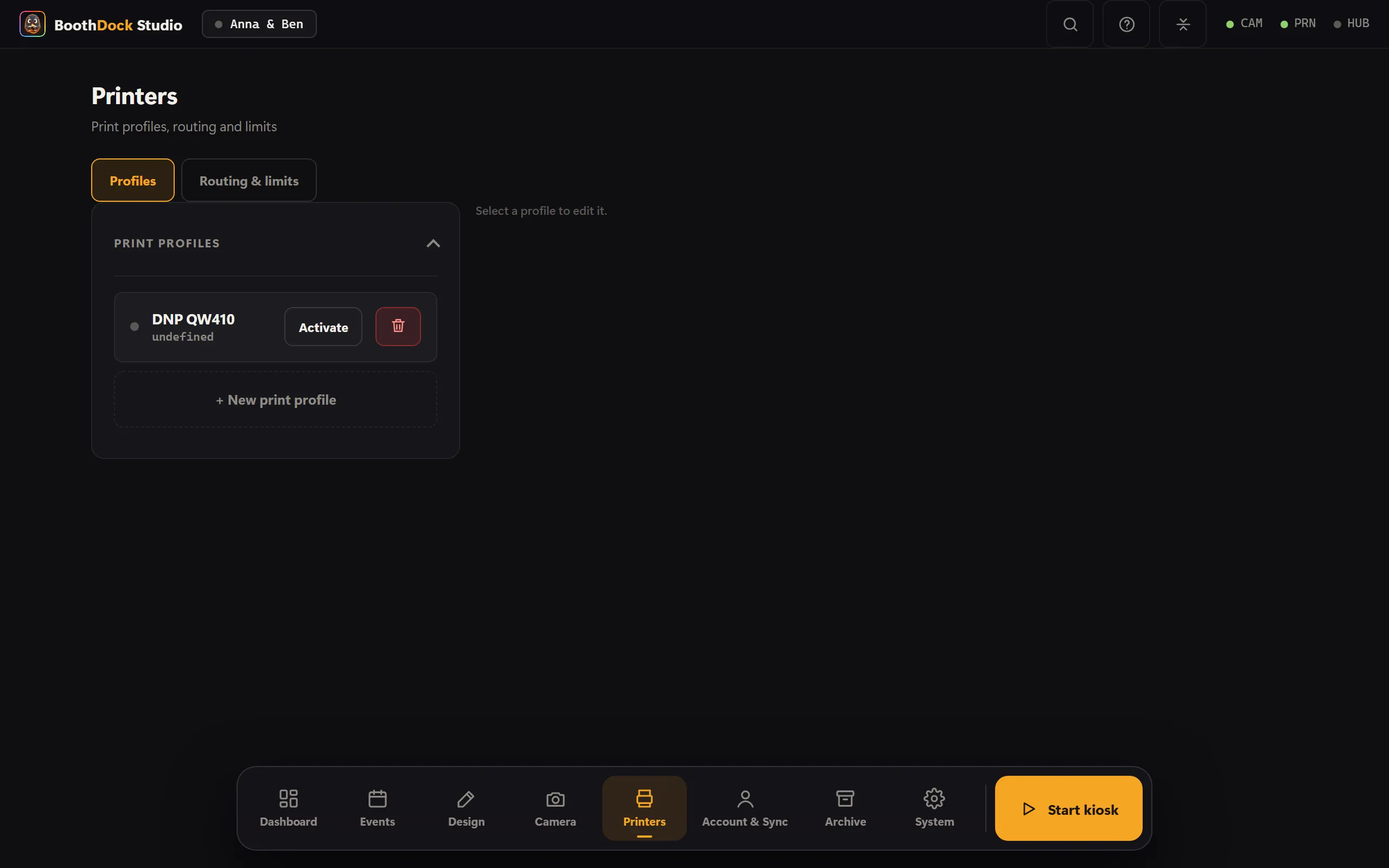
Multiple printers
Multiple printers can be added and used via routing:
- both – prints in parallel on multiple printers,
- alternate – distributes the load, e.g. under heavy demand.
Templates can be bound to a specific printer profile (e.g. strips on the matching DNP printer).
Print limits
Against paper/ribbon consumption:
- per session – how many prints a guest gets,
- per event – an overall cap.
For strips, the guest chooses the quantity in sensible increments; a stuck printer blocks neither the timing nor the next guest.
Driver settings per profile
One printer, several formats: two print profiles may use the same system printer with different driver settings – for example one profile with 2-inch cut for strips and one without, or glossy and matte. There are two ways per profile:
- Driver settings (recommended): Studio reads the options straight from the driver (cut, finish, paper size, resolution …) and stores your selection in the profile – without the driver's own dialog. For DNP printers, since version 1.0.4 Studio also writes the selection into the part the DNP driver actually reads; before that, a profile with 2-inch cut could print uncut.
- Driver dialog: the manufacturer's "Printing preferences" as known from Windows. Note: the DNP dialog always shows its own last saved state, not the profile's setting – so set everything deliberately per profile there and confirm with OK.
Whatever is captured in the profile wins over any automatic choice when printing. Captured or Not captured is shown right next to the button.
Measure driver
Some drivers store their settings only in their own dialog. So that per-profile driver settings also work for your printer model, the driver settings section offers Measure driver: in each round you change exactly one option in the driver dialog and confirm with OK – Studio sends the results to the Hub so the model can be added there. Nothing is printed and the profile is not changed. The maps for DNP DS620, DS-RX1, DS40 and DS80 are already included; a measurement run confirms them.
Next steps
- Offline gallery on the box
- Printing stuck? → Troubleshooting: printing