Before every photo the box counts down. You decide how that looks and sounds: animation, sound, color and font. With Lines & announcements you also address your guests at fixed moments – with lines shown on screen, a built-in voice, your own sounds, videos or GIFs.
If you change nothing, you get the previous sequence: Classic, Beep and “Smile!”.
Where to find it
- In BoothDock Studio, open Design → Guest screens.
- At the top, select the Capture screen.
- Below it you'll find the sections Countdown and Lines & announcements.
Every change is saved immediately. You set how many seconds the countdown lasts under Camera → Capture → Countdown (seconds).
Countdown
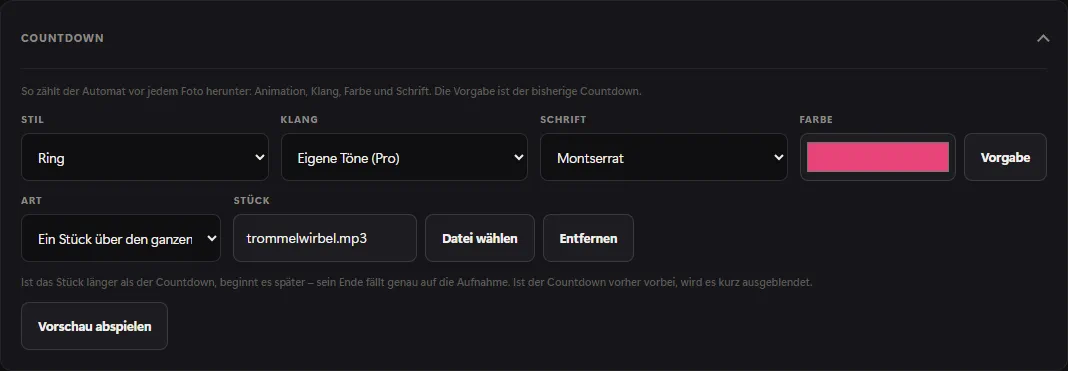
| Setting | Effect |
|---|---|
| Style | Classic, Pop, Ring, Bounce, Hearts, Neon or Old film. With Pro, also Custom video (Pro). |
| Sound | Recorded sounds: Drum, Bell, Retro game, Click, Soft, Party and Fanfare. Plus Beep (default), the previous generated sounds marked (electronic), No sound and, with Pro, Custom sounds (Pro). |
| Font | Font of the numbers. |
| Color | Color of the numbers. Default resets it. |
When you switch the sound, you hear it right away as a sample. Play preview shows the whole sequence as the guest sees and hears it – with the announcement before the countdown and “Smile!”. Close ends the preview.
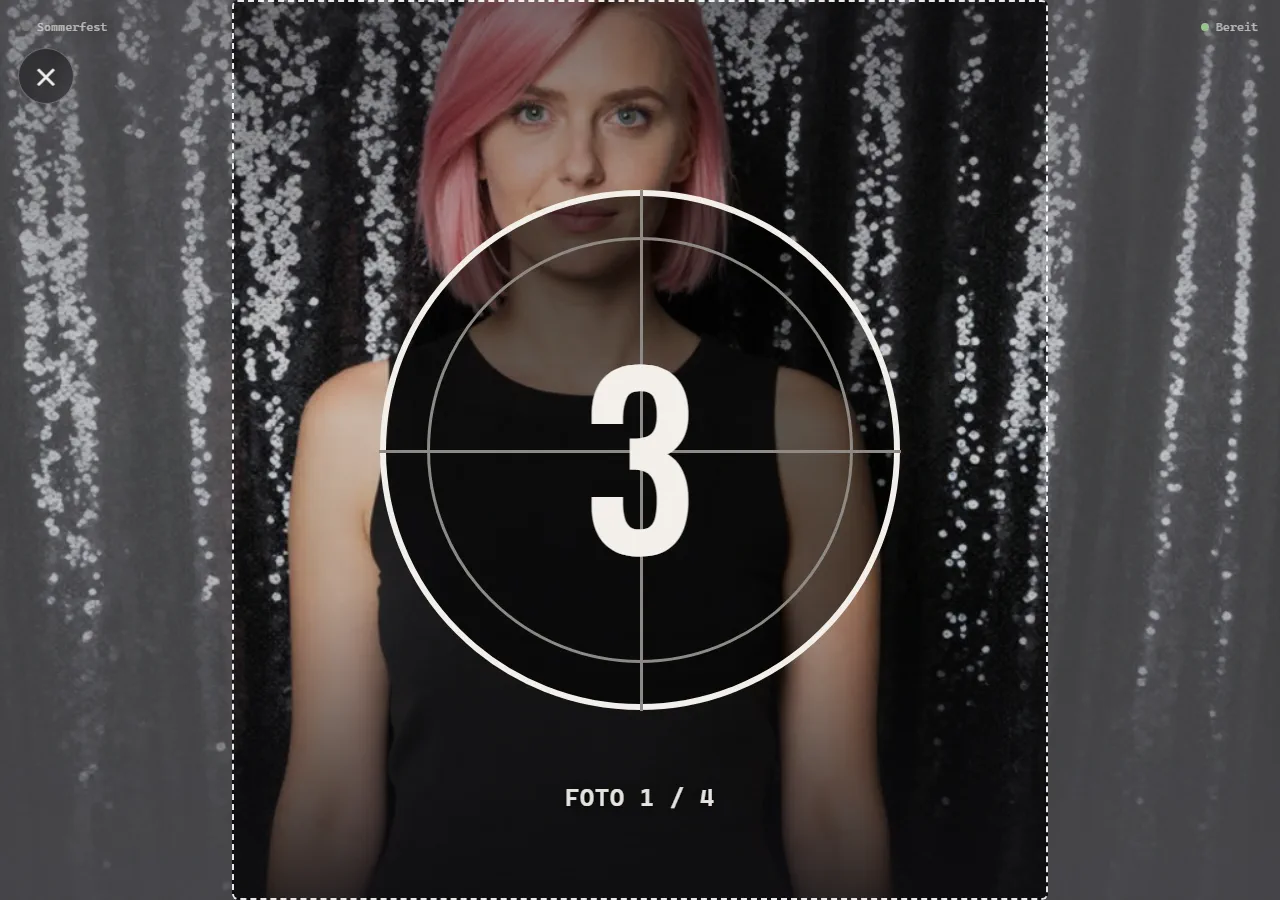
Custom video (Pro)
With Custom video (Pro) your video plays instead of the numbers. Pick it under Countdown video with Choose file. The countdown lasts as long as the video (30 seconds at most), and the capture happens exactly at the end of the video.
Custom sounds (Pro)
With Custom sounds (Pro) you choose under Type:
- Sound per number – one file for Sound on every number and one for Sound on the last number. If the second is missing, the first is used. Each number restarts the sound and cuts off the previous one.
- One track for the whole countdown – one file under Track, for example a drum roll. If the track is longer than the countdown, it starts later – its end falls exactly on the capture. If the countdown is over first, it is briefly faded out.
If a file is missing, the box plays the beep instead of staying silent.
Lines & announcements (Pro)
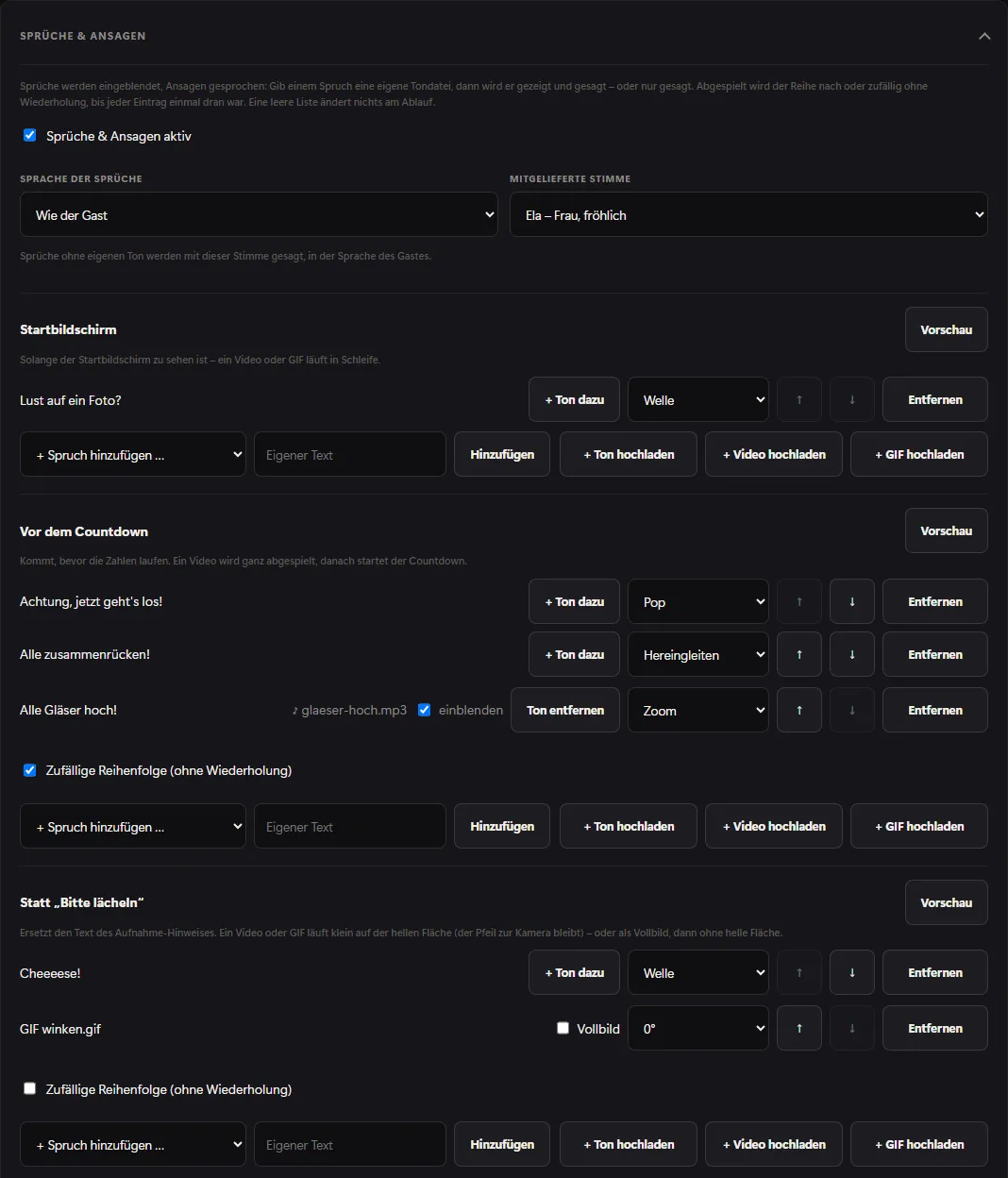
Lines are shown on screen, announcements are spoken. An empty list changes nothing in the sequence.
Basic settings
- Lines & announcements active – the main switch. When it's off, your lists stay saved but have no effect.
- Language of the lines – Same as the guest (default) or a fixed language, independent of the software language.
- Built-in voice – speaks the built-in lines aloud, in the guest's language. When you select it, the box downloads the voice once – for the fixed language of the lines, or otherwise for the box language and all guest languages; after that it works without internet. None – show phrases as text only turns the voice off.
There is no built-in voice yet for Estonian, Irish, Lithuanian, Latvian, Maltese, Slovenian and Slovak. There, lines are only shown on screen; custom sounds still work.
The moments
| Moment | When |
|---|---|
| Start screen | As long as the start screen is visible – a video or GIF plays in a loop. |
| Before the countdown | Before the numbers run. A video plays in full, then the countdown starts. |
| Instead of “Smile!” | Replaces the text of the capture hint. |
| After a photo | Between two photos of a layout with several pictures. |
| Choosing an effect | When the guest picks a look, filter, beauty or background. |
| Signing | In the guestbook, before the guest signs. |
| During processing | While the result is being created – a video or GIF plays in a loop. |
| Result appears | As soon as the photo or video is visible (lines, text and sound only). |
| End of session | When the session is over, before the start screen comes back. |
Adding entries
Under each moment:
- + Add a line … – one of the built-in lines. There are 61, matching the moment and in all 24 languages.
- Type Custom text and click Add – up to 80 characters. Custom texts appear exactly as you write them.
- + Upload sound, + Upload video or + Upload GIF – a file of your own (sound up to 8 MB, GIF up to 20 MB, video up to 60 MB).
Up to 30 entries are possible per moment. In each row:
- The selection on the right sets the animation: Pop, Wave, Zoom, Slide in or Typewriter.
- + Add sound attaches a sound file of your own to a line or text – then it is shown and spoken. If you untick show on screen, it is only spoken.
- For video and GIF you rotate the image by 90°, 180° or 270° – handy for mirror or portrait setups.
- ↑ and ↓ change the order, Remove deletes the entry.
From two entries on there is Random order (no repeats): every entry gets its turn once before one repeats – and never the same one twice in a row. Without the tick, the list runs in order. Preview next to each moment plays the next entry.
Instead of “Smile!”
A line or text replaces the text on the bright surface while the shutter fires; the arrow towards the camera stays.
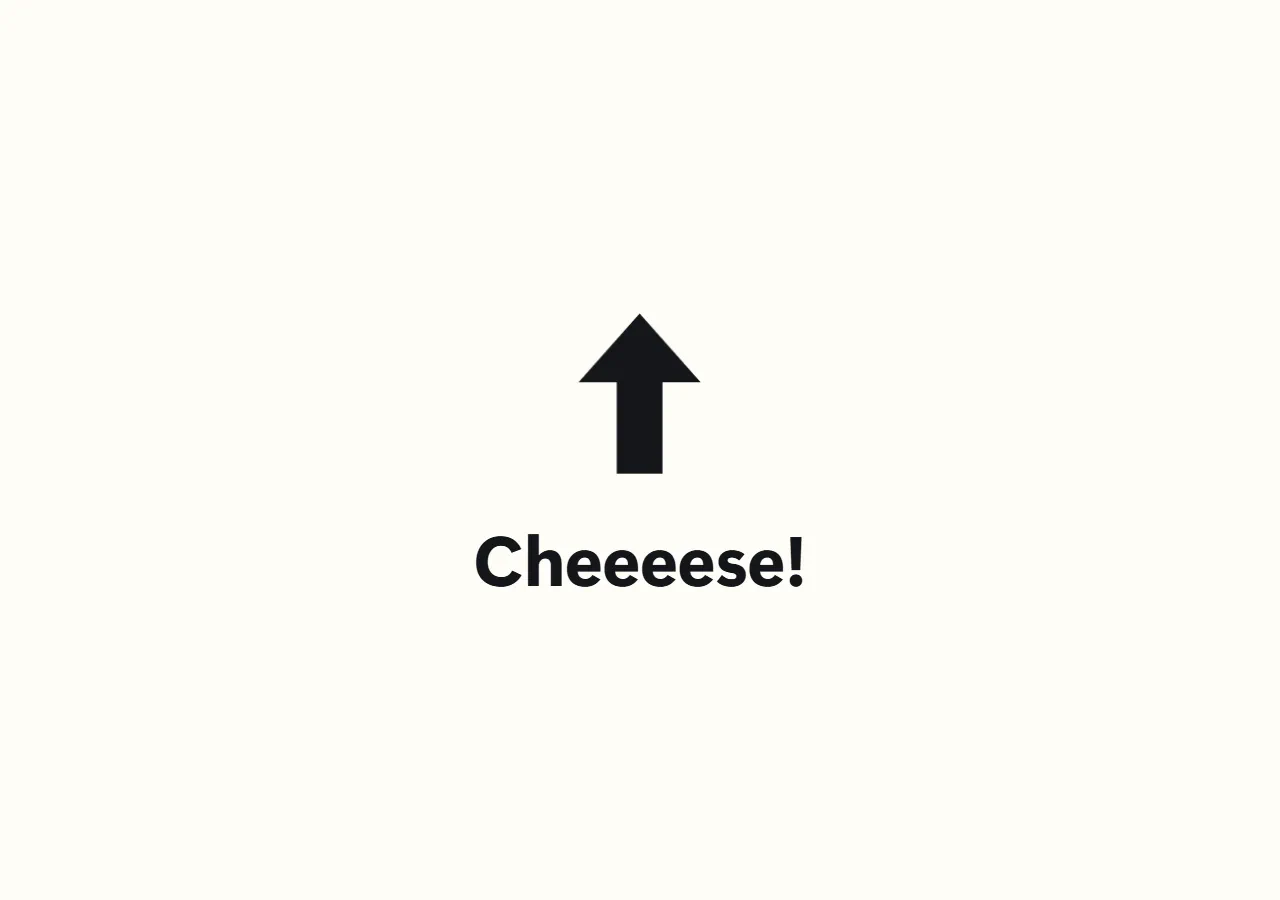
A video or GIF plays small on the bright surface. With the Fullscreen tick it fills the whole screen – then without the bright surface. Keep in mind: in fullscreen less light comes from the screen, and guests tend to look at the screen rather than into the camera.
Free and Pro
| Free | Pro | |
|---|---|---|
| Countdown styles, sound packs, color, font | yes | yes |
| Custom video (Pro) and Custom sounds (Pro) | – | yes |
| Lines & announcements with lists, voices and your own files | – | yes |
Without Pro, the Lines & announcements section only shows a hint, and the box runs as usual with “Smile!”. If Pro expires, custom sounds fall back to the beep and a countdown video falls back to the numbers.
Frequently asked questions
I don't hear any sound. Check the Sound switch under Camera → Capture. Custom sounds and voices follow the same setting.
The voice doesn't speak. The box must be able to download the voice once after you select it. If “… phrases could not be loaded” appears, the box fetches them as soon as it is online. The voice doesn't speak custom texts – give them a sound file of their own with + Add sound.
I don't see the “Built-in voice” selection. The list of voices comes from the internet the first time. Connect the box once; after that the selection stays available offline.
See also: Capture modes, Effects.