If you first tried BoothDock Studio with Try without an account, the photos are only stored on the device. When you later connect the box to your account, you can upload them to the Hub – if you want, never automatically.
How it works
- Sign in at the box or create an account (Create an account and sign in from the app). The box connects to your account.
- After Continue, the app asks once: Upload the photos from your test to the Hub?
- Upload – the app uploads the photos bit by bit. Not now – everything stays on the device.
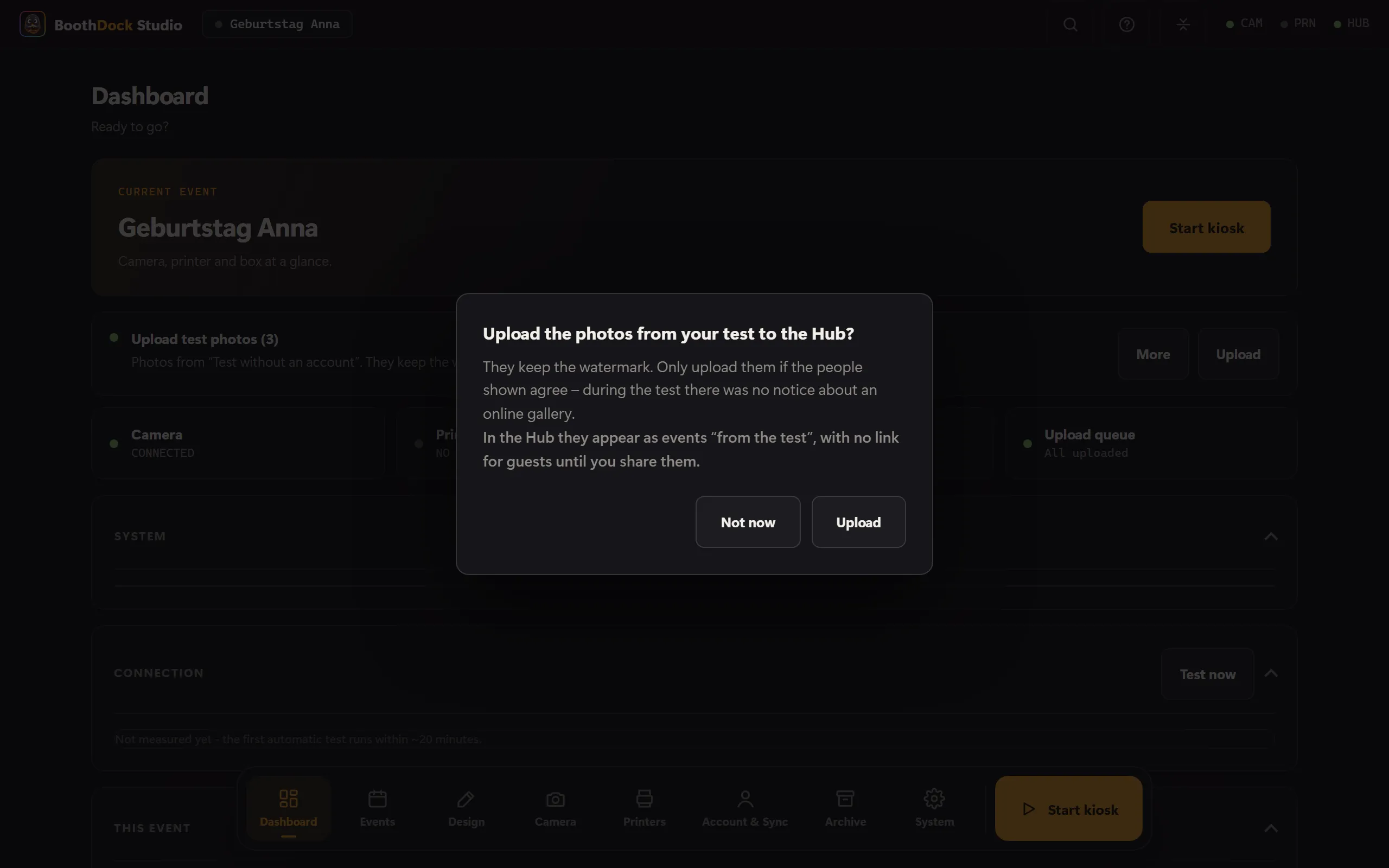
If you chose Not now, the dashboard shows the row Upload test photos with the number of pending photos. Upload starts everything; under More you pick individual events.
Only upload if the people shown agree. During the test there was no online gallery and no notice that photos would go online.
What arrives in the Hub
- For each event from the test, an event is created in your account, marked from the test.
- At first the events have no link for guests: no gallery sharing, no guest upload, no delivery to guests. You can share them afterwards in the Hub like any event (Share and publish the gallery).
- The photos keep their watermark – even if your account has Pro by now.
- They count towards your storage, but not against the free photos of your Pro trial.
Good to know
- Uploading happens while the app is open. If a guest session is running, the upload waits; new photos from a running event always take priority.
- If your account's storage is full, uploading pauses and continues as soon as there is space again.
- If a single file is missing on the device, the app skips it and uploads the rest.
- If you sign out or disconnect the box in the meantime, uploading stops. Nothing is lost: after the next sign-in, the rest shows up in the dashboard again.
- The question only appears if the app found test photos in the box's archive. Until they are uploaded, they stay in the archive; the app doesn't clear them away.