“Can I delete a photo again?” – yes, in several ways. The guest can discard their shot right at the box or later ask for it to be removed in the online gallery. As the operator, you decide on such requests in the Hub and can delete entire galleries or set how long they stay online.
| Who | Where | When |
|---|---|---|
| Guest | Result screen of the box: Delete | right after the shot (up to 15 minutes) |
| Guest | Online gallery: Ask for a photo to be deleted | as long as the gallery is online |
| Operator | Hub: Deletion requests tab or review link from the email | as soon as a request comes in; without a decision the Hub deletes after 30 days |
| Operator | Hub: event Delete or Retention (days) | at any time, or automatically when the period ends |
1. The guest deletes right at the box
If the guest doesn't like their photo, they tap Delete on the result screen. The box asks once more (“Really delete this?” – “This cannot be undone.”). If they confirm, the shot is gone: from the box's offline gallery, from the export folder (USB stick, cloud folder) and from the gallery in the Hub. The box then shows “Deleted.” and returns to the start.
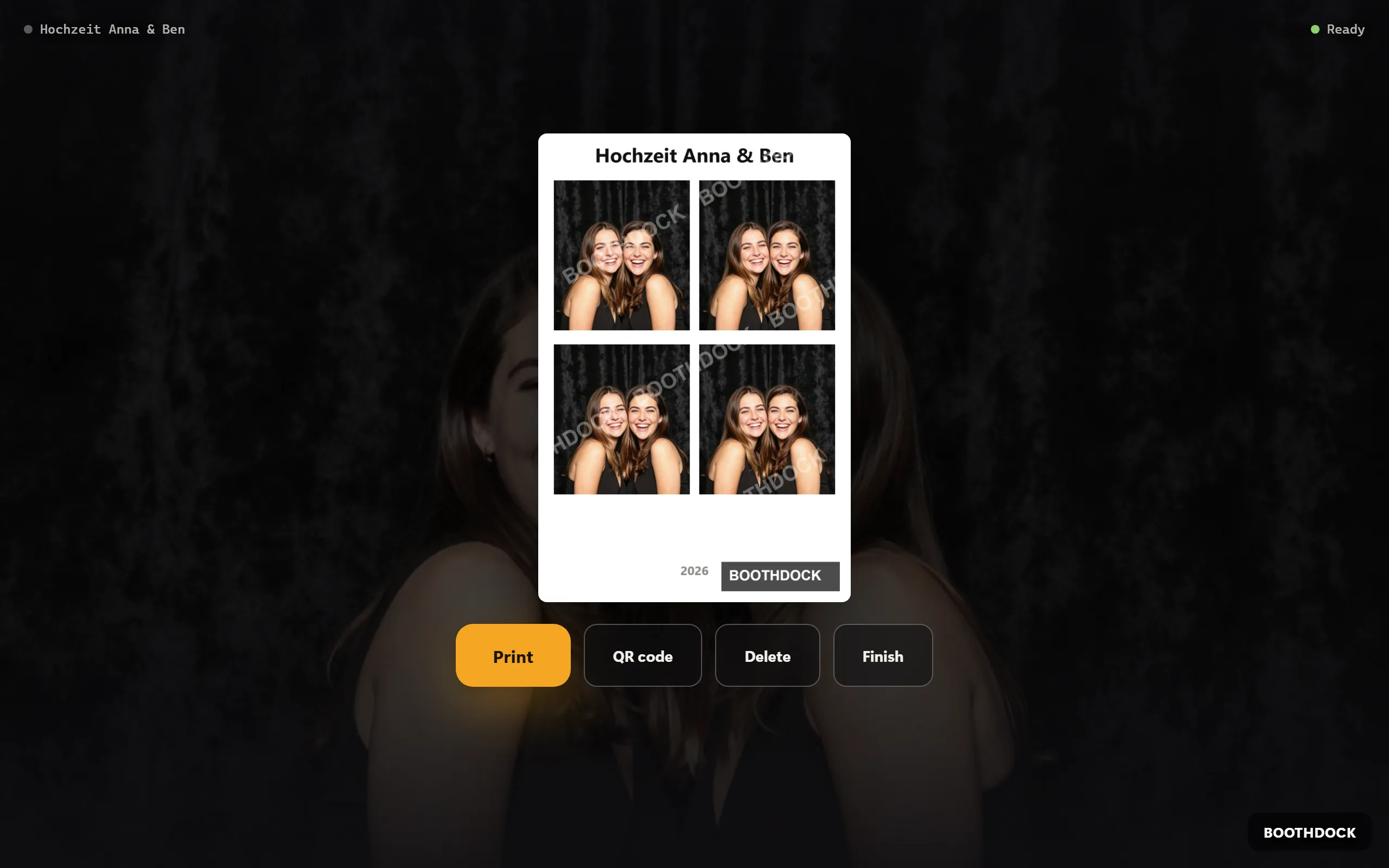
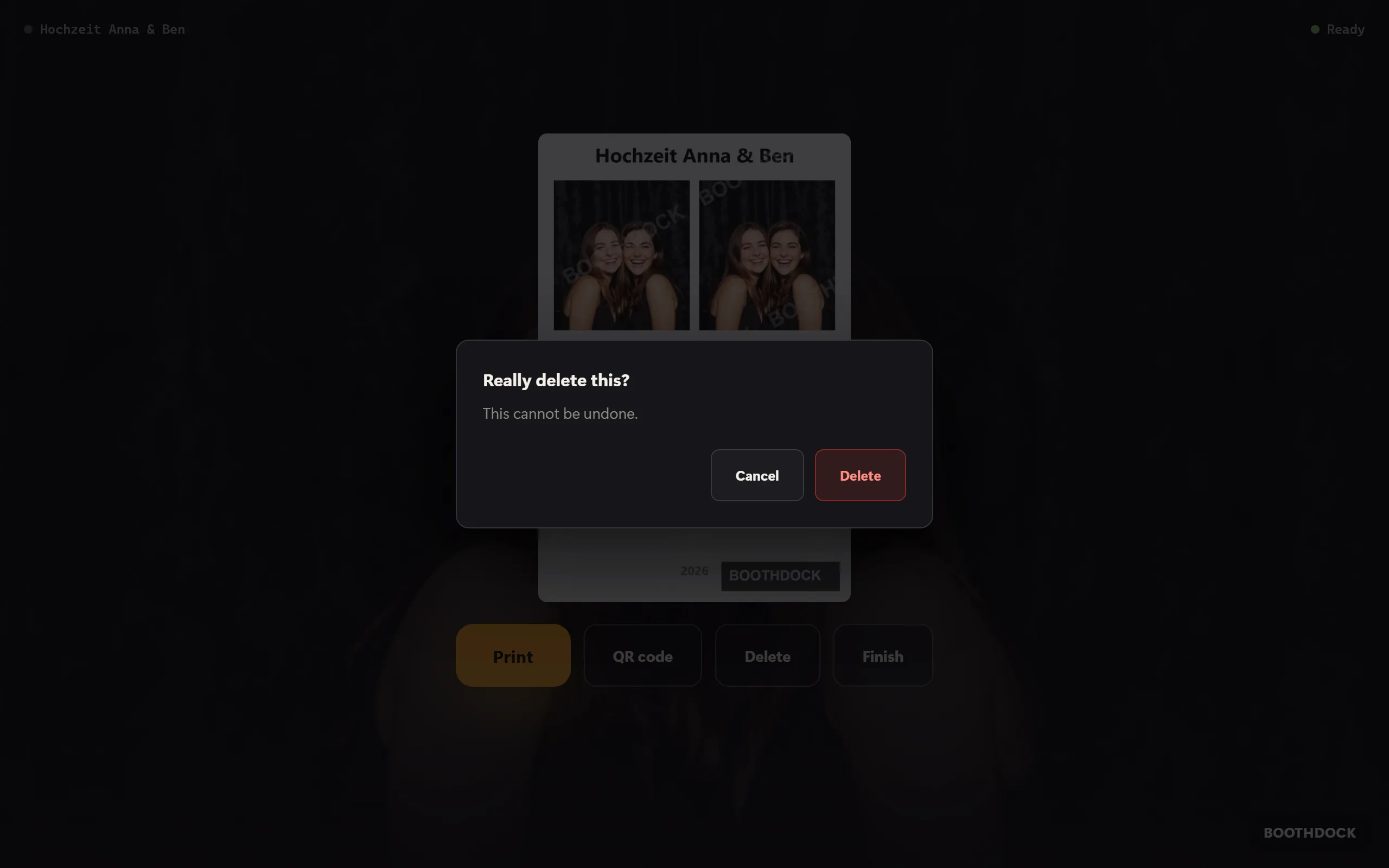
Good to know:
- Only shortly after the shot. The Hub only accepts deletion from the box within the first 15 minutes after the shot. That way nobody can empty a whole album afterwards with a lost box or one operated by someone else. Later on, it works via the gallery (section 2).
- Without internet the box deletes the shot locally straight away and shows “Deleted here – the rest follows as soon as the booth is back online.” It asks the Hub again as soon as it is back online.
- A print that has already come out can of course not be taken back.
Switching the button on or off
The button is on by default. You find it in BoothDock Studio under System → Operation → Result actions (guest) as Delete – separately for each box. A note below it reminds you that the button really discards the shot – including from the gallery in the Hub.

Delete does not count as a way out of the result screen: leave Finish on so that the guest can get back to the start without deleting.
2. The guest asks for removal in the gallery
Later – at home, on their phone – it works via the online gallery:
- The guest opens their capture in the gallery (link or QR code).
- At the bottom of the page, under Your photos, your call, they tap Ask for a photo to be deleted.
- If the capture has several files, they choose the photo. Optionally they give a reason (Want to say why? (optional)) and an email address (Email for a reply (optional)).
- They tap Ask to remove this photo and see “Noted”.
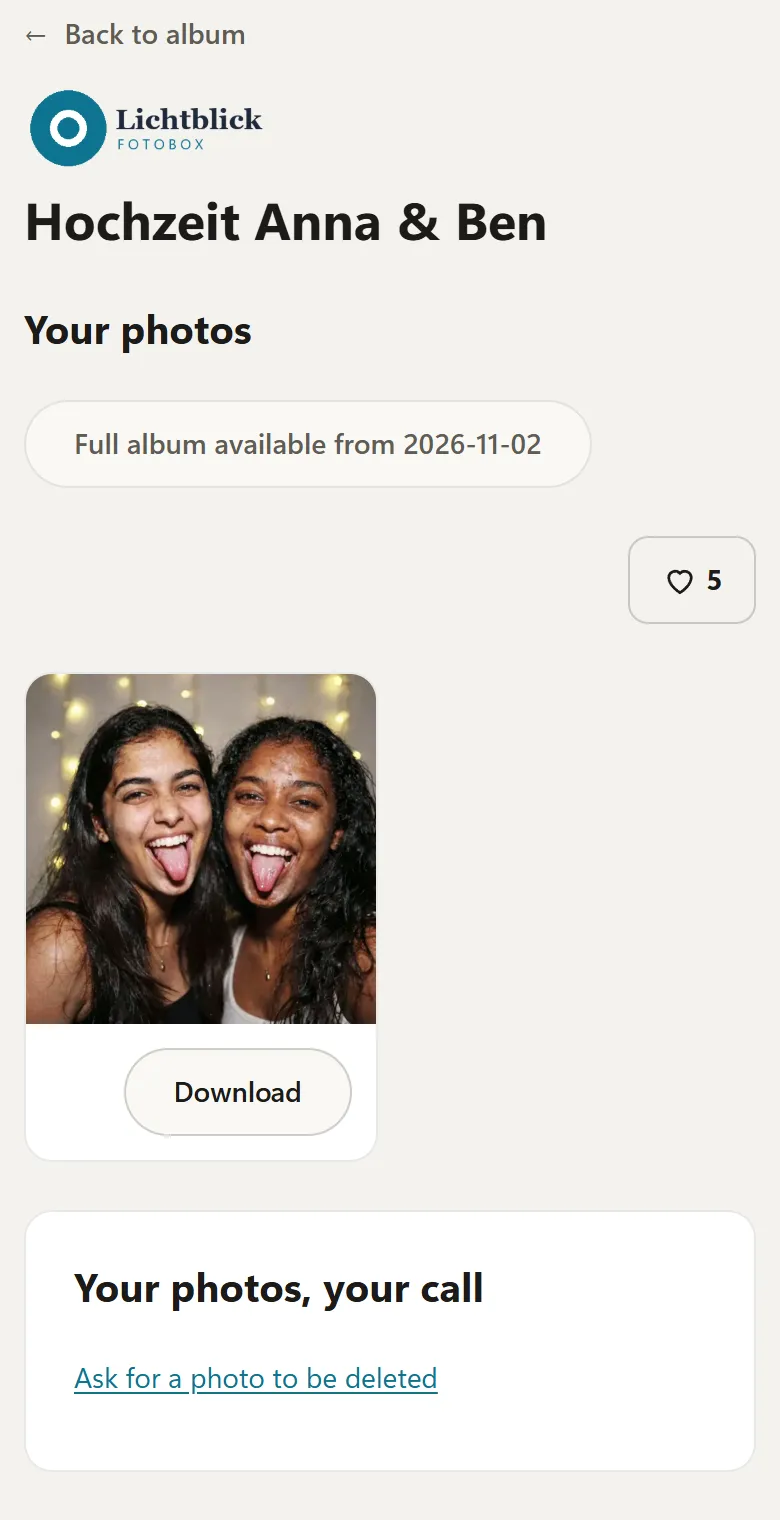
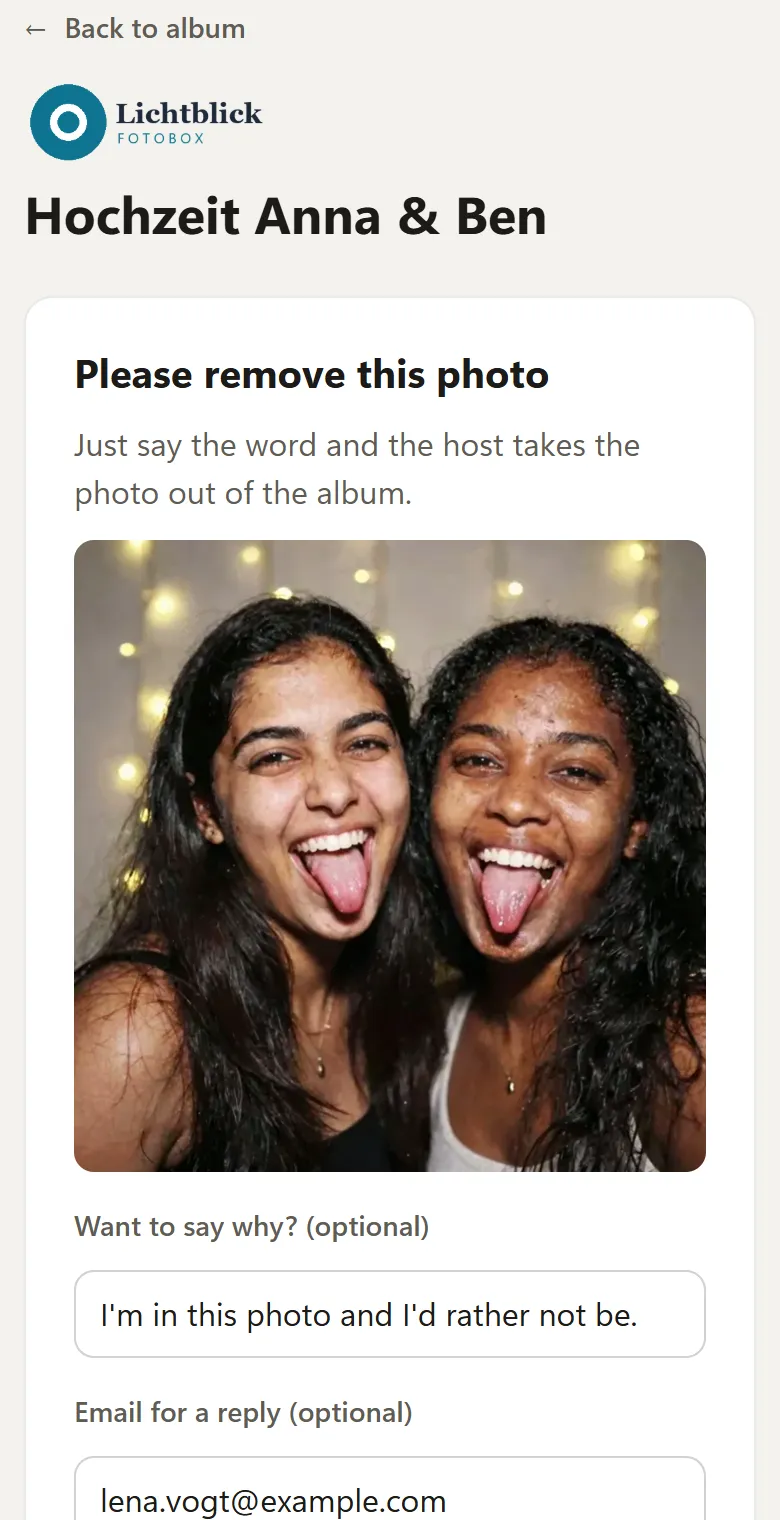
The photo stays in the gallery until you have decided. No second request is created for the same photo.
3. You decide on the request
For every new request you receive an email at your account's address. It contains a review link that takes you straight to the decision without logging in: Delete the capture or Keep it. The guest never gets this link.
You find the same requests in the Hub:
- Open Events and choose the event. On the Deletion requests tab, a number shows how many requests are open.
- Each request shows the file name, reason, contact address (if given) and the time. You can make a note for yourself in the Note (optional) field.
- Delete removes the file permanently – after a confirmation. Reject leaves it unchanged in the gallery.
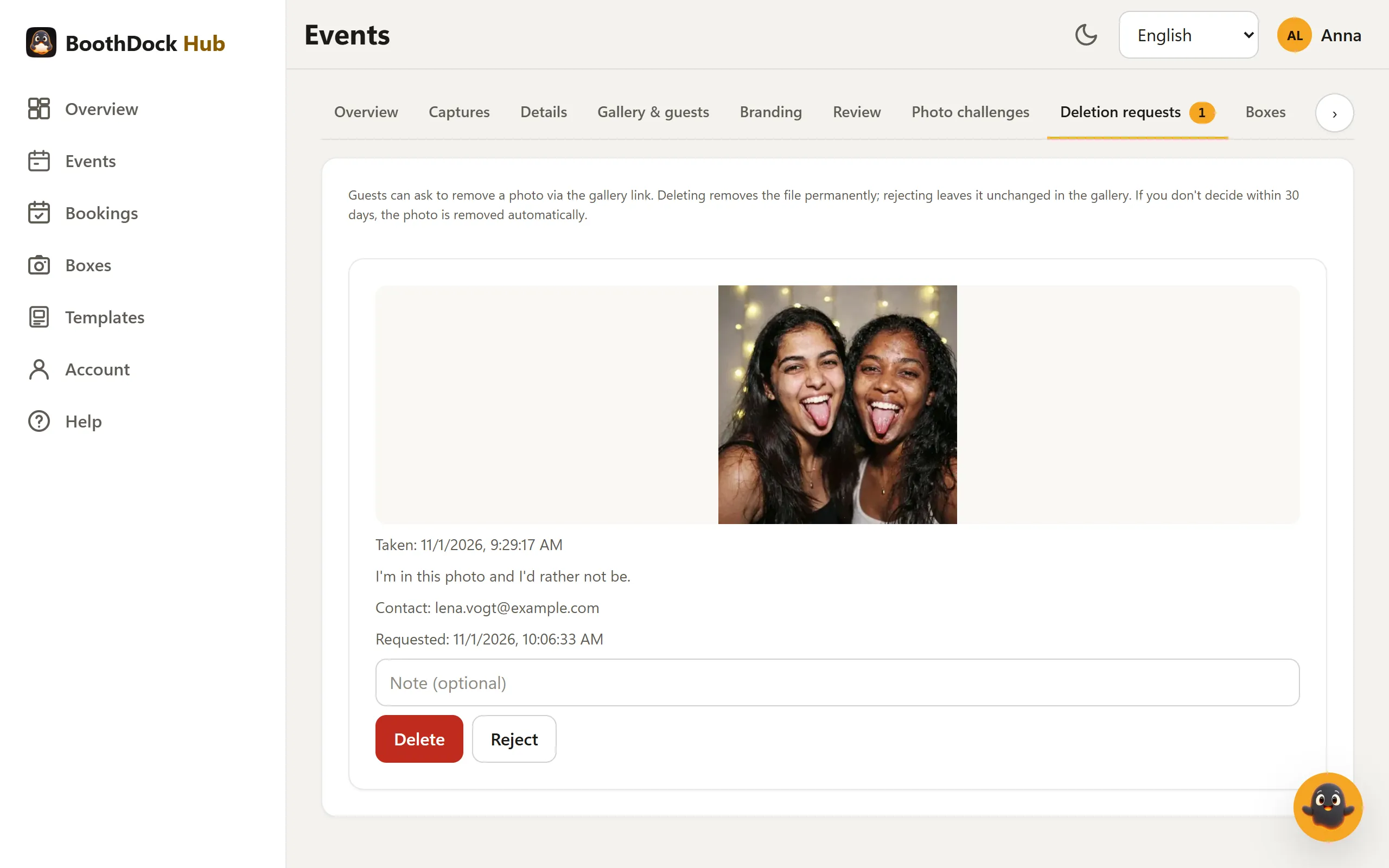
30-day automatic deletion: If you don't decide within 30 days, the Hub removes the photo automatically – in the same way as if you had chosen Delete. So a guest who asks for deletion doesn't have to wait for someone to read the email.
The guest does not get an automatic reply. If they left an email address, you can get in touch with them yourself.
4. You delete yourself
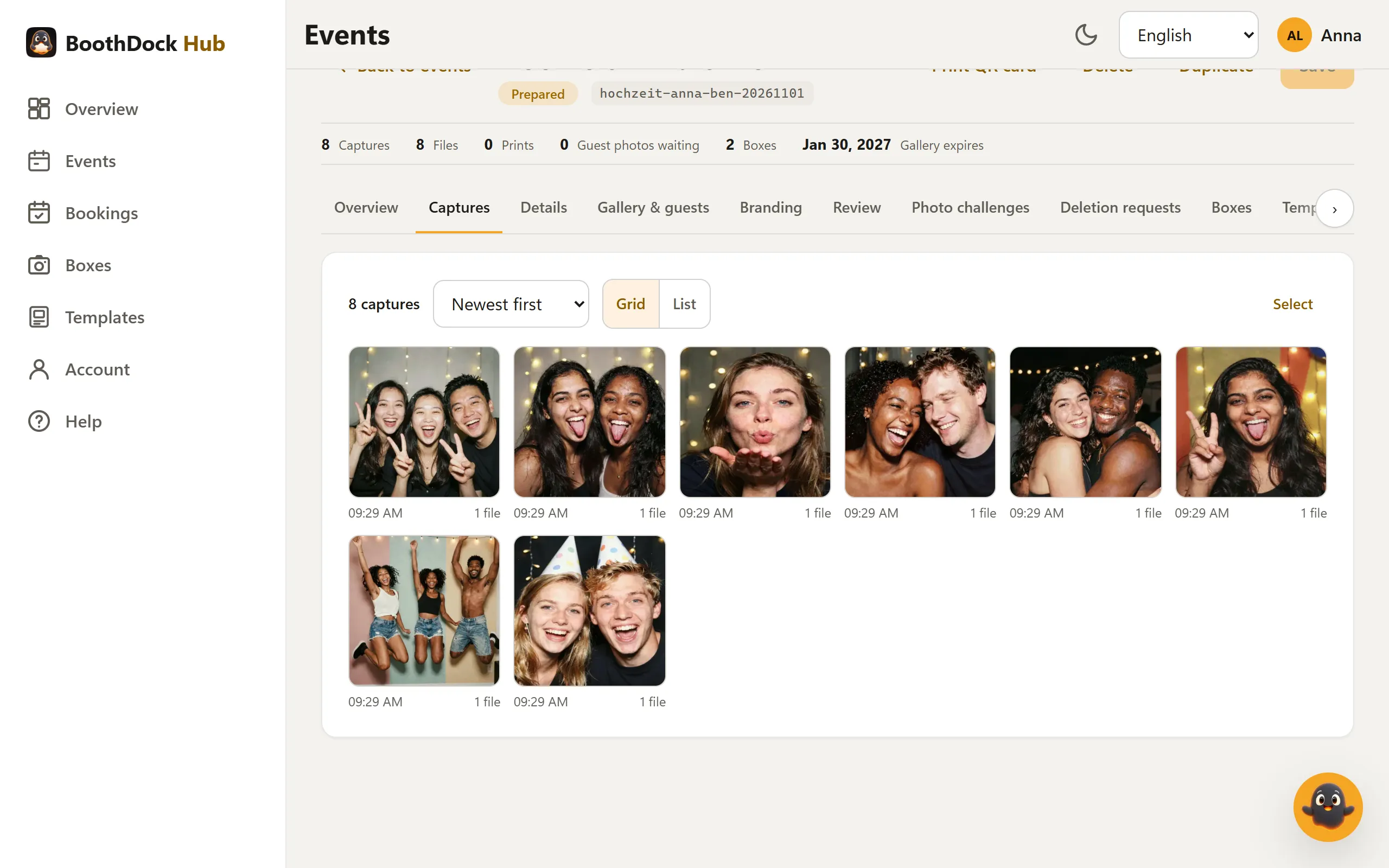
- A single capture: The Captures tab shows all captures of the event as a grid with previews (switchable with List, sorted by Newest first or Oldest first). A click opens the capture large – there and in the list you delete it with Delete. After you confirm, it disappears from the gallery with all its files and cannot be restored. Several at once: tap Select, mark the captures and choose Delete selected. Open deletion requests for these captures are settled along with it. Only workspace managers can delete.
- The whole gallery: In the event, click Delete at the top. This permanently deletes the event with all captures, guest uploads and guest data.
- The retention period: In the Gallery & guests tab you set under Retention (days) how long the gallery stays online – 90 days by default, 365 with a PIN, at most 730, counted from when the event was created. On the Free plan it is 2 days. When the period is over, captures, guest uploads, album ZIPs and guest data are deleted automatically overnight; the event itself remains.
Note: If you delete an event in BoothDock Studio at the box (Events → Delete), the gallery in the Hub stays – “The event and the guest photos stored for it in the offline gallery will be removed. Photos already uploaded to the hub are kept.”
Data protection
Under the GDPR, guests can demand that photos of them be deleted (right to erasure, Art. 17). The button at the box, the request in the gallery and the 30-day automatic deletion help you handle such requests quickly. You as the operator remain responsible for the photos; BoothDock processes them on your behalf.
This article describes BoothDock's features and is not legal advice. If in doubt, ask your data protection adviser.