BoothDock Studio is the photo box software – for the Windows PC and as an app for iPad and iPhone.
Installing
On Windows:
- Download the setup in the Hub under Studio App.
- Run the setup. It is signed (publisher "BoothDock") – Windows will show a trusted publisher accordingly when it starts.
- The setup installs any missing system components (Microsoft Edge WebView2, Visual C++) as needed.
On iPad and iPhone, get the app BoothDock Studio – Fotobox from the App Store instead (iPadOS or iOS 17 or later).
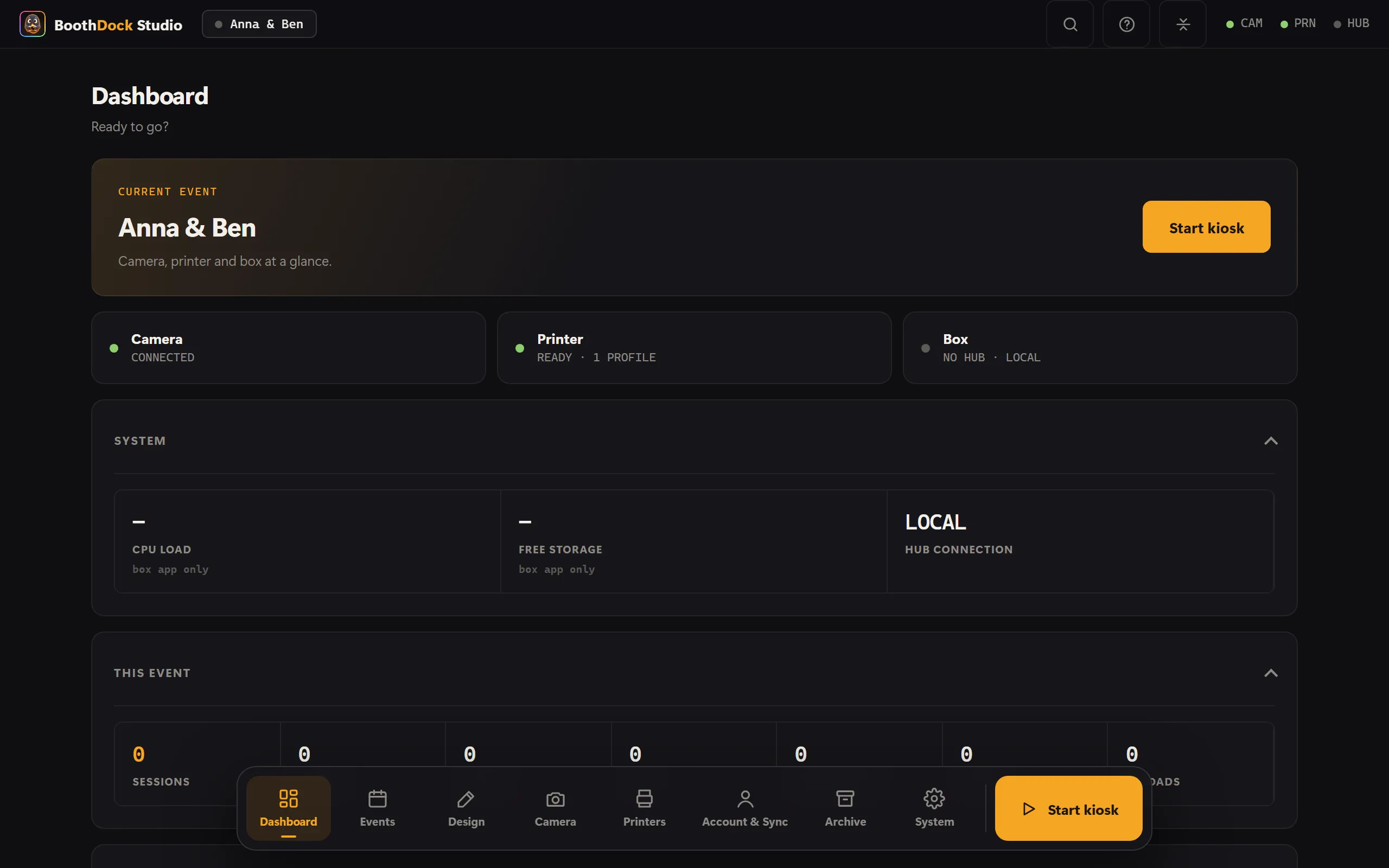
Initial setup (wizard)
On first launch, a wizard guides you step by step:
- Choose your language.
- Pair the box – scan the QR code or enter the pairing code shown in the Hub under Boxes → Add box; alternatively paste an enrollment key (bdk_…) (guide).
- Give the box a name.
- Choose or create an event.
The box is then ready for guest operation.
Kiosk mode
For event operation the box runs in kiosk mode (fullscreen, additionally hardened on Windows). The admin area is protected by a PIN – an accidental tap never leads guests into the settings.