A request becomes a quote. When the customer accepts it, the booking with its event is created, followed by the deposit invoice and, after the event, the final invoice. You issue quotes and invoices in your own name – BoothDock only creates them for you.
Before you start: your details
Before you send your first quote, fill in your details under Bookings → Settings → Company & tax: company or name, address, e-mail, phone and Tax number or VAT ID. You enter your Bank details under Payment & Stripe. If something is missing, the request shows “Before you send quotes, some details are still missing …” with Add them now, and Send quote stays locked.
Under Payment & Stripe you set the defaults for new quotes:
| Setting | Meaning |
|---|---|
| Payment plan | 1 to 6 instalments, each with Label, Share (percent or amount) and Due: on acceptance, days after acceptance, months after acceptance, days before the event, on the event day or days after the event. The last instalment is always the remaining balance. The templates Immediately, no deposit, Net 14 days, Deposit + balance, 3 instalments and 4 monthly instalments or your own templates set it up quickly – see Payment plans and instalments. |
| Payment term (days) | Deadline on the invoices. |
| Quote valid for (days) | How long a new quote is valid. |
| Travel costs | Included up to (km), Price per km and Charge the return trip – for the distance calculator in the quote, see Packages: duration, special price, deposit and travel costs. |
Country, currency, tax type and bank format are explained in Country, currency and taxes.
1. Create a quote
Open the request in the Bookings tab and click Create quote. The draft takes over the package and extras of the request with their prices.
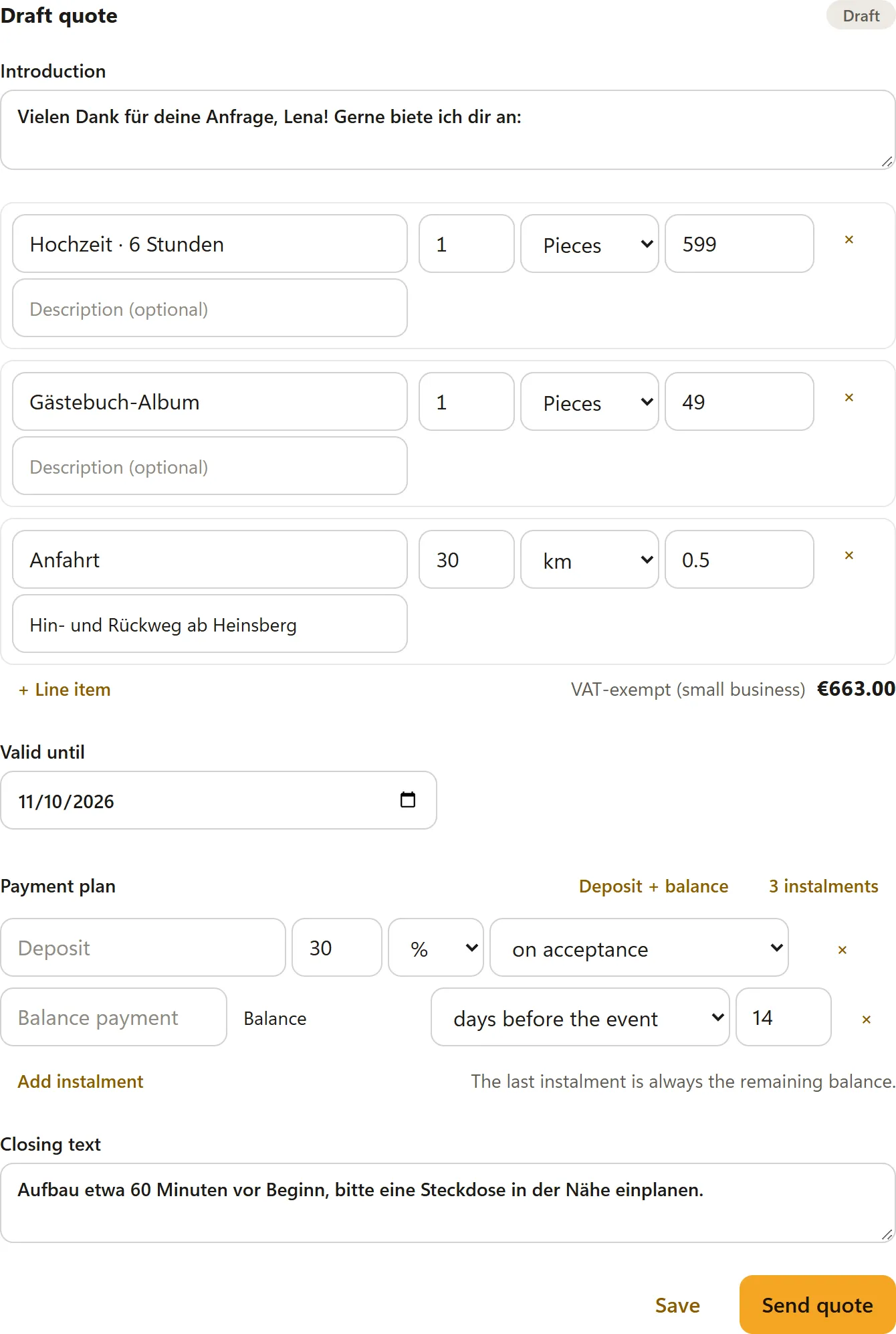
- Introduction and Closing text appear above and below the line items – for example a thank-you or notes on setup, power and cancellation terms.
- Each line item has Name, Description (optional), Qty, Unit (Pieces, Hours, Days, km, Lump sum) and Unit price. With VAT, you choose the Tax rate per line item.
- + Line item adds a row, × removes it – for example for a discount.
- Travel costs: if you have set a price per km, you enter the distance under Distance in km (one way) and click Calculate travel costs. BoothDock adds the Travel costs line with the calculated kilometres.
- Security deposit (refundable): prefilled from package and extras and changeable here. The deposit sits next to the price, not in the total – see the “Security deposit” section below.
- Valid until and the Payment plan are prefilled from your defaults and can be changed here per quote – for example 3 instalments for a big wedding. If the package has its own payment plan, the quote starts with that one.
Save keeps the draft. The customer does not see it yet.
2. Send the quote
Send quote gives the quote a number (e.g. AG-2026-0001), creates the PDF and sends the customer an e-mail with the PDF and the link to their customer portal. The request status becomes Quote sent.
A sent quote is locked. To change something, click Revise quote: a new draft is created that replaces the old quote when you send it (status Replaced). You can get the portal link at any time with Copy customer link. When the validity runs out, the quote becomes Expired.
3. The customer accepts – in the customer portal
The customer opens the link from the e-mail (/buchung/…), without an account and without a password. They see the date, services, total amount and the payment plan.
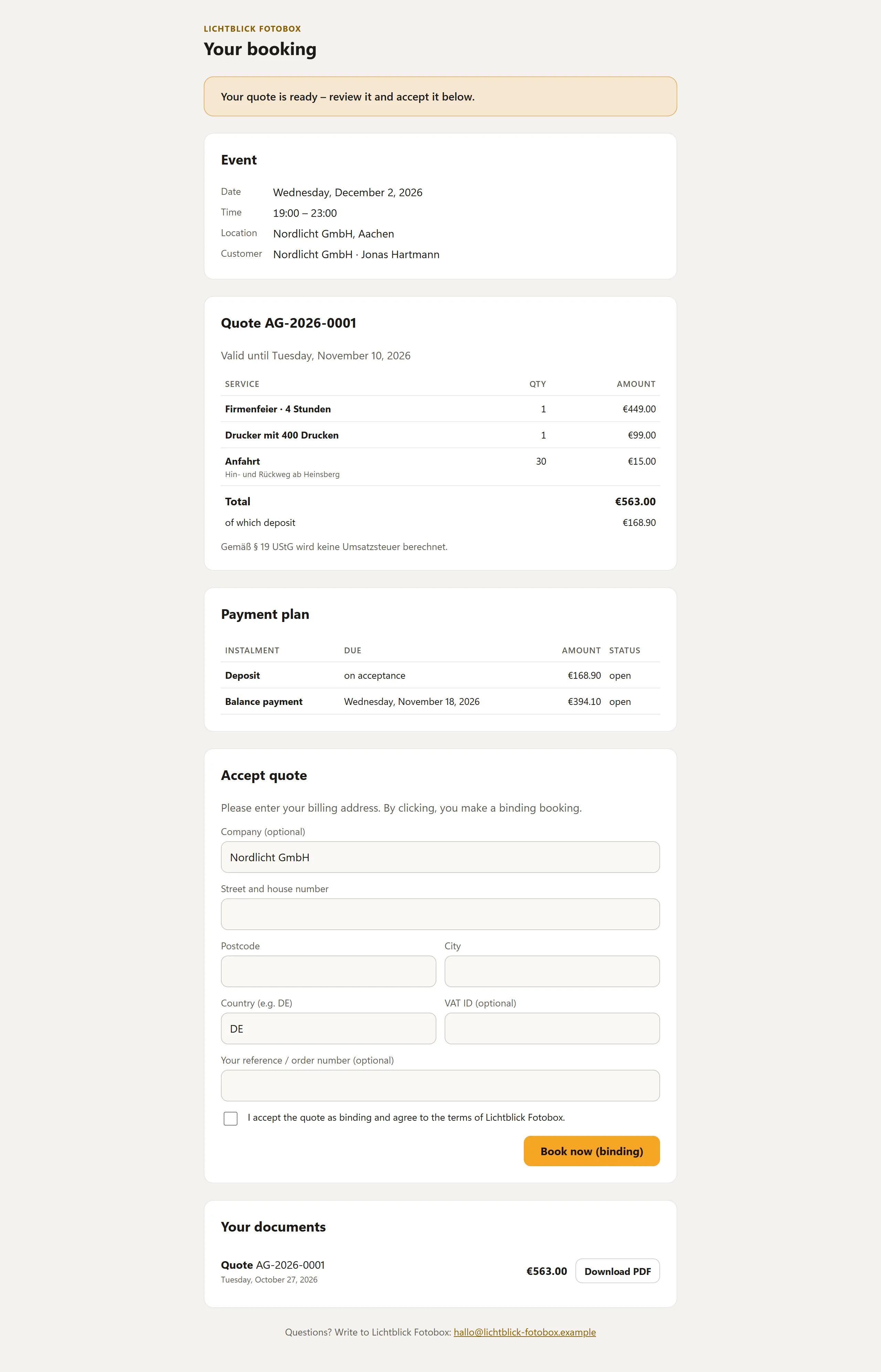
Under Accept quote they enter their billing address – optionally with company, VAT ID and their own reference or order number –, confirm your terms and click Book now (binding). Then:
- the event is created automatically in the Hub,
- you get an e-mail “Quote accepted”,
- the request notes “Accepted by the customer on …”.
If you have switched on a contract, the customer signs it in the portal first – see the next section.
Later the portal shows the outstanding amount with Pay now (with Stripe) or your bank details, and under Your documents all quotes and invoices for download.
Contract for signature
Under Settings → Contract switch on Ask for a signed contract and write your Contract text – or start with Insert template and adapt it. The contract applies to quotes you send from then on.
Placeholders in the contract text
In the contract text you use placeholders in curly brackets. BoothDock fills them with the data of this booking when you send the quote; the customer reads and signs the finished text. If something changes afterwards, you send the quote again as a revision.
| Placeholder | Replaced by |
|---|---|
{kunde} | Name of the customer |
{firma} | Company of the customer |
{adresse} | Address of the customer (street, postcode, town) |
{telefon} | Phone number of the customer |
{email} | E-mail address of the customer |
{datum} | Date of the event, for several days the first day |
{bis} | Last day of the event (the same date for a single day) |
{uhrzeit} | Start and end |
{ort} | Event location |
{paket} | Booked package |
{extras} | Booked extras |
{summe} | Total amount of the quote |
{anzahlung} | Amount of the deposit payment |
{kaution} | Security deposit (empty without a deposit) |
{betreiber} | Your company name |
{angebotsnummer} | Number of the quote, e.g. AG-2026-0001 |
{privat_x} | ☒ if the customer books as Private individual, otherwise ☐ |
{firma_x} | ☒ if the customer books as Business, otherwise ☐ |
Whether private individual or business, the customer chooses on the booking page under I am booking as. If the choice is missing and a company is entered, the customer counts as a business.
For {adresse} to be filled, the request needs an address. Customers enter it on the booking page; with the tick Address is required on the booking page (e.g. for the contract) under Settings → Booking page & widget it is required there. Without the tick it stays optional, and you add it in the request under Customer & date before sending. If a value is missing, the spot stays empty.
Checkboxes and custom questions
Two placeholders carry a text after the colon:
| Placeholder | Effect |
|---|---|
{choice:Name} | ☒ if the package or extra with exactly this name is booked, otherwise ☐. |
{question:Text} | Becomes an input field on the booking page. The customer's answer appears at this spot in the contract, or a “-” if there is no answer. |
Examples:
{choice:Wedding · 6 hours} Wedding · 6 hours {choice:Guestbook album} Guestbook albumContact person on site: {question:Contact person on site (name and phone)}Access to the room: {question:Floor, lift or stairs?}Occasion: {question:What are you celebrating?}
The questions appear on the booking page in the Contact step under Details for the contract. Each answer can be up to 200 characters long; a contract can ask at most 10 questions. You also see the answers in the request in the Hub under Customer & date.
The questions come from the contract version in the customer's language. If you have stored a version for their language under Translations, the booking page asks its questions, otherwise those from your default text. So write the questions in every translation as well.
Custom fields in the contract
You insert a custom field with its key:
| Placeholder | Effect |
|---|---|
{feld:kennung} | The customer's answer to the custom field with this Key for the contract. For a Checkbox (yes/no) ☒ or ☐. With no answer or an unknown key, a “-”. |
Examples:
Contact person on site: {feld:ansprechpartner_vor_ort}Occasion: {feld:anlass}{feld:parkplatz} Parking available at the venue
Write the key in the contract exactly as under Settings → Booking page & widget → Custom fields, identical in every translation of the contract.
{question:Text} or a custom field? A {question:…} is created directly in the contract text – quick, for a short free-text answer. You create a custom field in the settings: it can be a choice or a checkbox, can be required, is translated into every language and also works without a contract.
In the customer portal the customer reads the contract to the end, types their full name and signs electronically before booking. As proof, the Hub stores the name, time, IP network and a checksum of the contract text (simple electronic signature). You both receive the signed contract as a PDF; the request shows “Signed by … on …”.
You are responsible for the content of your contract. The template is not legal advice – have it checked if in doubt.
4. Deposit and instalments
In the request, Payments & instalments shows the money status: Total, Deposit, Paid, Processing and Outstanding, below it the next step and every instalment with due date and status (paid, open, overdue).
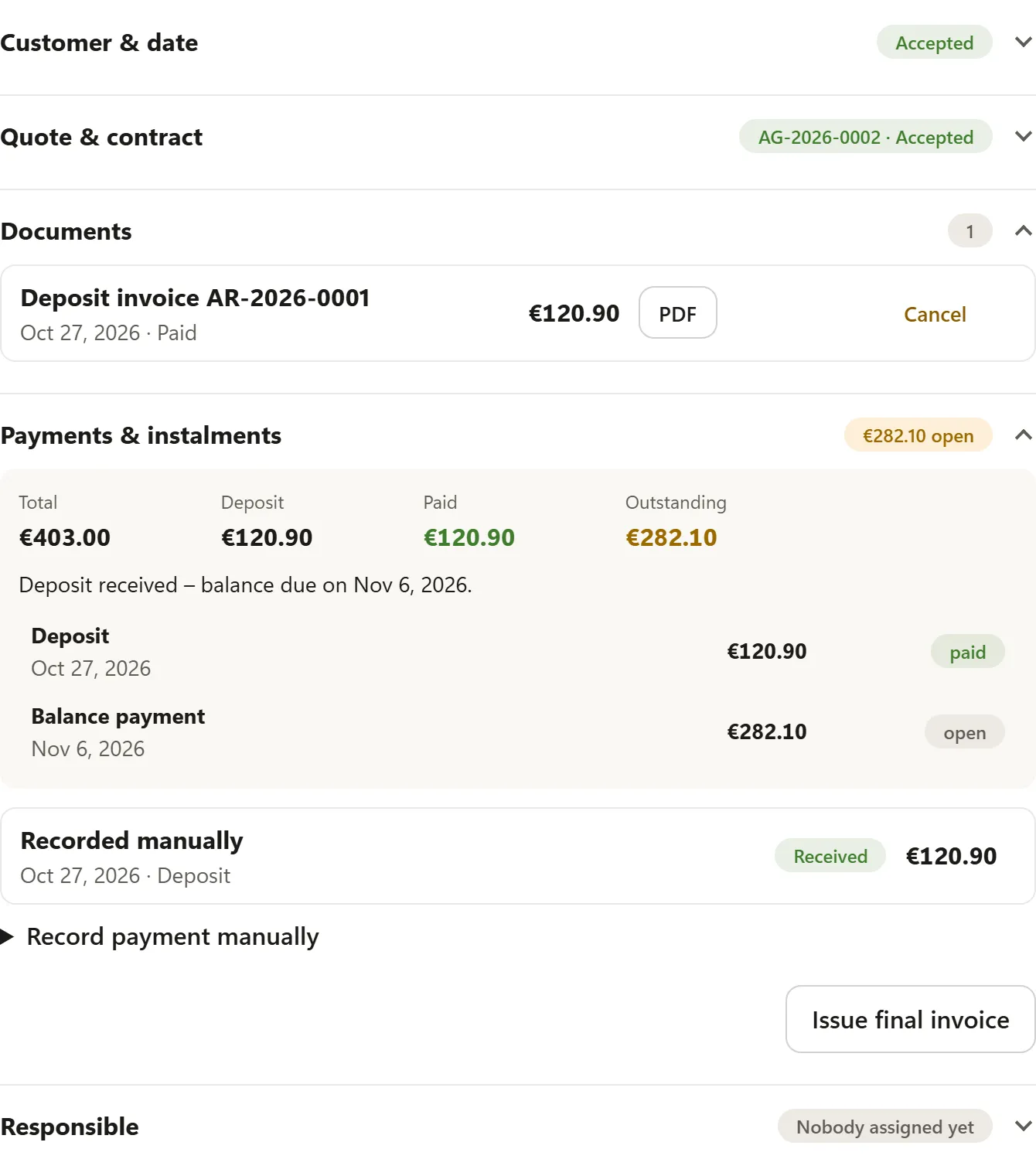
Every incoming payment automatically creates a deposit invoice (e.g. AR-2026-0001) and sends it to the customer – whether paid online via Stripe or recorded by you. You enter bank transfers or cash payments under Record payment manually: Amount, Payment date, Note, then Record payment.
5. Balance payment and final invoice
- Further instalments: on each due date the customer gets a reminder with a payment link – or the instalment is collected automatically if you have switched this on for Stripe.
- Final invoice: after the event, the daily run issues the final invoice (e.g. RE-2026-0001) automatically and sends it to the customer. It deducts all deposits. Issue final invoice does it manually. There is one final invoice per booking.
If anything is still outstanding after the event, the remaining amount is on the final invoice.
Security deposit
If the quote has a security deposit, it appears in the quote PDF and in the customer portal as a separate note, not in the total and not on the invoices. In the request, the Security deposit block shows the amount and status: open, received, refunded or retained. With Stripe the customer pays the deposit together with the instalment that is due, and the refund goes automatically to their card. Everything about it is under Packages: duration, special price, deposit and travel costs.
Cancellation
Issued invoices can no longer be changed. If a deposit or final invoice is wrong, click Cancel next to it. The Hub creates a cancellation invoice (e.g. ST-2026-0001), sends it to the customer, and the original invoice is set to Cancelled.
Document numbers and locking
| Prefix | Document |
|---|---|
| AG | Quote |
| AR | Deposit invoice |
| RE | Final invoice |
| ST | Cancellation invoice |
Numbers have the form prefix-year-number and count up per year without gaps. Drafts get no number. You change the prefixes under Settings → Documents & export → Advanced; outside Germany, other prefixes are prefilled.
BoothDock locks issued documents: they can no longer be changed, and a checksum secures the content. Corrections are only possible via a cancellation invoice.
E-invoice
Every invoice is a ZUGFeRD PDF according to EN 16931. Under Settings → Documents & export → E-invoice you decide whether an XML file is also created: Additional XML for business customers, Always add XML or No XML file. You download the XML file in the request next to the PDF via XML – for accounting software. In some countries the invoice must be created through a government system – see Country, currency and taxes.
XRechnung for public authorities
If you invoice authorities, cities or other public-sector clients in Germany, they usually require an XRechnung. For that you need the client's Leitweg-ID – it is stated in their order.
- For the customer: in the Customers tab, open the customer, tick Public-sector client, enter the Leitweg-ID and save. New requests and invoices for this customer take over these details.
- Per booking: in the request, under Customer & date, you find the XRechnung section – pre-filled from the customer and changeable here for this booking.
- With Write invoice: the tick box and the Leitweg-ID are below the address. If you pick a customer, they are taken over.
The Leitweg-ID has the form routing part-sub-address-check number, for example 04011000-1234512345-06. The Hub checks the format and the check number while you type – a typo shows up right away.
With a Leitweg-ID, every invoice – including deposit, final and cancellation invoices – also gets an XRechnung. The ZUGFeRD PDF remains the actual document. You download the XRechnung next to the PDF and XML via XRechnung (XML); it is also attached to the email to the customer and included in the export. You submit it to the authority through their invoice portal.
For the XRechnung your company details need a contact person, a phone number and an email address. If something is missing, the Hub tells you before issuing, and the invoice does not get a number yet. XRechnung is only available when the country is Germany and the currency is euro – otherwise the tick box is hidden.
As long as any of this is missing, the quote cannot be sent and the customer portal offers no online payment – so no invoice is created without an XRechnung. You edit the client's Billing address in the request under Customer & date until the first invoice is issued. In the customer portal the customer finds XRechnung (XML) next to the PDF.
The "Invoices" tab and invoices without a booking
The Invoices tab shows every issued invoice – from bookings and written yourself – by month with totals (Net, VAT, Gross). Filters: Open, Overdue, Paid, Cancelled; search finds number and customer. A click opens the invoice with PDF/XML, Record payment manually, cancellation and the way to the booking or customer.
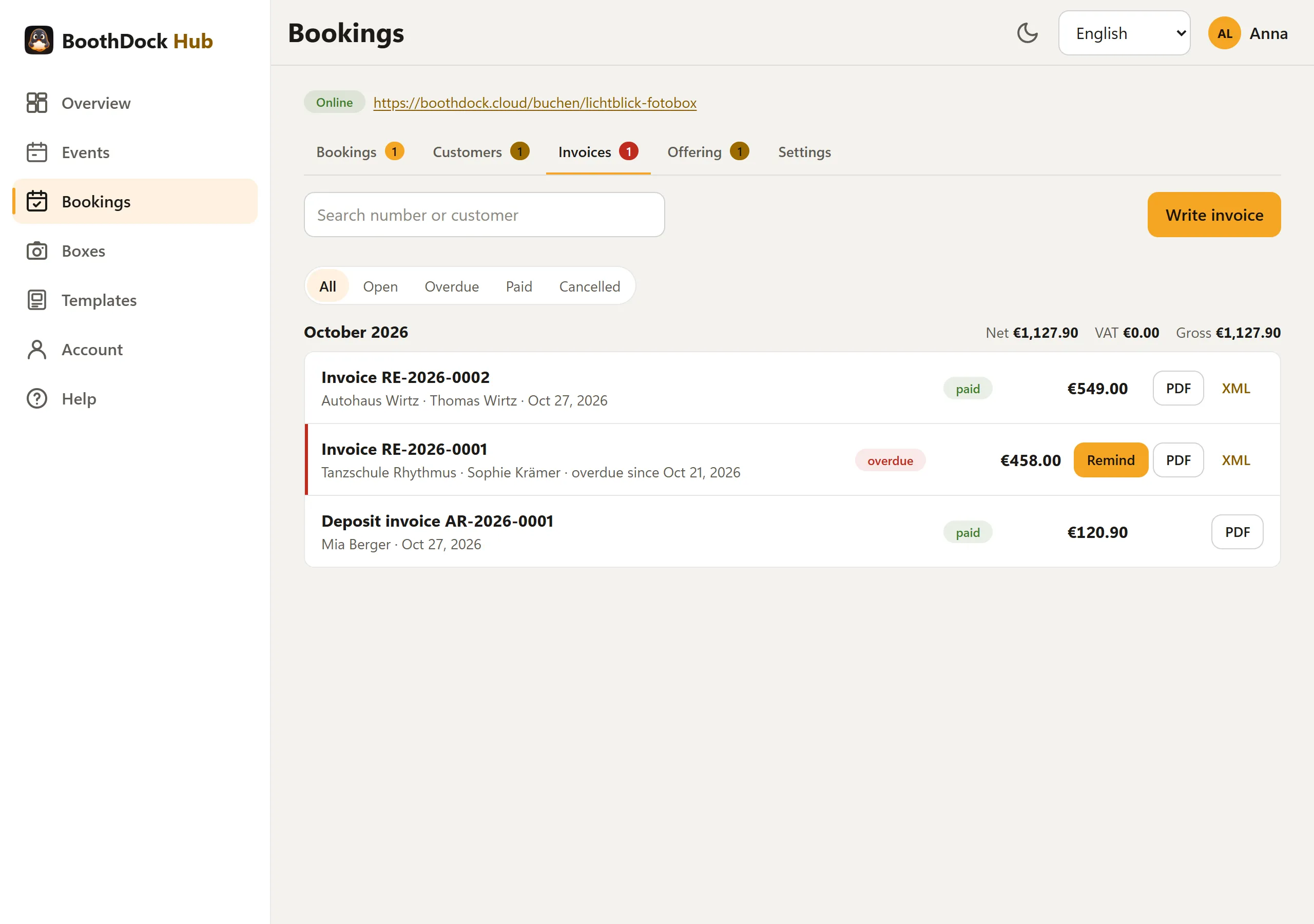
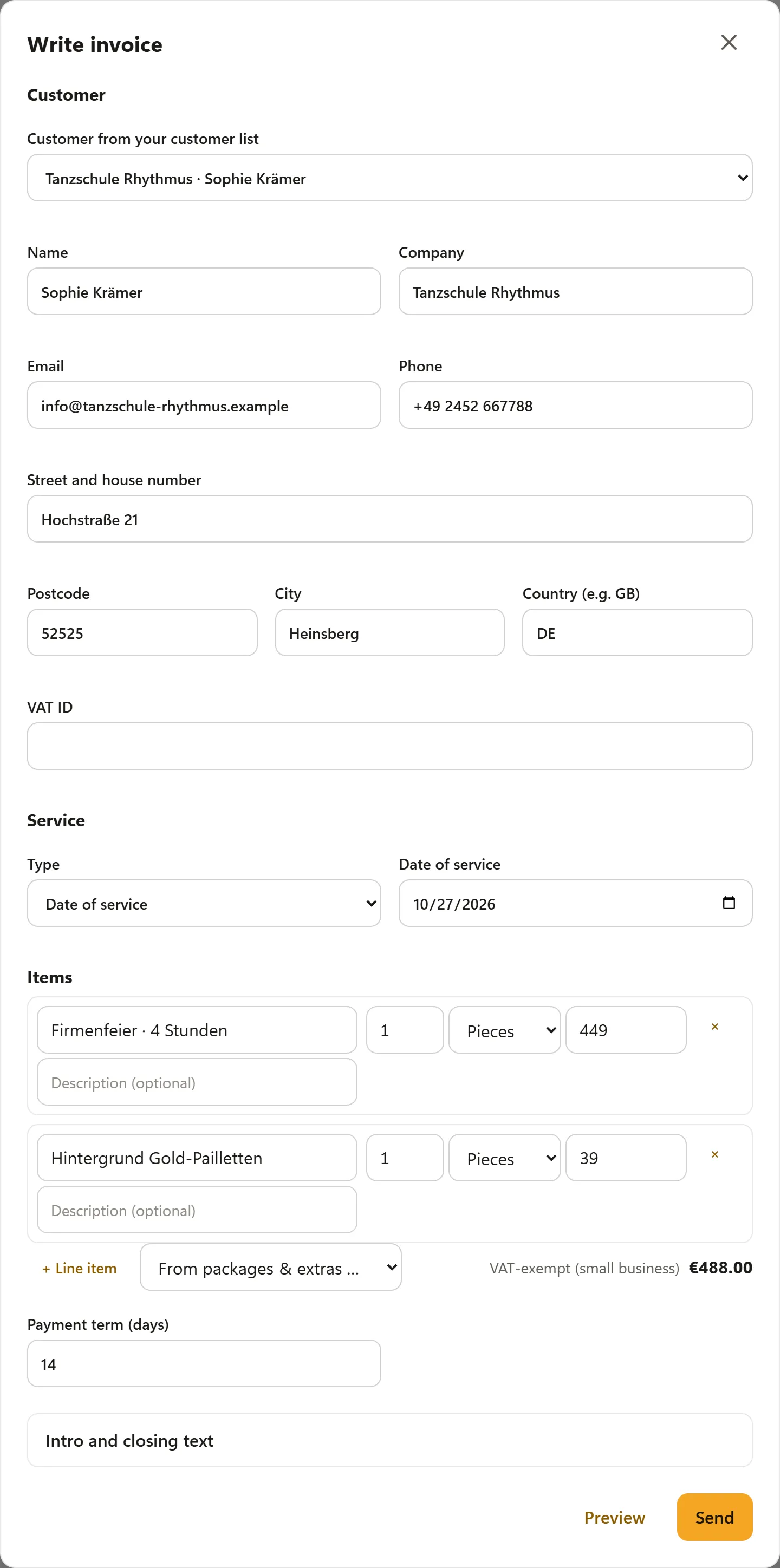
With Write invoice you issue an invoice without a booking: pick a customer from your customer list or type a new one, date or period of service, items (also from Packages & extras), payment term. Preview shows the PDF without a number; Send assigns the next number from the RE series and sends the invoice with a payment link to the customer.
Reminders and dunning
When an invoice is overdue, its row shows Remind (payment reminder), later Send notice (1st and 2nd dunning notice). Each letter sets a new payment deadline, is emailed with the original invoice and the payment link, and appears in the invoice's Reminder history. You set a dunning fee (from the 1st notice) and the deadline under Settings → Documents & export → Reminders & dunning, where you can also switch on the automatic payment reminder. If in doubt, check whether and how much of a fee is permitted.
Export and retention
Under Settings → Documents & export → Export documents, choose From and To and click Download ZIP. The ZIP contains all documents for the period as PDF, the e-invoices as XML and an overview as CSV – for your bookkeeping or tax advisor. One export covers at most two years.
You are responsible for keeping your documents (in Germany generally 10 years). Important: if you delete your BoothDock account, the documents are deleted too. Export them beforehand.
BoothDock creates the documents based on your details but does not replace tax advice. If in doubt, check with your tax advisor whether the tax type, rates and notes are right for you.
Connect accounting
If you work with Lexware Office or sevDesk, BoothDock sends your invoices there automatically. Under Bookings → Settings → Accounting, choose the Provider, paste your own API key and click Check and save connection. BoothDock checks the key with the provider right away and stores it only encrypted. Only workspace managers can set this up.
- Every down payment, final and free invoice and every cancellation invoice goes to your accounting as a document with the PDF (e-invoice) – usually within 15 minutes. Transfer invoices from sets from which invoice date documents are transferred; Transfer now starts the transfer immediately.
- For a final invoice, BoothDock only transfers the amount without the down payment invoices already transferred – so no revenue appears twice in your accounting.
- BoothDock does not transfer payments. Your accounting software matches them itself through bank reconciliation.
- In the Invoices tab you see the status of every invoice. If a transfer fails, BoothDock retries automatically; the reason and Send again are in the invoice dialog. Not transferred means this invoice cannot be booked automatically (for example a currency other than euro) – book it yourself.
- Disconnect deletes your key at BoothDock. Documents already transferred stay in your accounting.
Create the key in Lexware Office under Extensions → Public API; in sevDesk you find the API token under Settings → Users. The transfer happens on your instruction to your provider, and your own contract with them applies.
DATEV export for your tax advisor
In the same section, under DATEV export, set the Chart of accounts (SKR 03 or SKR 04) and – if your tax advisor gives them to you – the Consultant number and Client number. Under Advanced you can change the revenue accounts. The export under Documents & export then also contains a DATEV posting batch (one file EXTF_Buchungsstapel_….csv per calendar year) that your tax advisor can import directly into DATEV.