In 360° mode the box films for a fixed time and turns it into a short clip with speed changes – slow motion, fast motion and, if you like, first forward and then in reverse. It is meant for 360° platforms, turntables and slow-motion corners. BoothDock does not control the platform itself: it spins as usual, the box films.
360° is available in BoothDock Studio for Windows and, from version 1.4.0, also for iPad and iPhone. You enable the mode in the admin area under Camera → Capture → 360°. You design the video's music, overlays, color look, intro and outro under Design → Video layouts → 360° video; in BoothDock Studio 1.4.0 and earlier they are also under Camera → Capture → 360°.
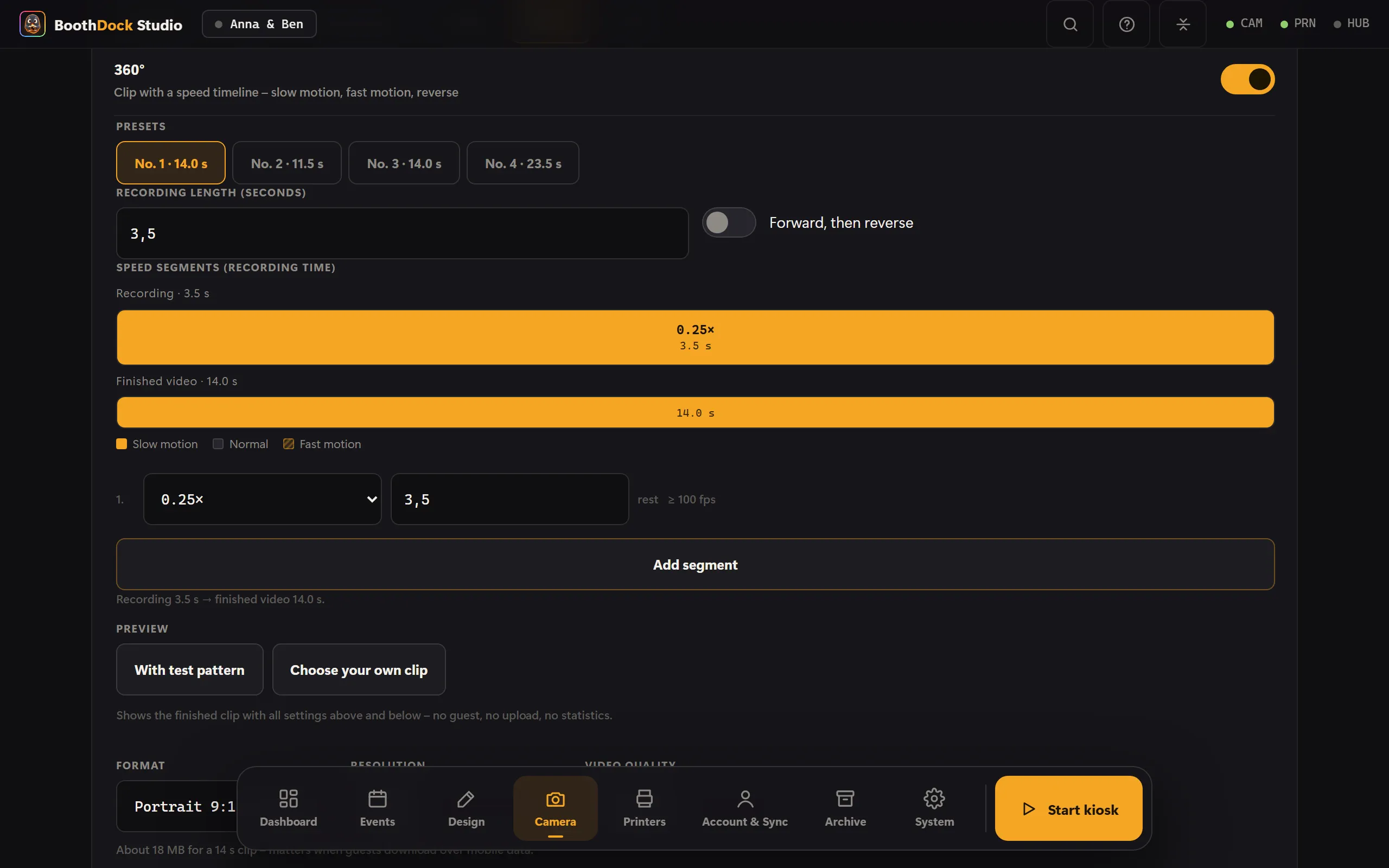
The timeline
A timeline consists of three settings:
- Recording length – how long the camera films, 1 to 60 seconds.
- Speed segments – the recording time is split into up to ten pieces, each with its own speed from 0.125× (eight times slower) to 8× (eight times faster). The last segment always fills the rest.
- Forward, then reverse – the clip then plays once more in reverse; the segments then share twice the length.
Below the timeline you can see what comes out: “Recording 3.5 s → finished video 14 s.”
The time bar shows the timeline as bars – the recording at the top, the finished video at the bottom. If you drag a border between two segments, the segments shift and the video length is recalculated. Each slow-motion segment also shows how many frames per second the camera should deliver for it (for example “≥ 100 fps”); if the last clip had too few, a warning sign appears.
To get you started there are four presets:
| No. | Recording | Timeline | Finished video |
|---|---|---|---|
| 1 | 3.5 s | 0.25× throughout | 14 s |
| 2 | 8 s | 3 s at 2×, then 5 s at 0.5× | 11.5 s |
| 3 | 13 s | 4 s at 2×, 5 s at 0.5×, 4 s at 2× | 14 s |
| 4 | 9 s, forward and reverse | 3 s at 1×, 2 s at 0.25×, 9 s at 2×, 4 s at 0.5× | 23.5 s |
Format and resolution
- Format – Portrait 9:16 (story), Landscape 16:9 or Square 1:1. The image is cropped from the center, never distorted.
- Resolution – 720 or 1080 (short side). 1080 is the default.
- Rotation and mirroring follow the camera setting – the clip is oriented exactly like the photo.
True slow motion needs frames
Slow motion is created by showing each frame for longer. If the camera films at 100 or 120 frames per second, that is enough for smooth slow motion down to 0.25×. At 25 or 30 frames per second the box has to repeat frames – below 1× it then visibly stutters.
That is why the 360° tab shows how many frames per second the last clip arrived with.
- Sony A7 IV – the box switches to 100 frames per second for 360° by itself and back again afterwards. 100 frames per second is only available in Full HD, not in 4K.
- Other cameras – the box uses the frame rate set on the camera. Set the highest frame rate in Full HD there.
- Webcam – usually 30 frames per second: good for fast motion and 1×, only of limited use for slow motion.
- Built-in camera (iPad, iPhone) – the app films 360° at a high frame rate, as far as the device allows. Recording frame rate lists the rates the camera reports; Automatic picks the lowest one the timeline needs.
- Sony ZV-1, RX100 VII, ZV-E10, A7R IVa and A7 III – these bodies don't hand over their clips via the cable. The box then records the live view instead, without a high frame rate – only of limited use for slow motion.
System cameras store the clip on their memory card – without a card there is no clip. And: at 100 frames per second each frame gets less exposure time, so you need more light.
Music and sound
- Music – upload your own tracks (MP3, M4A, AAC or WAV). The music replaces the sound of the recording and fades out towards the end; you set the volume under Music volume (%). Several tracks rotate, one per session. You are responsible for the music rights.
- Original sound – without music the clip keeps the camera's sound, but only if the whole timeline runs at 1× and not in reverse. With slow motion, fast motion or reverse the sound would no longer match the picture; the clip then stays silent.
Overlays
An overlay sits on top of the whole clip – a frame, a logo, a lettering.
- PNG with a transparent background, ideally in the clip's format. If the aspect ratio does not match, the overlay is fitted in the center; a note indicates this.
- Animated overlays – WebM with alpha channel (VP8 or VP9) or MOV with ProRes 4444. They loop along with the clip and carry the badge “animated” in the list. The box rejects a file without transparency – it would cover the whole clip.
- iPad and iPhone – animated overlays only as MOV with transparency (ProRes 4444 or HEVC with alpha). The device cannot play WebM; the app rejects it.
Several overlays rotate, one per session.
Intro and outro
A short clip before and one after the 360° clip – for example a logo sting. MP4 and MOV are allowed; at most 15 seconds are used. Intro and outro play without overlay and are cropped to the clip's format.
Color look (LUT)
Under Color look (LUT) you choose one of your color looks for the clip. You import the .cube files once under Camera → Effects → Color looks – the same looks are then available for photos and for 360°. On the clip, the look only colors the camera image; overlay, intro and outro stay as they are. More on this in Effects.
Preview in the admin area
With Preview you see the finished clip with all settings before a guest stands in front of the box – With test pattern (the box generates a moving test image) or with Choose your own clip. The preview does not go into the gallery, is not uploaded and does not count in the statistics.
Starting
- On screen – the guest picks 360° in the mode selection.
- Remote or foot switch – learn a key under System → Automation → Start by remote and choose 360° under Starts. The key then starts 360° right from the start screen. Presenters, USB buttons and foot switches usually send the space bar; that is preset. In BoothDock Studio 1.4.0 and earlier, Start by remote is still under Camera → Capture → 360° and always starts 360°.
- Start by motion (iPad, iPhone) – if the device sits on the platform's rotating arm, 360° starts as soon as the arm begins to turn; after a clip only once the platform has briefly stood still. Measure (5 s) while the platform is running sets a suitable Sensitivity.
- Phone or tablet – via the local API:
start?mode=slowmo. How that works is described in Webhooks and API.
What the guest experiences
- Countdown.
- Recording with a progress bar – no stop button, only the time ends it.
- Processing with a percentage display, usually a few seconds.
- The finished clip plays in a loop. Sharing via QR code and gallery as with video; nothing is printed.
In the gallery and in the Hub the capture appears as 360°, with a still from the middle of the clip as the preview.