At some events the guest should receive their photo by email only – no print, no QR code. And often your client, the organiser, wants to use the email addresses afterwards for their own invitations. They may only do that if the guest explicitly agrees. You set up both in BoothDock Studio under System, separately for each box.
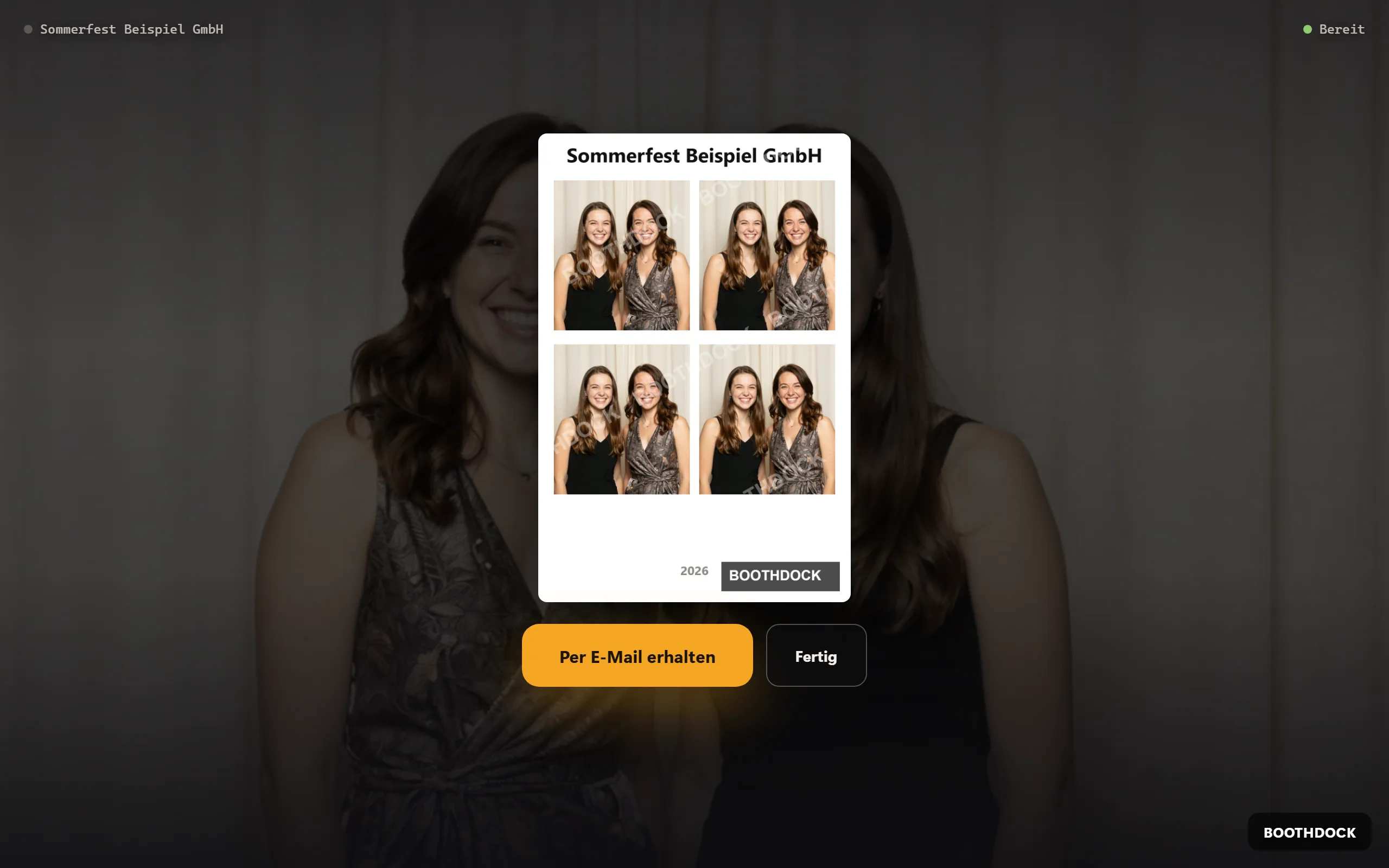
Requirements
- BoothDock Studio 1.5.8 or later – on Windows and on Apple devices (iPad, iPhone, Mac).
- The box is paired with the Hub, and the active event comes from the Hub (Events → Hub events → Adopt as local event) – see Create an account and pair a box. Sending runs through the Hub; without pairing the email button does not appear.
- The email contains a preview image and a link to the shot in the Hub gallery. The link works as long as the gallery is online (Retention (days) in the Gallery & guests tab).
Step 1: Only “Get by email” on the result
- Open System → Operation → Result actions (guest).
- Switch off Print, QR code and Download.
- Switch on Get by email.
- Leave Finish on – it takes the guest back to the start. You can switch off Change look and GIF from burst photos; Delete as you prefer.
- Optional: switch on Open the email window automatically (off by default). The address window then opens by itself on the result; guests who do not want their photo by email tap No thanks.
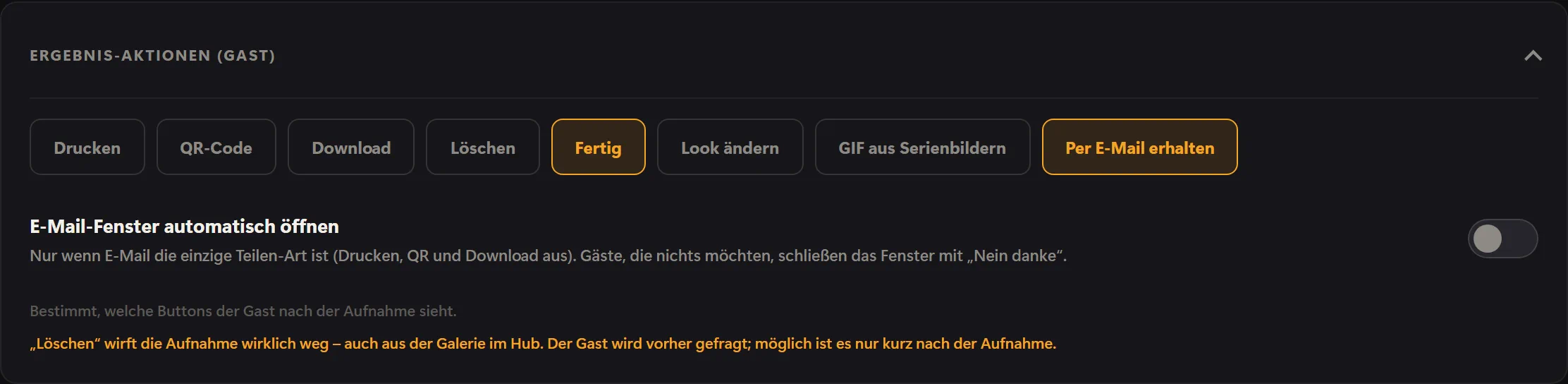
If email is the only way to take the photo home, Get by email becomes the large main button on the result, with Finish next to it. The button appears for every guest – no tick on the notice screen is needed for it.
What the guest sees
The guest taps Get by email, enters their address and taps Send link. The box uploads the shot to the Hub, and the Hub sends the email. The window tells the guest explicitly: “Your address is only used to send this photo and is not stored.” The Hub does not store the address, and the box only keeps it until the email is on its way. The confirmation is deliberately neutral – it does not reveal whether the address exists.
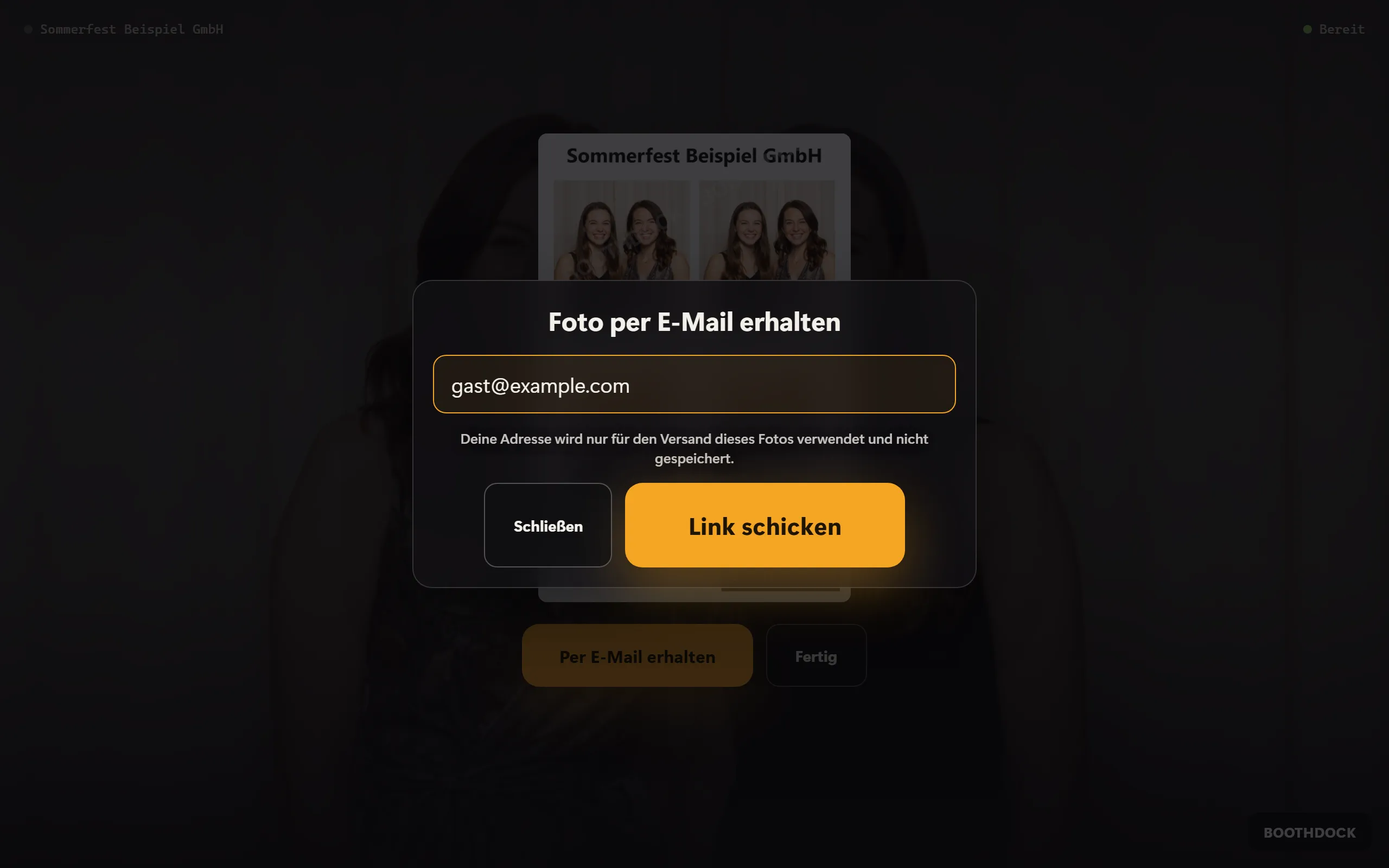
While the guest is typing, the box does not return to the start. If nobody types anything, the window closes with the normal return to the start.
Tip: in the Hub, set Events → Gallery & guests → Gallery scope to Per session – each guest only sees their own photos. The link in the email then shows only this guest's photos.
Step 2 (optional): Pass the address to the organiser only with a tick
Nobody receives the address from the email window – not even you. If your client should receive addresses, you use the guest data form with its own optional tick box.
- Open System → Operation → Guest data (form).
- Switch on Guest data form.
- Under When choose the point in the flow: Before sharing (after capture) asks right before the result, Before capture (after privacy) before the photo.
- Tap + Field, enter a label such as “Email address” and choose the type E-mail. The box then checks that the entry looks like an email address.
- Leave Required off. If all fields are optional, the guest can skip the form with Skip.
- Under Checkbox for marketing contact (empty = none) write the text of the tick box, e.g. “I agree that my email address may be passed on to [organiser] so that they can contact me about their events.” Name the organiser and the purpose.
The tick box is never mandatory and never pre-ticked. If the text field stays empty, there is no tick box. Under Texts for you translate the heading, fields and tick box for each guest language.
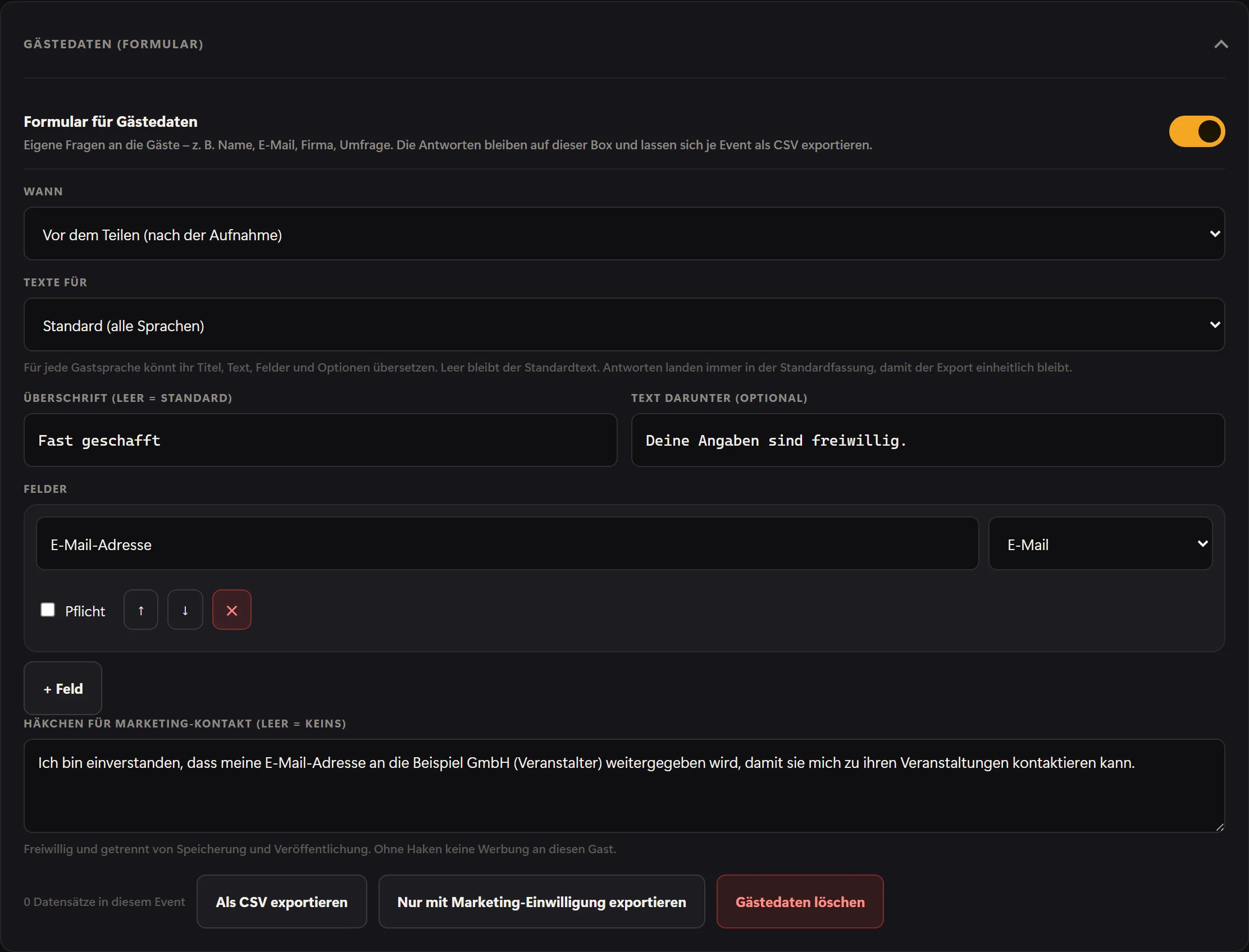
This is how the guest sees the form:
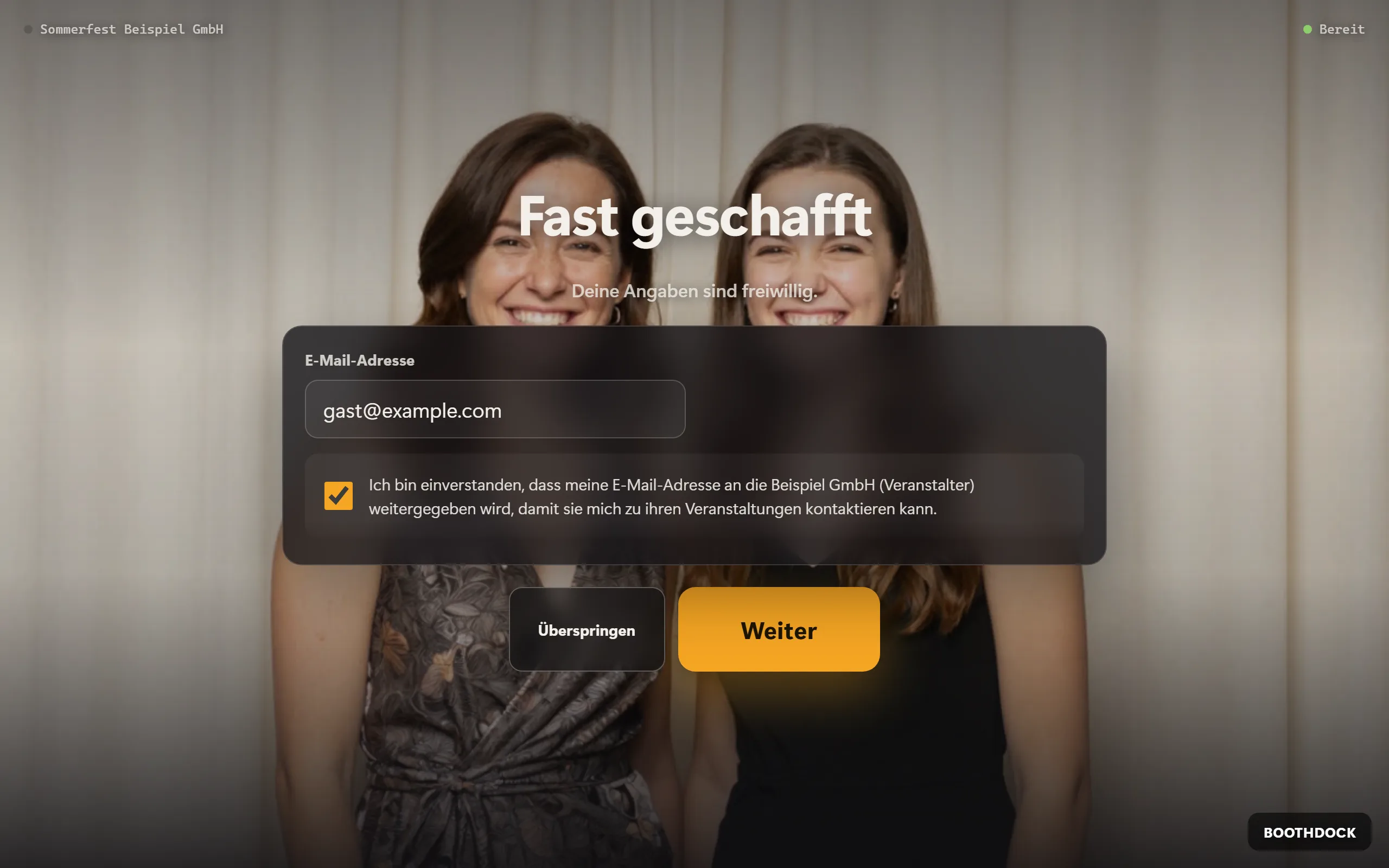
No double entry: if the guest has already entered an email address in the form, it already appears in the Get your photo by email window. They can still change it there; nothing extra is stored.
Export and pass on addresses
- On the box: Export only with marketing consent downloads a CSV file with only those guests of the active event who ticked the box (Marketing allowed = Yes). This is the list you may pass on to your client. Export as CSV, on the other hand, downloads all answers. Delete guest data removes them from the box again.
- In the Hub (paid plan): if the box is paired, the answers also go to the Hub. You find them under Events → your event → Guest data tab, and Download CSV gives you a CSV. This file contains all answers; only pass on the rows with yes in the Marketing column. On the Free plan the answers stay on the box only.
The form stores an entered address even if the guest does not tick the box. That is why only addresses with consent go to your client.
Data protection
- Whoever collects the data is responsible for it – you as the operator, possibly together with your client. You write the texts for the notice and the tick boxes yourself.
- The address in the email window is only used to send this photo and is not consent to marketing. Passing it on to the organiser is governed solely by the tick box in the form. Both are optional; taking part never depends on either.
- Only pass on addresses with a tick.
- You no longer need Extra checkbox: contact under System → Protection → Privacy notice for sending by email. If you have used it for that so far, you can switch it off or use it for its original purpose again. You download the consents from the notice screen there with Export consent log – with timestamp and exact wording.
This article describes BoothDock's features and is not legal advice. If in doubt, ask your data protection adviser.