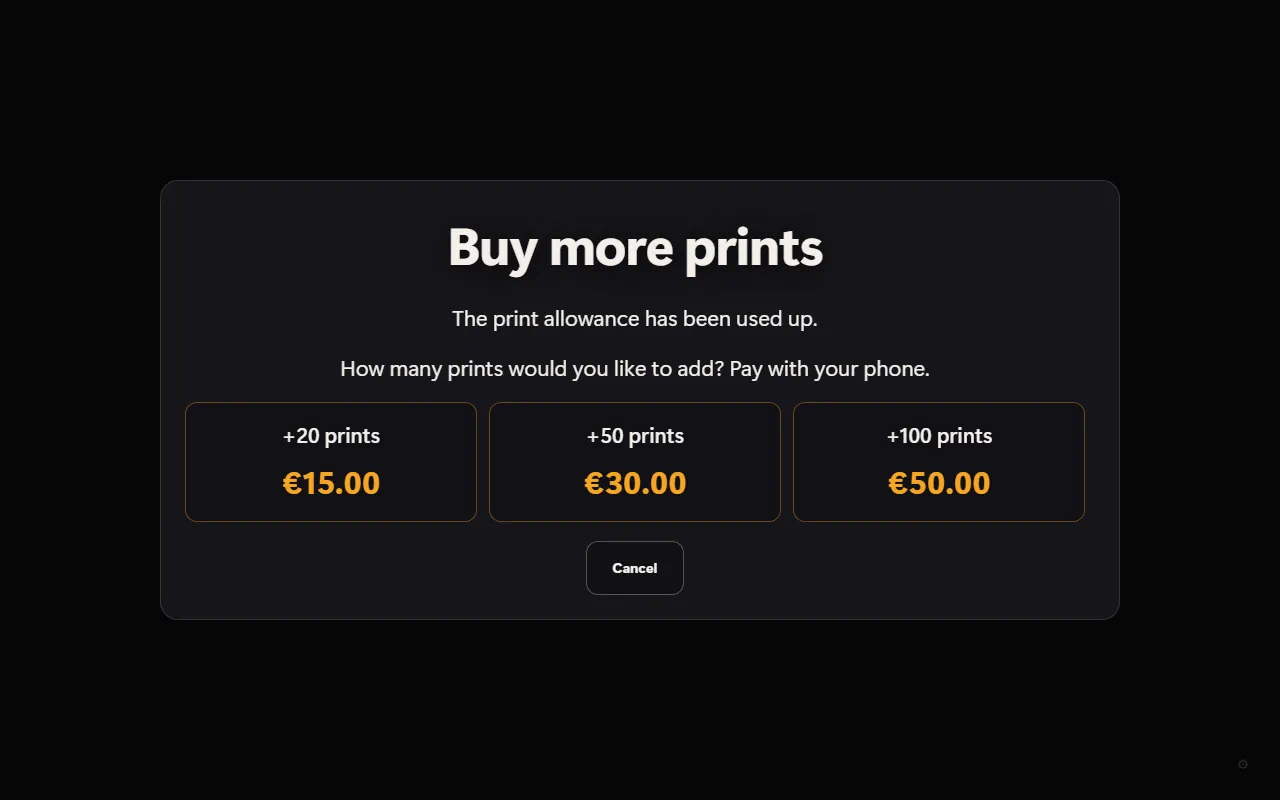
If you rent out your photo booth with a fixed number of prints, set the print limit right in the Hub – for each event, without going to every booth. Once the limit is reached, the booth stops printing and shows a message. If you like, guests can buy extra prints there: they pay with their own phone and the booth prints again right away. The money goes straight to you.
How to set it up
- In the Hub, open the event and the Event & box tab.
- Expand the Print limit section (below Rental time at the booth). Switch on Set the print limit from the Hub.
- Under Prints per booth at the event, enter how many prints each booth may make – for example 200. 0 means no limit.
- Tap Save at the bottom. The event's booths pick up the setting shortly.
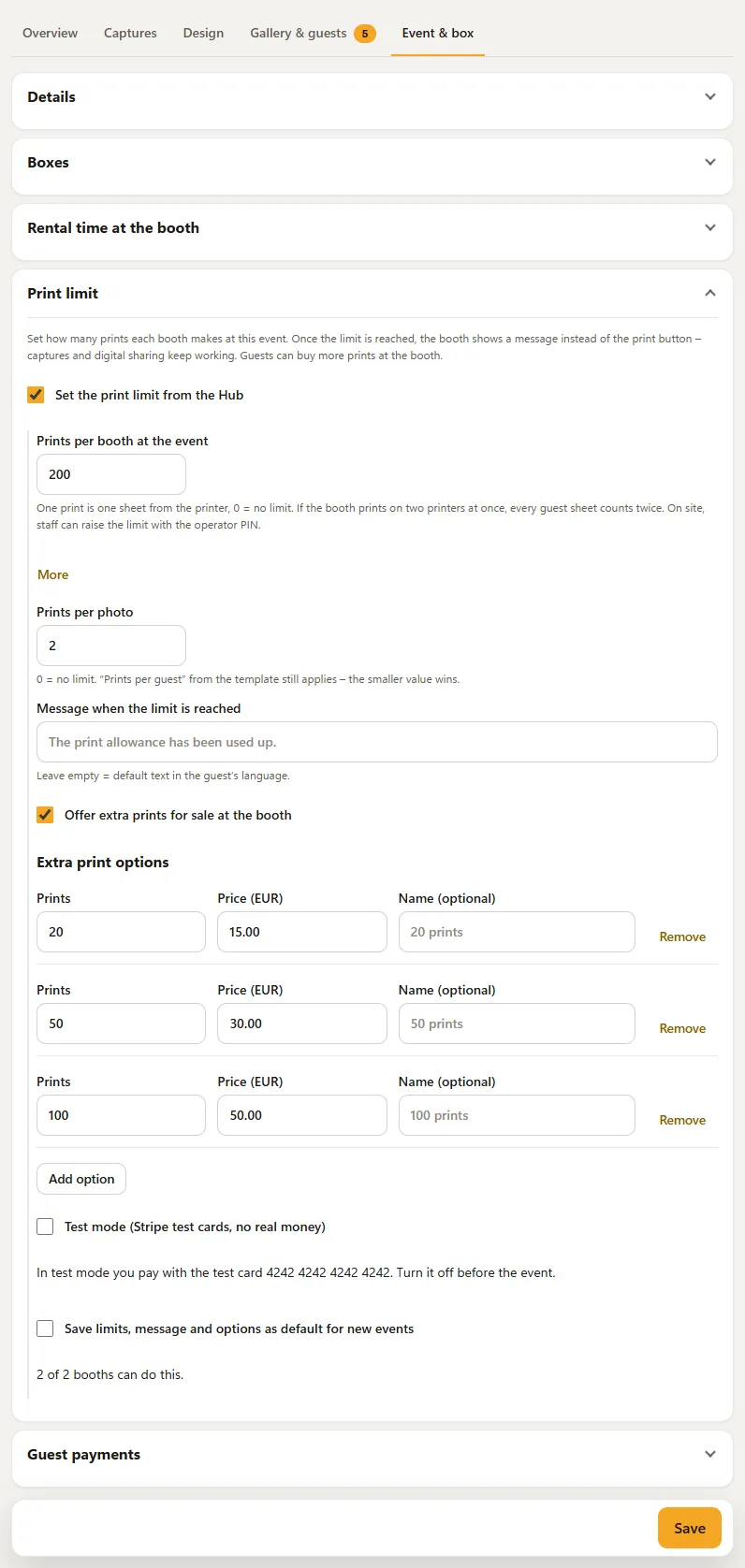
Everything else is under More: Prints per photo, Message when the limit is reached, extra prints with options, test mode and the line showing how many of your booths already support the feature. If none of them does yet, update BoothDock Studio on the booth.
What counts as one print
- One print is one sheet coming out of the printer. A 4×6 sheet with two 2×6 strips is one print.
- If the booth prints on two printers at once, every guest sheet counts twice.
- The limit applies per booth. With two booths at the event, each has its own allowance.
- Prints per photo sets how often a guest may print the same photo (0 = no limit). If the template allows fewer, the smaller value applies. There are no extra prints for this limit.
What guests see at the booth
- As long as prints are left, the booth prints as usual. If the rest isn't enough for the chosen quantity, it only offers the possible quantities.
- When the limit is reached and extra prints are off, the print button disappears and your message appears – without your own text “The print allowance has been used up” in the guest's language. Captures, QR code, gallery and sharing keep working; the booth does not lock.
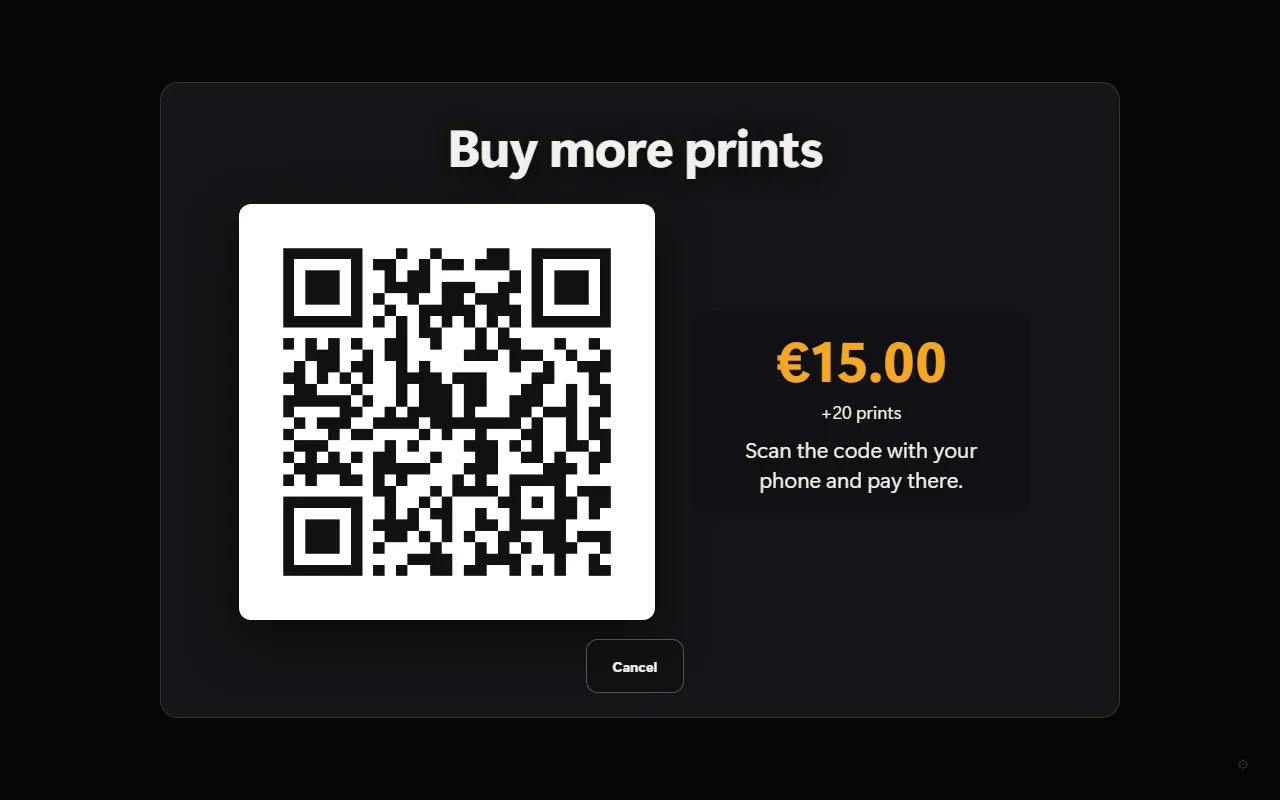
- When extra prints are on, the button reads Buy more prints. The guest picks an option, scans the QR code and pays on the phone. The booth then prints again right away.
Extra print options
Each option has a number of prints (1 to 500), a price and an optional name. Prices are up to you – for example 20 prints for €15 and 50 prints for €30. Up to 6 options are possible. Without a name, the booth shows the quantity, such as “+20 prints”.
With Save limits, message and options as default for new events, every new event starts with these values; the print limit is never switched on by itself. Bought prints belong to the booth where they were paid for and stay on top even if you change the limit later.
Raising the limit at the booth
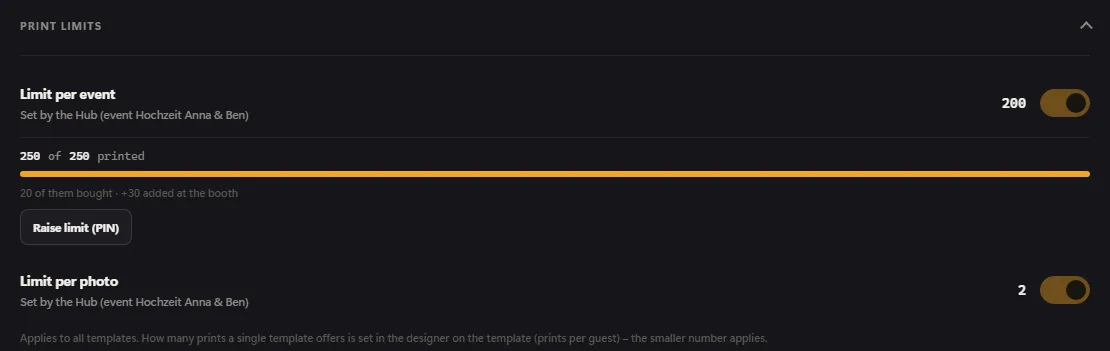
If you're not on site, your staff can raise the limit directly at the booth: under Printers → Routing & limits. The values are shown locked with “Set by the Hub (event …)”. The Raise limit (PIN) button asks for the number of extra sheets and the operator PIN. The increase applies only to this booth and this event and lapses when the event changes. The value in the Hub stays the same; the Hub shows the increase in the print counter.
Requirements for extra prints
Extra prints use Guest payments – guests pay at the photo booth and need the same: an account with Pro, a connected Stripe account (in the event under Event & box → Guest payments) and, the first time, ticking the box for the terms. The limit per booth must also be above 0. If the event already sells prints per guest through guest payments, extra prints stay off – otherwise a guest would pay for a print the limit refuses.
There is no commission; Stripe's fees are charged to your Stripe account. To try it out, More has the Test mode (Stripe test cards, no real money) – switch it off again before the event. The print limit on its own also works without Pro and without Stripe.
Print counter
In the event tab Overview, the Prints section shows “x of y” with the rest, below it the prints bought and, per booth, how much was added at the booth. The Hub counts the prints of uploaded sessions – the booth's own counter is what counts for the limit.
Frequently asked questions
What happens without internet? The limit still applies – the booth knows it. Buying prints needs internet; without a connection the booth shows “The photo booth needs internet to buy more prints”.
Do the settings on the booth still apply? Not for events with a print limit from the Hub – there the booth shows the values locked. For all other events they apply as before.
See also: Guest payments – guests pay at the photo booth, End of rental time and extending at the box, Create an event.