With photo challenges, your event gallery becomes a game: guests scan the gallery QR, pick a challenge – for example “A photo with the happy couple” – and upload their photo straight from their phone. The live photo wall shows the pictures on a projector or TV, mixed with the photos from the photo booth. Guests need no app and no account.
Requirements
- In the Gallery & guests tab, Gallery scope is set to Whole event – all guests see all photos and Allow guest uploads is on. If either is missing, the Photo challenges tab shows a hint.
- Photo challenges and the live photo wall are part of Pro. On Free, guests see a trial pack with the first 5 challenges, and the wall only runs in test mode with sample pictures.
Switch on photo challenges
- In the Hub, open Events and choose your event.
- Click the Photo challenges tab.
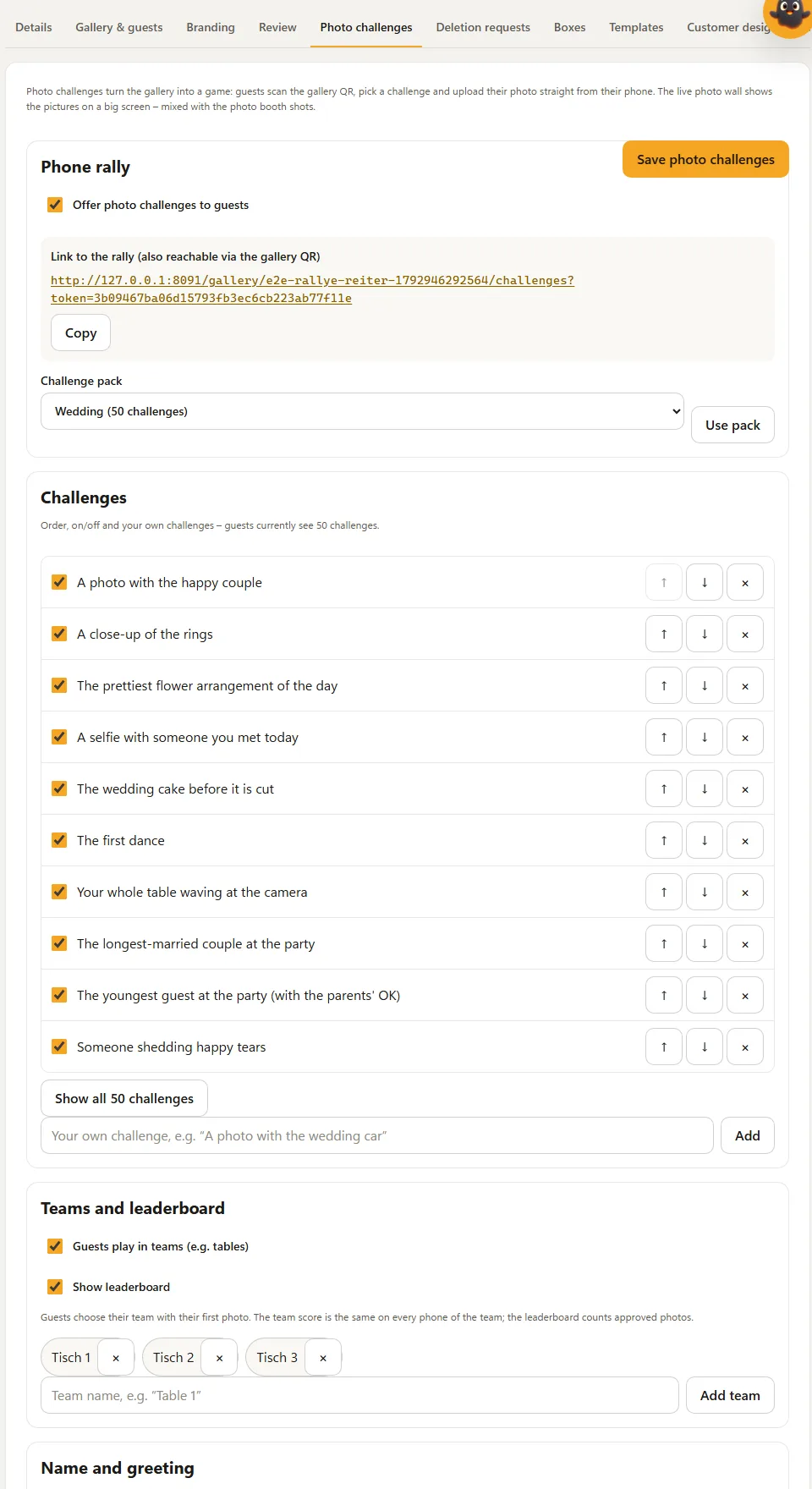
- Tick Offer photo challenges to guests.
- Choose a challenge pack – Wedding, Birthday or Company party with 50 challenges each. The Hub applies the pack on the first save; later you can swap it with Use pack. Your own challenges stay.
- Click Save photo challenges.
From now on the album shows a Photo challenges button, and the gallery QR takes guests there.
Adjust the challenges
In the Challenges list you can
- switch single challenges off and on with the tick box,
- change the order with ↑ and ↓,
- remove challenges with ×,
- type your own challenges and add them with Add (Pro, up to 160 characters).
The list first shows 10 challenges; Show all … challenges expands the rest. Guests see pack challenges in their own language and your own challenges exactly as you wrote them.
Teams and leaderboard
With Guests play in teams you create teams, for example Table 1 to Table 12 (Pro, up to 30 teams). Guests choose their team with their first photo. Show leaderboard shows the standings to guests and on the wall.
- The team score is calculated in the Hub and is the same on every phone of a team.
- The leaderboard only counts approved photos – with moderation switched on, only after you approve them.
What your guests see
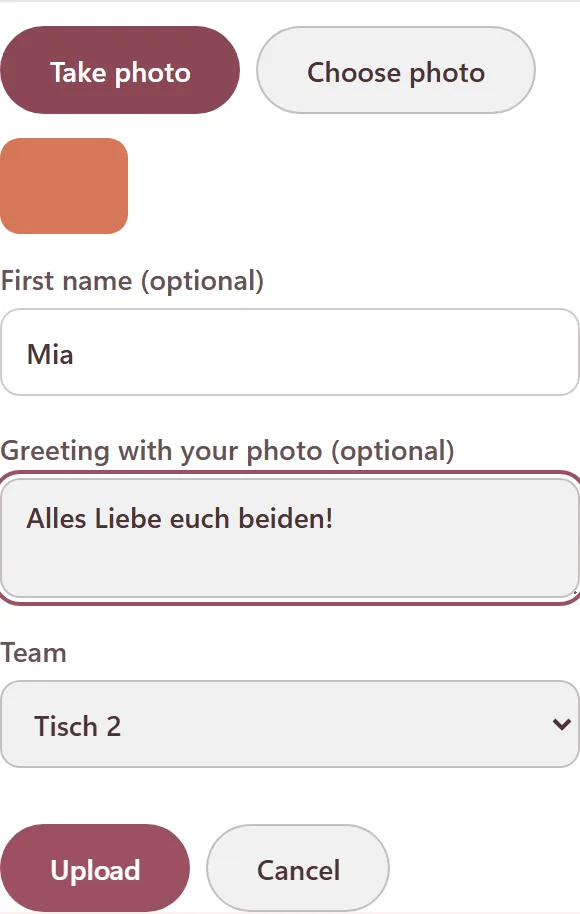
The guest page shows all challenges, the guest's own progress and – with teams – the team score. Take photo opens the camera, Choose photo the photo library. First name and greeting are optional. Under each challenge, View photos shows the approved pictures for exactly that challenge.
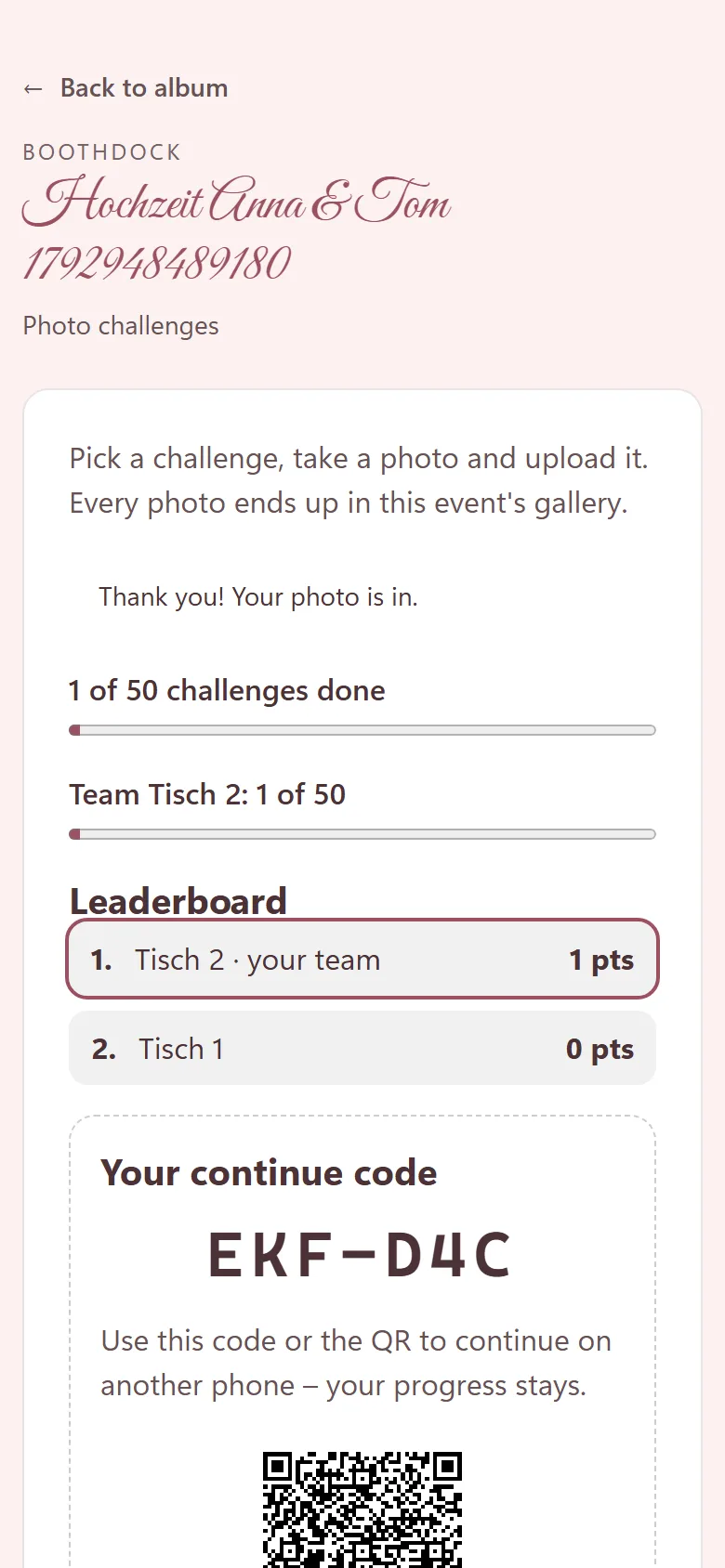
After the first photo, the guest gets a continue code (for example SME-ARP) with a QR. With it they continue on another phone – the progress belongs to the code, not to the device. Anyone who lost the code simply starts again; no photos are lost.
Name and greeting
| Setting | Effect |
|---|---|
| Guests may enter their first name | Field First name (optional), up to 40 characters. |
| Guests may add a greeting to their photo | Field Greeting with your photo (optional), up to 140 characters – also on the normal upload page as soon as photo challenges or the wall are on. |
You see greeting and first name on every guest photo in the Review tab. With Moderate guest uploads (tab Gallery & guests), nothing appears in the gallery or on the wall before you approve it.
Live photo wall
- In the Photo challenges tab, tick Switch on the live photo wall and click Save photo challenges.
- Under Link to the wall you now find Open wall, Test mode and Copy.
- Open the link on the computer connected to the projector or TV and press F for full screen.
| Setting | Effect |
|---|---|
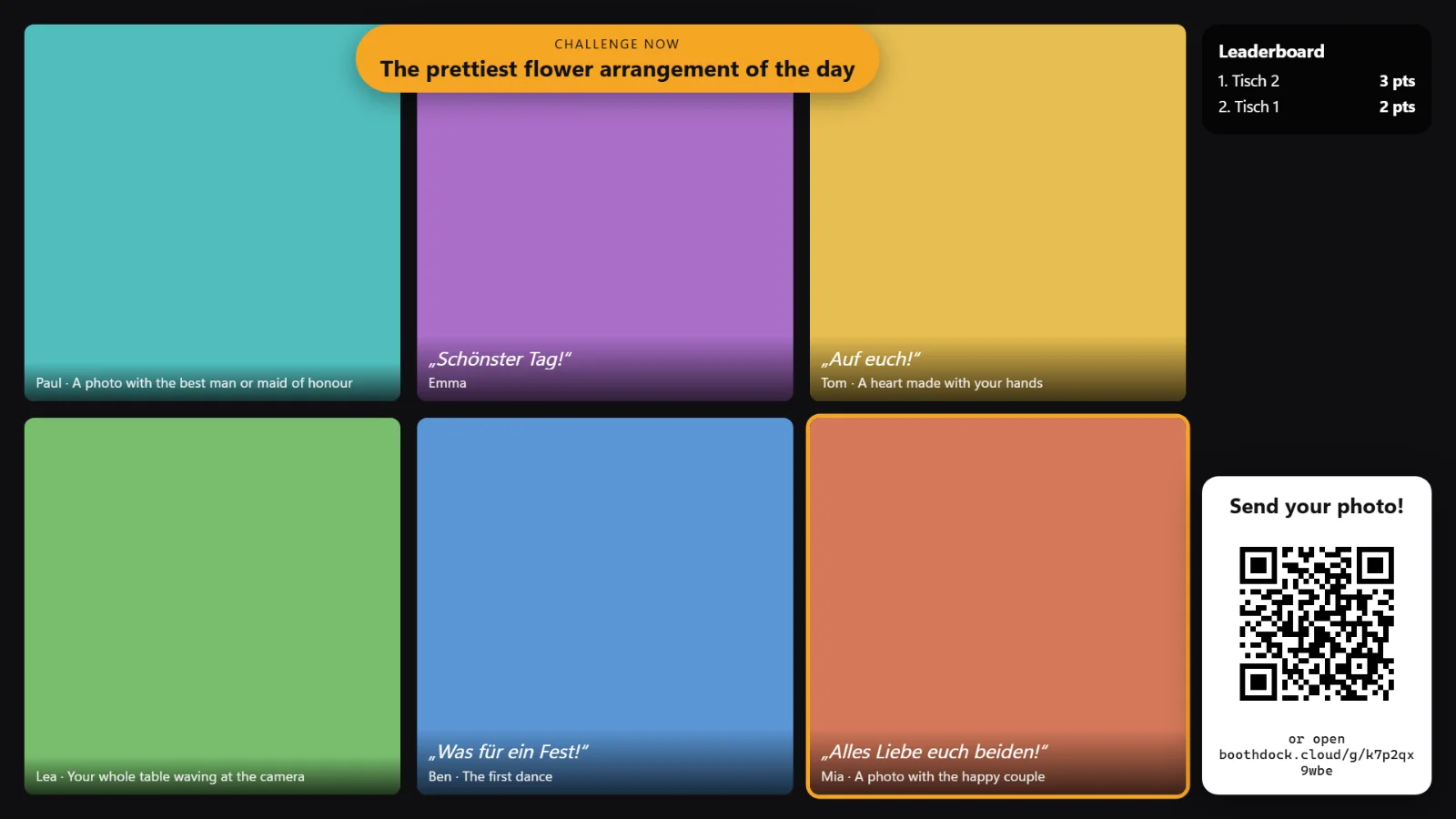
| Layout | Full screen (one photo), Collage (six photos) or Polaroid (instant prints). Colours come from the event's gallery template. |
| Change every … seconds | How long a photo stays, 4 to 30 seconds. |
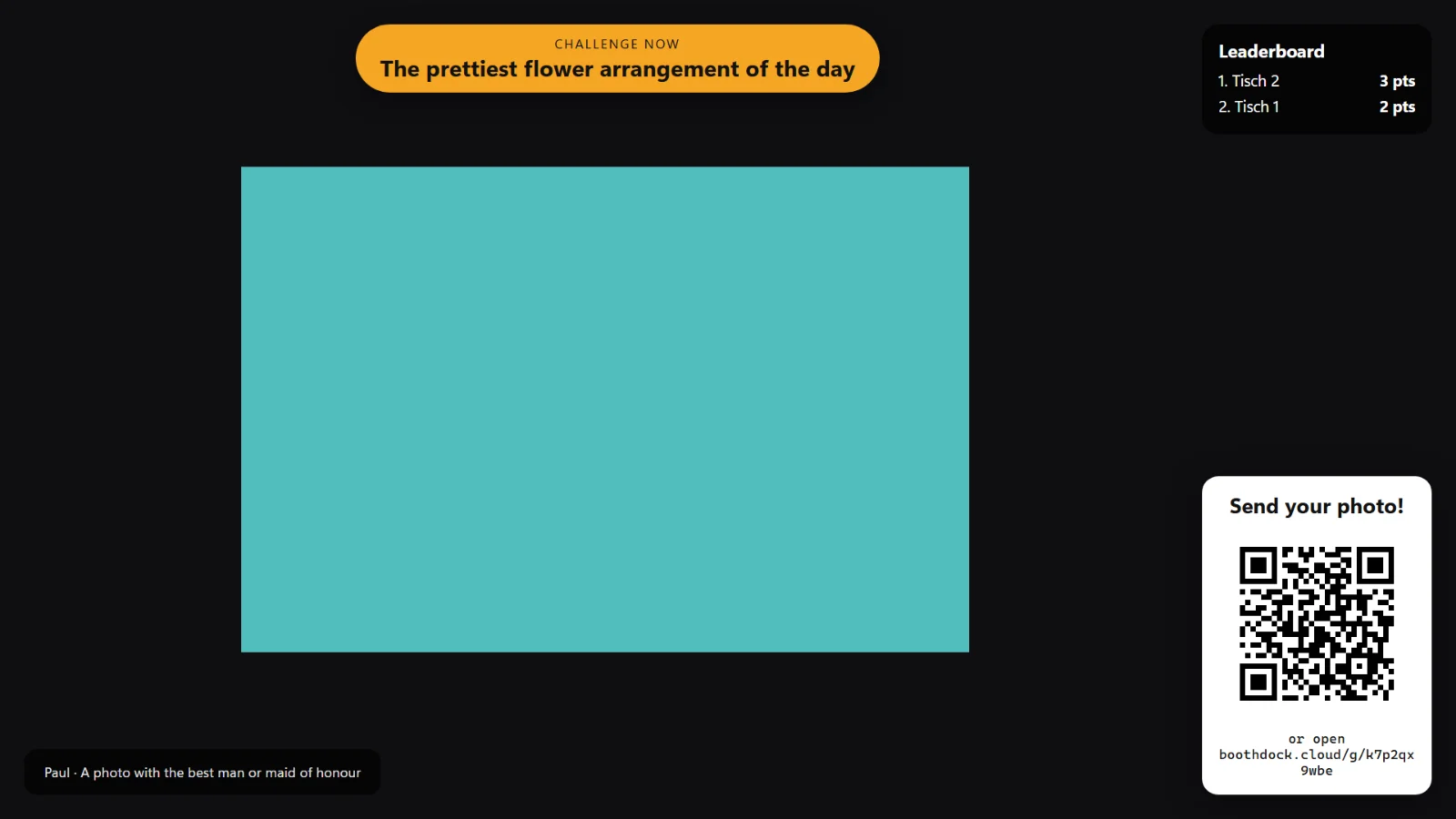
| Show “Send your photo” QR | Big QR at the bottom right, with the short address below for typing. |
| Show first names / Show greetings | Show name and greeting with the photo. |
| Show the current challenge | At the top, a challenge from your list changes every minute. |
| Show the leaderboard | The top five teams at the top right. |
New photos arrive instantly and jump the queue; the wall only fades a picture in once it has fully loaded. When nothing new arrives, it shows older photos in a loop. Photo booth shots and phone photos appear side by side.
Several screens
You can open the wall link in several windows or on several computers at once. Add &layout=fullscreen, &layout=collage or &layout=polaroid to the link to give that window a different layout than the one you set.
Controls on the wall
| Key | Effect |
|---|---|
| Space | pause / play |
| ← → | back / next |
| P | pin or unpin the current photo – pinned photos appear more often |
| H or Del | take the photo off the wall (it stays in the gallery) |
| G | hide or show the photo's greeting |
| M | moderation panel with waiting guest photos: ↑ ↓ select, A approve, R reject |
| F | full screen |
| ? | key help |
You can also pin in the Hub: in the Review tab, every approved guest photo has Pin to the wall.
Test mode and new link
Test mode shows the wall with sample pictures – set up projector and layout before the party. Nothing is saved in test mode.
The wall link contains its own key. Whoever has it can moderate the wall – so don't share it with guests. Create new link invalidates the old link immediately; reopen any open wall windows afterwards.
Privacy
Guests need no account. Only the photos, the optional first name, the optional greeting, the link to the challenge and team, and a random participant ID with continue code are stored – for as long as the gallery runs. When the gallery expires, or the event or your account is deleted, everything is gone.
Frequently asked questions
The “Photo challenges” button is missing in the album. Check that Offer photo challenges to guests is saved and Gallery scope is set to Whole event.
A guest no longer sees their progress. They probably switched phone or browser. With the continue code under Already playing? Enter your continue code everything is back.
The wall shows “Test mode” although I want real photos. Remove &test=1 from the link. On Free, the wall always runs in test mode.
See also: Share the gallery, Design the gallery, Delete photos.