Under Offering → Inventory you add what you rent out: your boxes, equipment such as printers or backdrops, and consumables such as paper. This determines what is still bookable on a given day. As long as the inventory is empty, the booking page keeps calculating with your box slots as before.
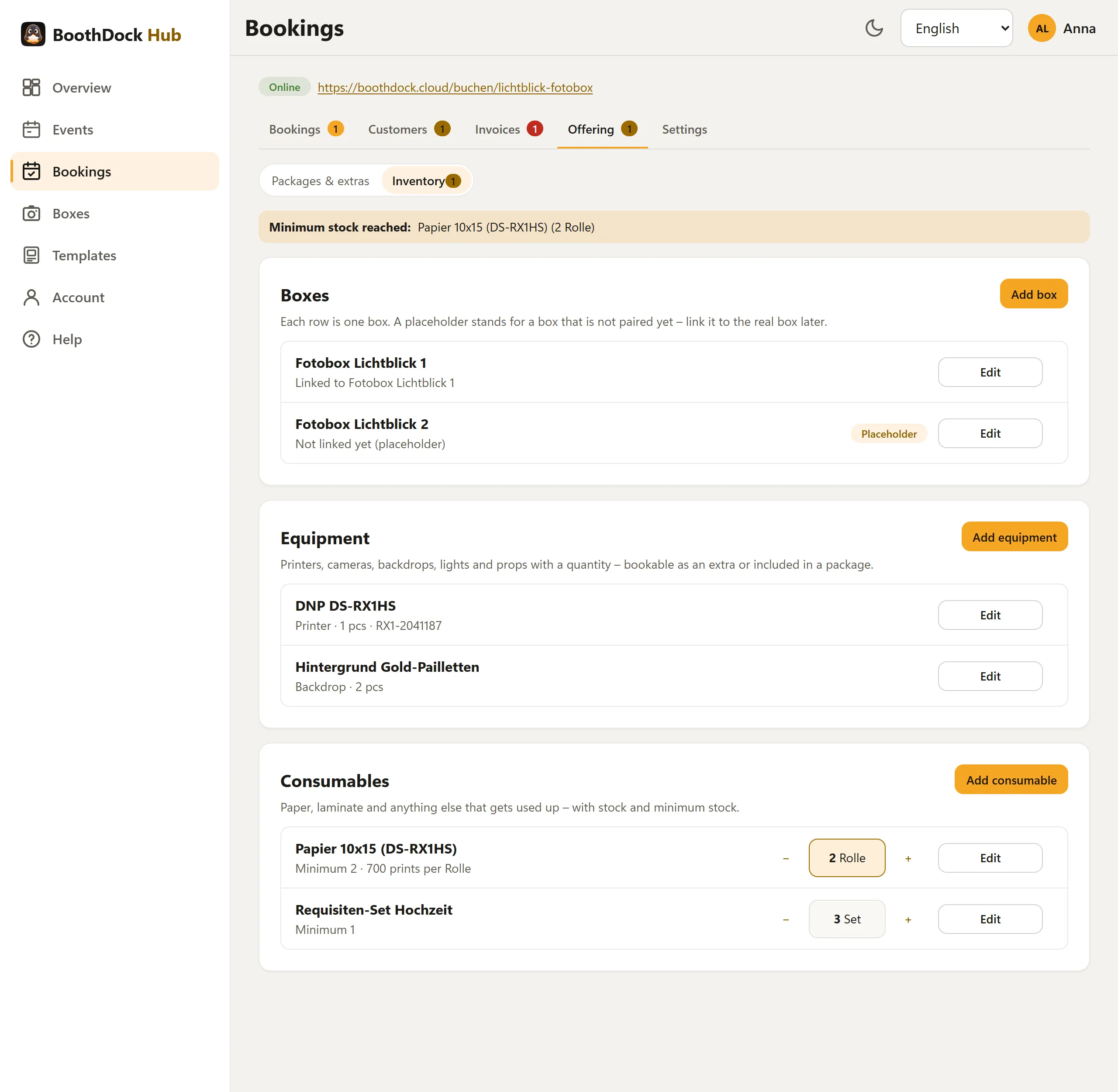
Boxes
Use Add box to create one row per box.
- Link to box: choose a box paired in the Hub. The event of an accepted booking then gets this box automatically.
- Placeholder: if you have not paired a box yet – for example because it is still being delivered – leave the link empty. The row still counts as a box. If you link it later, upcoming bookings of this box automatically get the real box on their event.
Equipment
Use Add equipment to add printers, cameras, backdrops, lights and props. Type and Quantity determine how many of them can be out at the same time. Under Advanced you find Serial number and Notes (only for you).
What a booking uses
In the dialog of a package or extra (Offering → Packages & extras), the Uses field determines what a booking blocks:
- Any box – any free box from the inventory,
- a specific box,
- a piece of equipment with a quantity.
This is how you map a printer, for example:
| Printer … | How to do it |
|---|---|
| as an extra | Create an extra “Printer” that uses the printer. If it is already taken on a day, the extra cannot be chosen there. |
| in the package | The package uses Any box and the printer. |
Only accepted bookings use inventory – a new request does not block anything yet. A multi-day package (Days booked) uses inventory on each of its days. If no suitable box is free on a day, the day shows as booked on the booking page; a taken extra shows “Not available on this day”. In the request you see under Assigned which box and which equipment the booking got. If you accept despite a full day, the Hub warns: “Heads up: your inventory is overbooked on this day.”
You can only delete a piece of equipment that a package or extra still uses after you have removed it there.
Consumables
Use Add consumable to add paper rolls, for example:
| Field | Meaning |
|---|---|
| Unit | e.g. roll, pack, sheet |
| Minimum stock | Below this, the Hub warns you. |
| Prints per unit | For the “usage from event” suggestion, e.g. 400 prints per roll. |
| Fits | Which of your equipment uses the consumable. |
| Initial stock | Stock when you create it. |
In the list you change the stock with − and +. Clicking the number opens Stock and history: there you record a movement with Reason (Purchase, Correction or Used at an event), Amount and Note, and see the History below.
For Used at an event, choose an accepted booking under Usage from event. If the box reported prints for this event, the Hub suggests the amount – prints divided by Prints per unit, rounded up. This is only a suggestion; check it briefly.
When a consumable reaches its minimum stock, the Offering tab and the Inventory sub-tab show a number, and at the top it says “Minimum stock reached:” with the consumable.
Photos
Every entry – box, equipment or consumable – can have up to 6 photos, just like packages and extras. You add photos after the first Save with Add photo. The first photo is the cover image; Move forward changes the order. For packages and extras, the photos appear on the booking page.