In the Customers tab you have all customers of the booking module in one place: contact details, tags, notes, follow-ups and every request and booking. Customers are created automatically with their first request. Anyone who sends another request with the same e-mail address is added to the same customer.
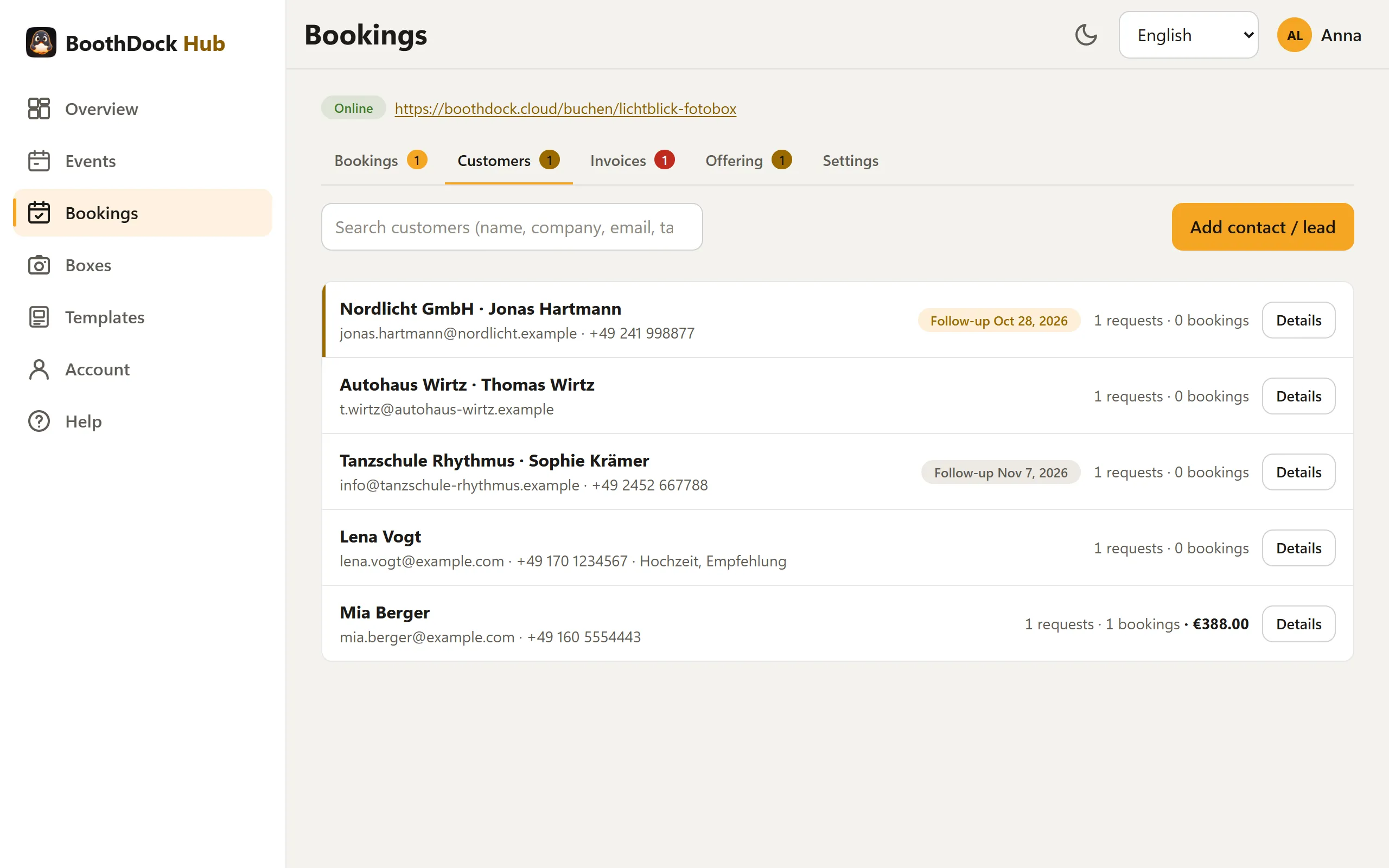
The customer list
Each row shows name and company, e-mail, phone and tags, the number of requests and bookings, and the revenue. Due follow-ups are at the top and highlighted.
The search field finds customers by name, company, e-mail and tag.
Add a contact or lead manually
Not every request comes through the booking page. For requests by phone, at a trade fair or by e-mail, click Add contact / lead and enter name, company, e-mail, phone, location and a message.
If you enter a Date – optionally with a Package –, a request is also created in the Bookings tab. You turn it straight into a quote, just like a request from the booking page. Without a date, only the contact is saved. If a customer with that e-mail already exists, the Hub adds to that customer.
A customer in detail
Details opens the customer:
- Contact: name, company, e-mail, phone and Tags (comma-separated, e.g. wedding, regular customer, corporate). Save applies the changes.
- Follow-up: a date and what you want to remember, e.g. “Follow up on the quote”. Set follow-up saves it. From that date the customer appears at the top of the list. Done removes it.
- Notes: calls, wishes, agreements. Save note adds it with the date and your name; the newest is at the top.
- Requests and bookings: all of the customer's records with date, package, status and source (Booking page, Widget or Manual). Details opens the request with quote and documents.
Delete customer removes the customer along with notes and follow-up. Requests and documents are kept.
Your customers' data
You are responsible for your customers' data; BoothDock processes it on your behalf. So link your own privacy policy under Settings → Booking page & widget → Advanced (see Set up the booking page).