BoothDock Studio can notify other programs about every step of a session (Webhooks) and can itself be controlled by other programs (local API). You'll find both in the admin area under System → Automation.
In BoothDock Studio 1.4.0 and earlier, the webhooks section there is still called “Triggers”.
Webhooks and real-time export are Windows only. The local API is also available on iPad and iPhone from version 1.4.0.
Typical uses: lights or DMX in sync with the countdown, a stream overlay, a counter at the entrance – or a Stream Deck as a remote control for the box.
Setting up webhooks
Enter a Program, an Address (URL) or both. On every event the box calls both:
- Program – an
.exe,.bator.cmd. Call:program <event> <param1> <param2> …. Each value arrives as a separate argument, even if it contains spaces. The program starts without a window, in its own folder. To run a PowerShell script (.ps1), put a small.batin front of it. - Address (URL) –
httporhttps, called via GET:https://your-server/hook?event_type=<event>¶m1=…¶m2=…. The values are URL-encoded; parameters that are already part of your address are kept.
The session never waits for your webhook: the program and the call run alongside it, and a call may take at most 5 seconds. Send test immediately sends a session_start – that way you can check the connection without starting a session.
Program and address can only be set directly on the box, not via the Hub: a program path is the right to run something on the computer.
Events
| Event | When | Parameters |
|---|---|---|
session_start | A guest starts a session, the mode is set | 1: mode (PrintOnly, PrintAndGIF, OnlyGIF, SlowMoOr360, Video), 2: BoothDock mode (photo, gif, boomerang, video, slowmo, ai) |
countdown_start | The countdown begins | 1: seconds |
countdown | Every second of the countdown | 1: progress in percent (from 0) |
capture_start | The countdown is over, the capture begins | – |
file_download | The camera has saved a photo | 1: file name, 2: full path |
processing_start | Processing begins | one file name per camera original, the print file as the last value (currently empty) |
sharing_screen | The result screen appears (once per session) | – |
printing | A sheet is sent to a printer | 1: file (currently empty), 2: copies, 3: printer |
file_upload | A file has arrived in the Hub (per file) | 1: path on the box, 2: gallery link, 3: type (print, photo, original, animation, boomerang, video), 4: album (event name) |
session_end | The session ends – finished, cancelled, timed out or deleted | – |
Example of a .bat that logs every event: echo %DATE% %TIME% %* >> "%~dp0events.log"
Local API
Other programs control the box via HTTP – for example a Stream Deck, your own script or a 360° controller on a phone.
- Turning it on: System → Automation → Enable API. The API is off by default. Port 1500, can be changed.
- Address:
http://localhost:1500/api/<command>(or127.0.0.1). By default the box only accepts requests from this computer. - Password: 16 characters, shown in the same section – copy it or generate a new one. Pass it as
?password=…, as theX-Api-Passwordheader or asAuthorization: Bearer …. Onlypingworks without it. - Response: always HTTP 200 with JSON, for example
{"ApiVersion":1,"Command":"cancel","IsSuccessful":true,"ErrorMessage":""}. Whether it worked is shown inIsSuccessful; if it failed, the reason is inErrorMessage. Some commands also returnData.
A complete call: http://localhost:1500/api/start?mode=print&password=YOUR-PASSWORD
Controlling from the network (phone, tablet, 360°)
Also turn on Also reachable from the network. The box then accepts requests from devices on the same Wi-Fi/LAN – never from the internet.
- Address for the phone: shown in the status line, for example
http://192.168.1.20:1500. The example below it then shows the matching address right away. - Without entering an IP: The box announces itself on the network (mDNS/Bonjour, service type
_boothdock._tcp, name "BoothDock" plus the computer name). Apps that look for it find it automatically. - Lockout: If a device sends a wrong password ten times within ten minutes, it is locked out for 15 minutes. This computer itself is never locked out.
- Only on your own network: The password travels across the network unencrypted. Use network mode only on your own, protected Wi-Fi – not on the venue's open guest Wi-Fi.
- Firewall: The installer sets up the rule, for private networks only. If the status line shows a firewall warning, reinstall BoothDock Studio or allow it in Windows under "Allow an app through firewall". If Windows treats the Wi-Fi as public, devices can't get in – set the profile to Private in the network properties.
Commands
| Command | Effect |
|---|---|
start?mode=print | Starts a session. Modes: print (photo), gif, boomerang, slowmo (360°; without 360°, boomerang), video, ai. Only works from the start screen, only with an enabled mode and not while the box is locked. |
cancel | Cancels the current session and returns to the start screen. |
status | Returns in Data: guest mode on/off, current screen, mode, locked yes/no. |
print?count=1 | Prints the last result again (1 to 10 sheets). Videos can't be printed. |
lockscreen/show | Locks the box with "One moment – we'll be right back." The admin corner stays reachable. |
lockscreen/exit | Lifts the lock. |
share/email?email=… | Sends the last result by email – requires Hub pairing and the “Get by email” result action (System → Operation → Result actions (guest); up to 1.4.0 the “Photo by email (guest)” switch under Design → Screens). |
share/sms | Doesn't exist; the response says so honestly (IsSuccessful: false). |
createtestevent?name=… | Creates a test event and makes it active. Data contains eventId and eventName. Without a name you get one with the date. |
deletetestevent?eventId=… | Deletes a test event that was created via the API – never other events. |
ping | Checks without a password whether the API is running. |
If the box doesn't respond within 15 seconds, IsSuccessful: false comes back with a note.
Real-time export
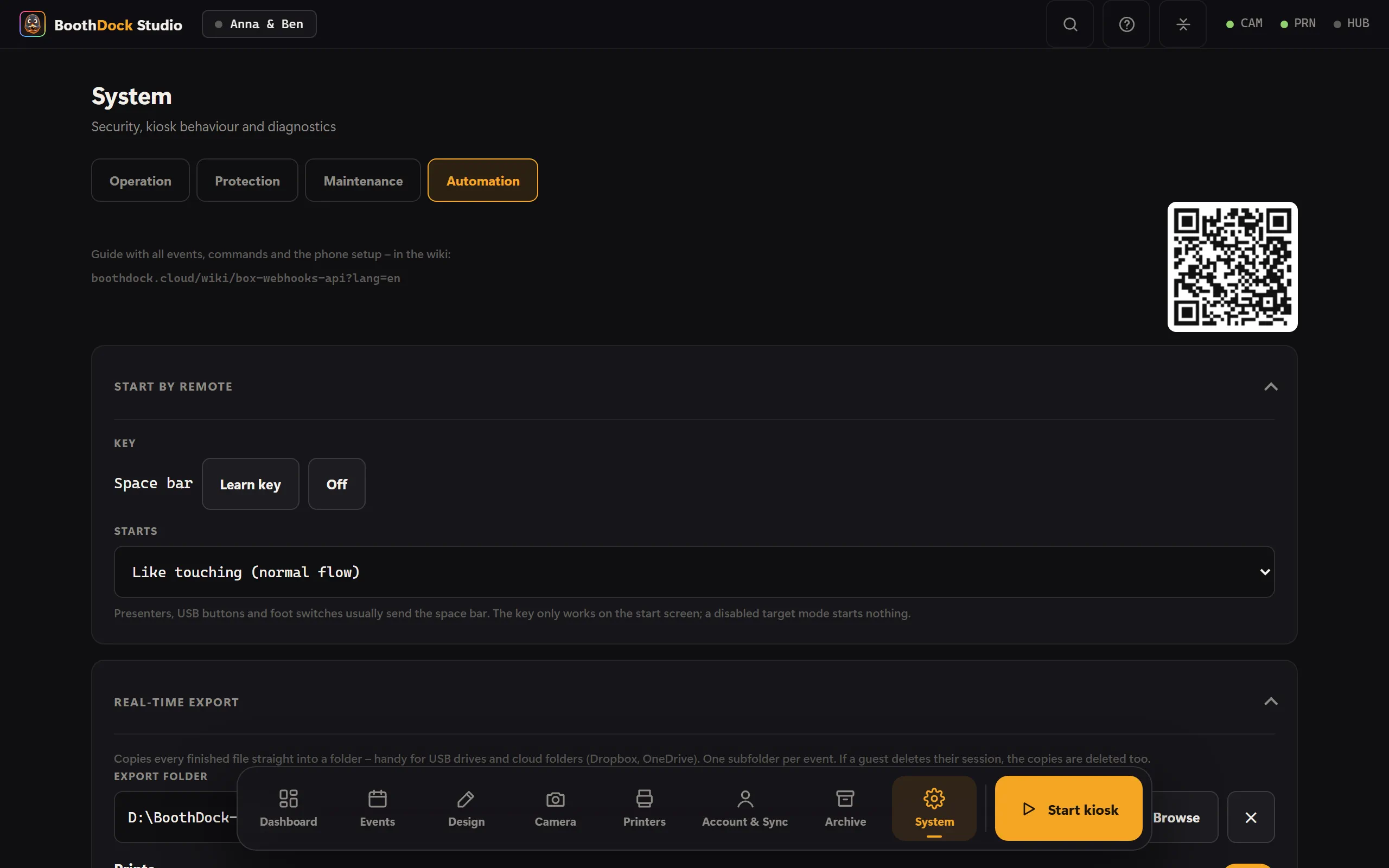
In the same tab you choose an Export folder – for example a USB stick or a cloud folder (OneDrive, Dropbox). Every finished file lands there right away, sorted by event and type (prints, originals, GIFs, videos – each can be switched off). If the stick is briefly missing, the box copies the files over later. If a guest deletes their session at the booth, the copies disappear as well.
Start by remote
In the same tab you learn a key under Start by remote. Presenters, USB buttons and foot switches usually send the space bar; that is preset. Under Starts you choose what the key does on the start screen: Like touching (normal flow) or a mode straight away, for example 360° on the platform. In BoothDock Studio 1.4.0 and earlier the key exists only for 360°, see 360° / Slow motion.
Troubleshooting
- Nothing happens: Is there anything in the log? Webhooks write to
webhooks.log(up to 1.4.0:ausloeser.log), the API tolokale-api.log– both in the folder%LocalAppData%\Boothdock Studio\logs. Rejected requests (wrong password, unknown device) are logged there at most once per minute. - "Invalid password." – copy the password again; after New password the old one is no longer valid.
- "The booth is not on the start screen …" –
startonly works from the start screen. Firstcancel, thenstart. - "Too many failed attempts …" – the device sent a wrong password too often. Wait 15 minutes, check the password.
- The phone can't reach the box, but everything works on the computer: almost always the Windows Firewall or a Wi-Fi network treated as public – see above. The status line reports both cases.