At the event you'll be asked where the photos can be found. From BoothDock Studio 1.7.0, the box itself shows you the gallery link of the running event – as a QR code to scan and as an address to copy. You don't need to go to the Hub for that.
Where to find it
- In the admin area of the box, open Events.
- The row of the active event has the Gallery link button.
- A tap on it opens the panel with the QR code and the address.
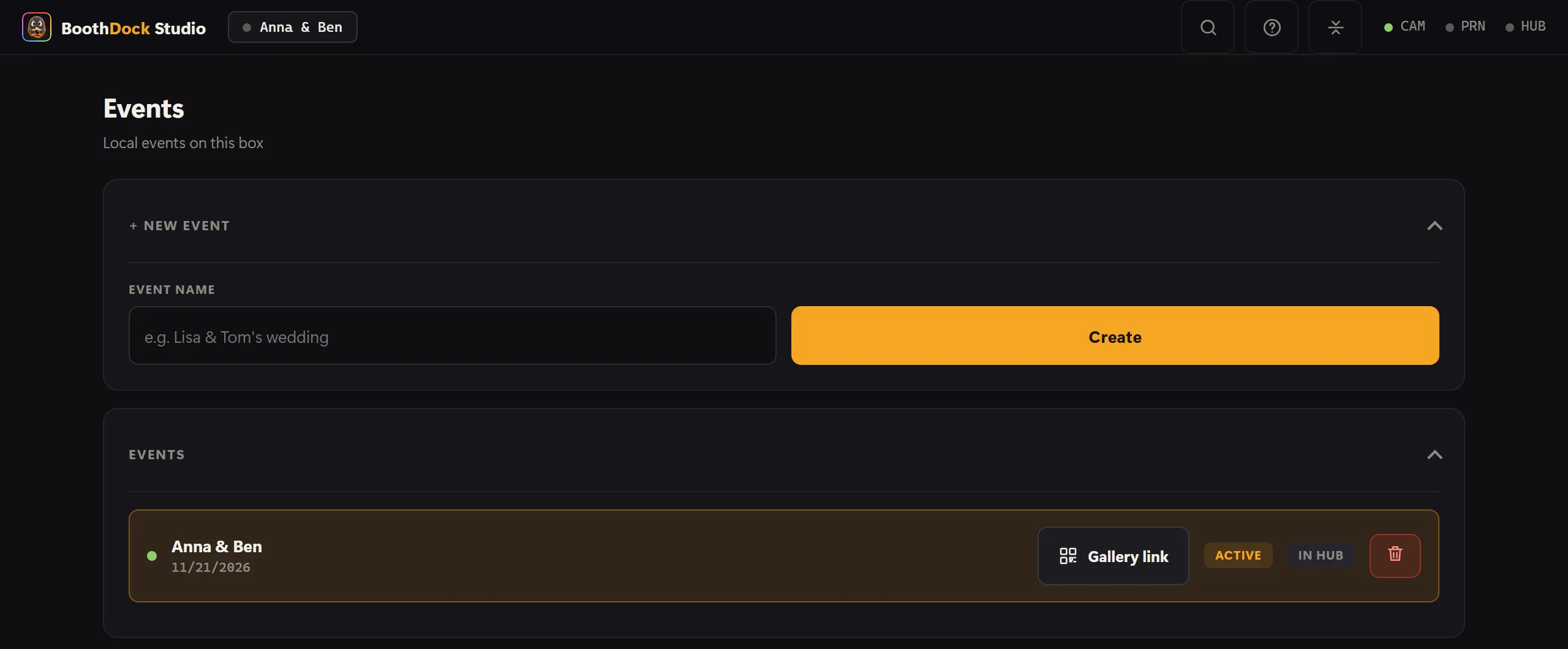
The button only exists on the active event, and only if the event is connected to the Hub – the row then carries In hub. A purely local event has no online gallery, so the button is missing there.
What the panel shows
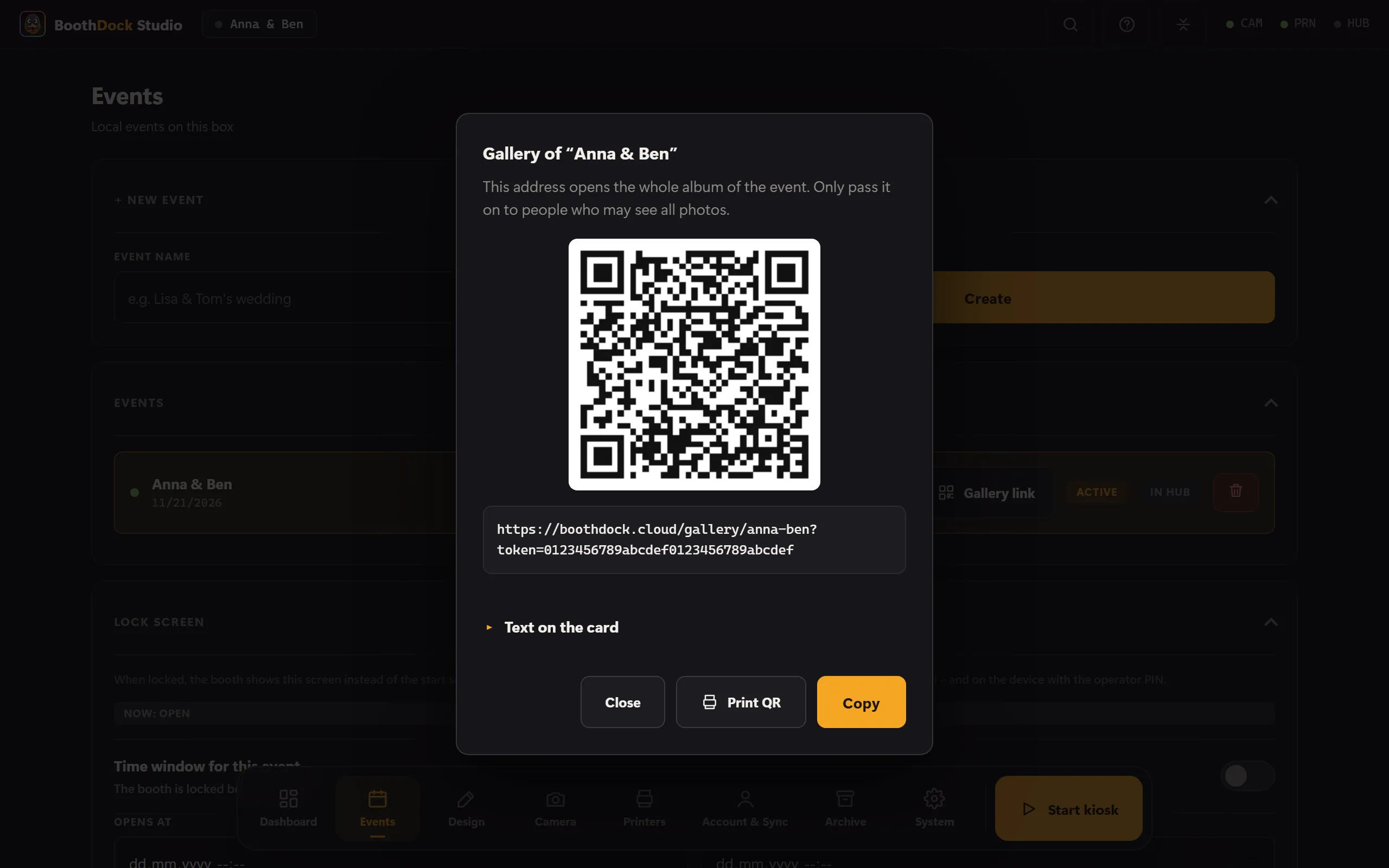
- QR code – to scan straight from the screen of the box.
- Address – a tap selects all of it. If your account has its own gallery address, that is what you see here.
- Copy – puts the address on the clipboard. If the device doesn't allow that, the box selects the address and tells you so: “Copying failed – the address is selected.”
- Share – only appears on devices that can pass an address on to other apps. On Windows boxes the button doesn't exist; there you use the QR code or Copy.
- Print QR – prints a card with the QR code and the address on the box's printer. More on that in the next section.
It is the same address that your guests' QR code leads to.
Printing the QR code as a card
Print QR sends a card to the box's printer: the name of the event, one line of text, the QR code and the address written out. That way nobody has to scan the code from the screen of the box. The code opens the whole album – only hand the card to people who may see all photos.
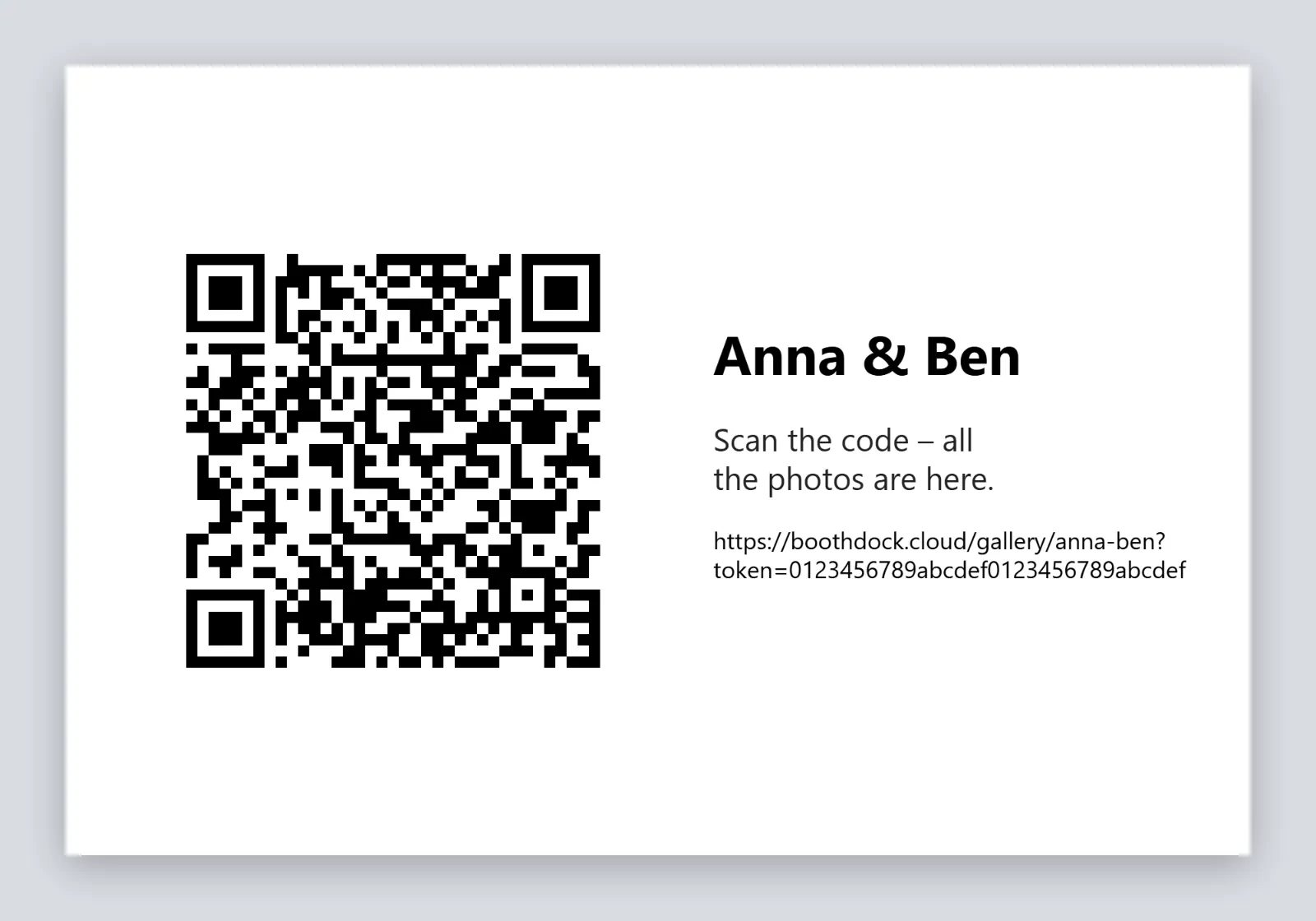
The picture shows a card in landscape format; in portrait format everything is stacked.
- Changing the text: Below the address, open Text on the card and enter your line (120 characters at most). If the field stays empty, the card carries the default text: “Scan the code – all the photos are here.”
- If the button is missing: Print QR appears as soon as a print profile is set up under Printers – even if your guests are not allowed to print themselves.
- One sheet: Exactly one sheet is printed, always on the main printer. If the print profile splits the sheet into strips, each section gets a complete card.
- Does not count towards the print limit: The card does not count as a guest print. It uses nothing of the print limit and can still be printed when the limit has been reached.
If printing fails, the panel says so: “The card was not printed. Check the printer and paper, then try again.”
The link opens the whole album
The address opens all photos of the event. That is why it is only shown in the admin area and never on the screen for guests. Only pass it on to people who are allowed to see all photos.
The box does not show whether the gallery is additionally protected with a PIN. You see and change that in the Hub – see Protect access – secret link or PIN. The link for the host is also only available in the Hub.
When a notice appears instead of the link
If the event's gallery scope is set to Per capture, there is no link for the whole album. The panel then shows only this notice:
For this event, only the link per capture is shared. You can enable the album link in the hub under Event → Gallery.
To change that, set the Gallery scope to Whole event in the Hub, in the event under Gallery & guests – see Share and publish the gallery. The box shows the link as soon as it has next fetched the event from the Hub.
Frequently asked questions
I can't see the “Gallery link” button. It is only shown on the active event, and only if this event is connected to the Hub. Under Events, check that the right event is active and carries In hub.
Can I print the QR code at the box? Yes – with Print QR on the panel, if the box can print (see above). In the Hub you can also save the QR code or print a QR card – see Share and publish the gallery.
See also: Share and publish the gallery, Protect access – secret link or PIN.