With the Link for the host, the couple or whoever booked you gets all photos of the event in one place – with a full download. This works even if your guests only see their own photos via the QR code.
Creating the link
- Open Events, choose the event and then the Gallery & guests tab.
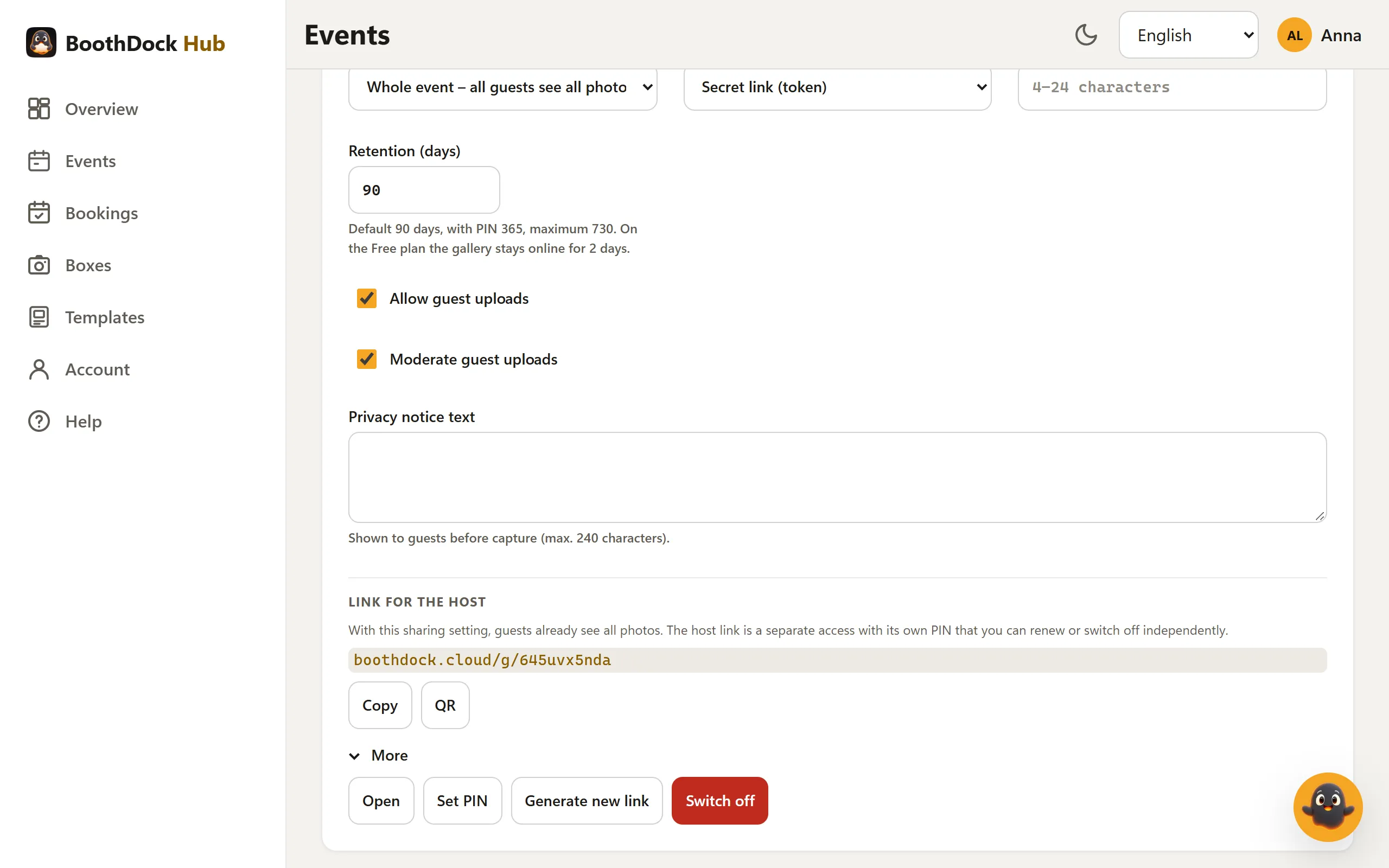
- At the very bottom you find the Link for the host section. Click Create host link.
- Pass the link on: Copy puts the short address (boothdock.cloud/g/…) on the clipboard, QR shows a QR code to save, Send by email sends the link straight to the host.
The link is available with both gallery scopes:
- Per capture – guests only see their own photo via the QR code. Here the host link is the only way to all photos.
- Whole event – guests see all photos anyway. The host link is then a separate access with its own PIN that you can renew or switch off independently of the guest links.
Via the host link, the gallery looks exactly as it does for the guests – with your branding and your template. In addition, it offers the full download of all photos as a ZIP as soon as the album is ready.
Send by email
Send by email opens a window with the Host's email address, the Email language, Subject and Text. The address is used only for this email and is not stored. You can adapt the text freely; the Hub replaces the placeholders {eventName}, {brand} and {link} when sending. With Save as my default text for this language, your text applies to every future email in this language.
The email comes in the look of your brand with logo and preview image. The button is there if email sending is set up for your account and you are allowed to manage the event.
More: PIN, new link, switch off
Under More you find:
- Open – view the gallery the way the host sees it.
- Set PIN – 4 to 24 characters. The PIN applies only to this link, not to the guests; conversely, the guests' gallery PIN does not apply to the host link. Give the PIN separately from the link – it is never included in the email. With Change PIN or Remove PIN you adjust it later.
- Generate new link – creates a new link. The previous link and its QR code stop working immediately; the PIN stays.
- Switch off – the link stops working. The guest links stay unchanged.
Good to know
- When you duplicate an event, the host link is not copied – create a new one for the new booking.
- When the gallery's retention period ends, the host link also only shows a notice that the gallery has expired.
- Anyone who opens a wrong or old link sees the same neutral page as for any unknown gallery.