You don't need the Hub to get started: creating an account and signing in works directly in BoothDock Studio – on a Windows PC, iPad, iPhone or Mac. The box then connects to your account by itself.
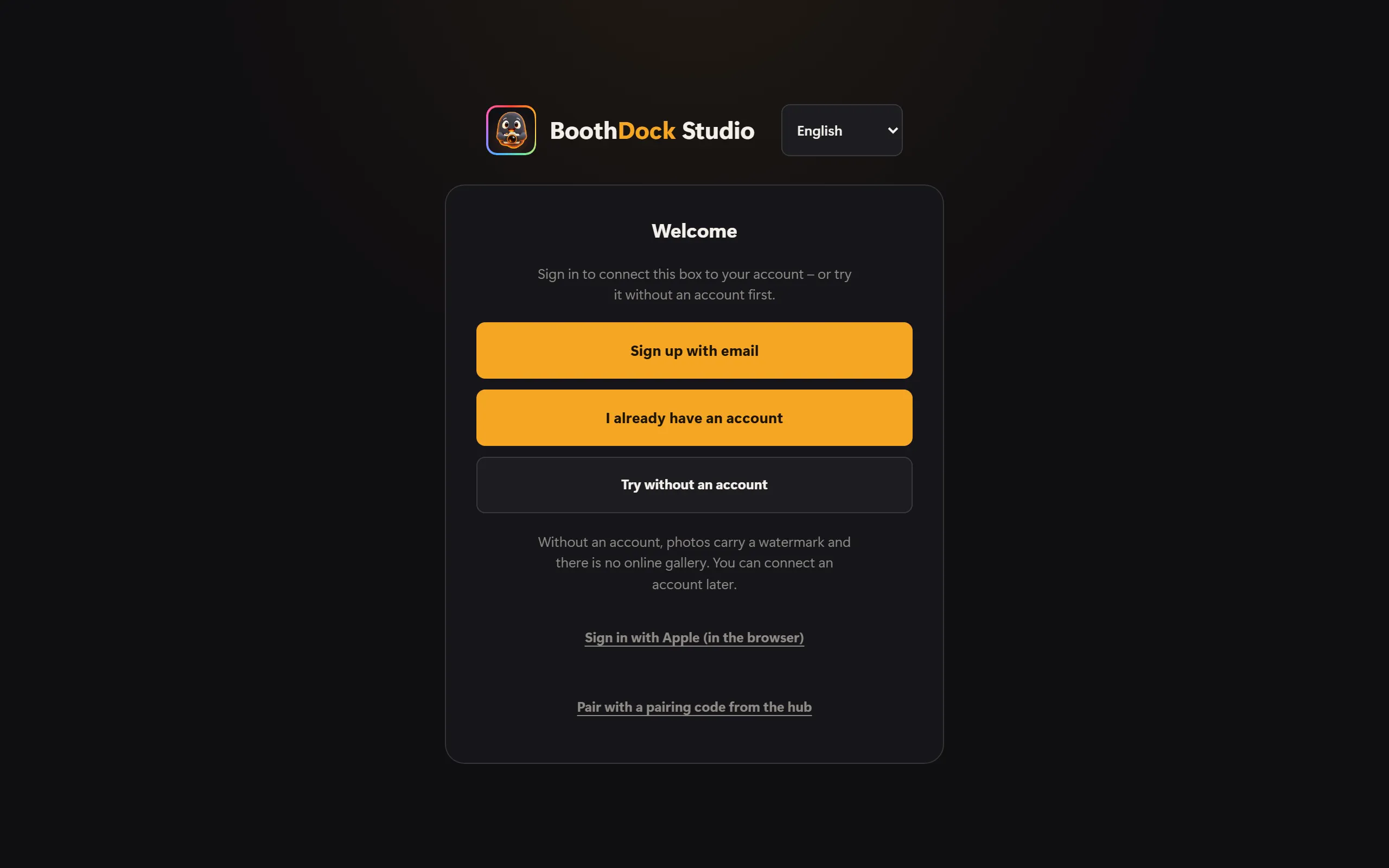
On first launch you see these options:
- Sign up with email – a new account with a confirmation code.
- I already have an account – sign in with your e-mail address and password, or with a code sent by e-mail.
- Sign in with Apple – with your Apple ID, for a new or an existing account.
- Try without an account – just try the app first. Photos then carry a watermark, and there is no online gallery. You can connect an account later.
- In small print below: Pair with a pairing code from the hub – the previous way, if you prefer to confirm the box in the Hub (Create an account and pair a box).
If you tested without an account first, you'll find the way in later in the admin area under Account & Sync → Create account or sign in.
Sign up with email
- Choose Sign up with email, enter your e-mail address, then tap Send code.
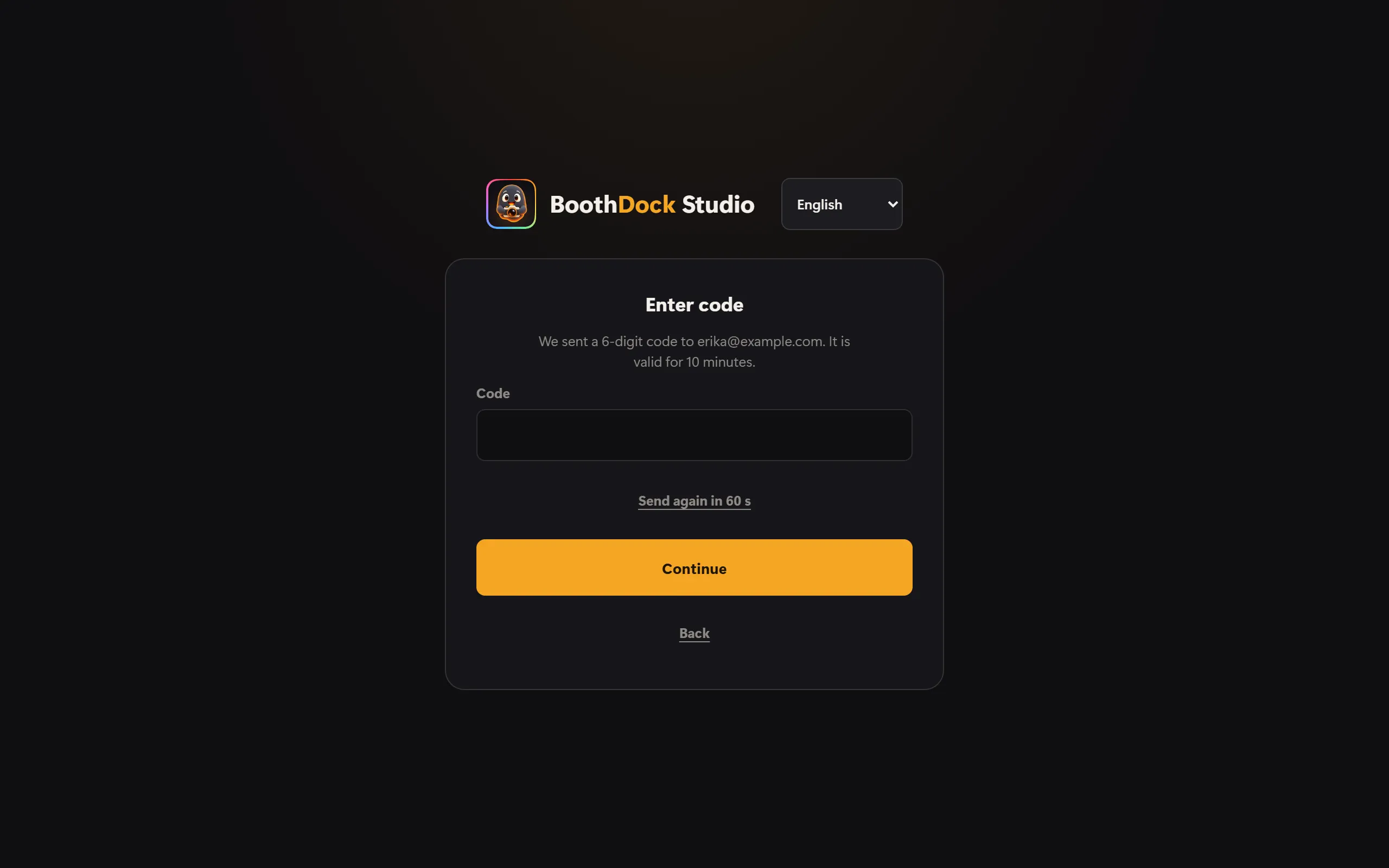
- We send you a 6-digit code. It is valid for 15 minutes. If nothing arrives, check your spam folder or, after a short wait, tap Send code again.
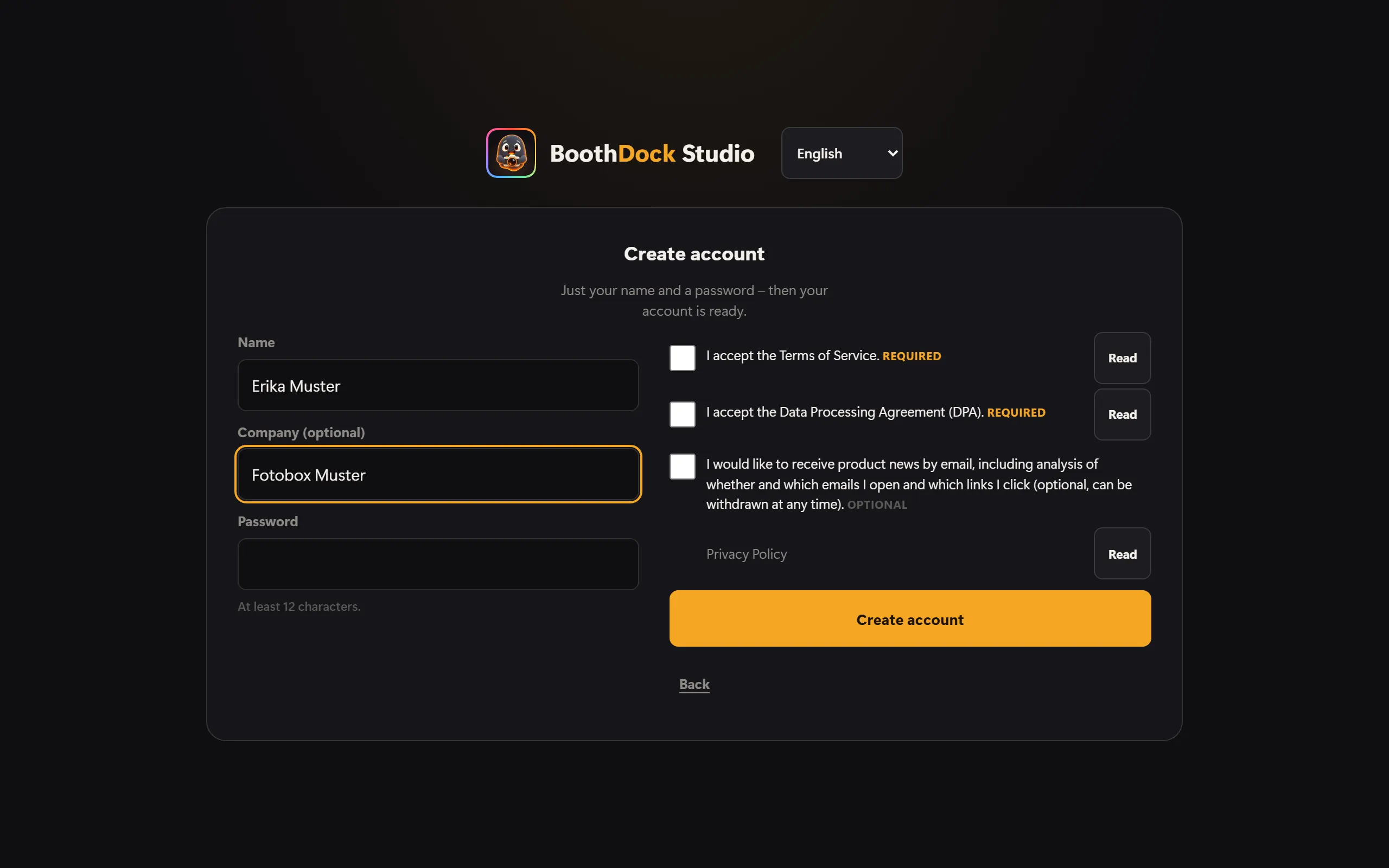
- Enter the code. Then just add your name, optionally your company, and a password (at least 12 characters), accept the terms and conditions and the data processing agreement – Read opens the texts – and finish.
If an account already exists for your address, you get an e-mail explaining how to sign in instead of a code. That way nobody at the box can find out whether an address is known to us.
New accounts try Pro free for 14 days. The code confirms your address; the 14 days start as soon as the box connects to your account. The trial is available once per e-mail address and device.
Sign in with an existing account
Choose I already have an account and enter your e-mail address and password. Without a password, use Email code instead of password: if an account exists for that address, we send you a code. If you have turned on two-factor sign-in in the Hub, the app then asks for the code from your authenticator app.
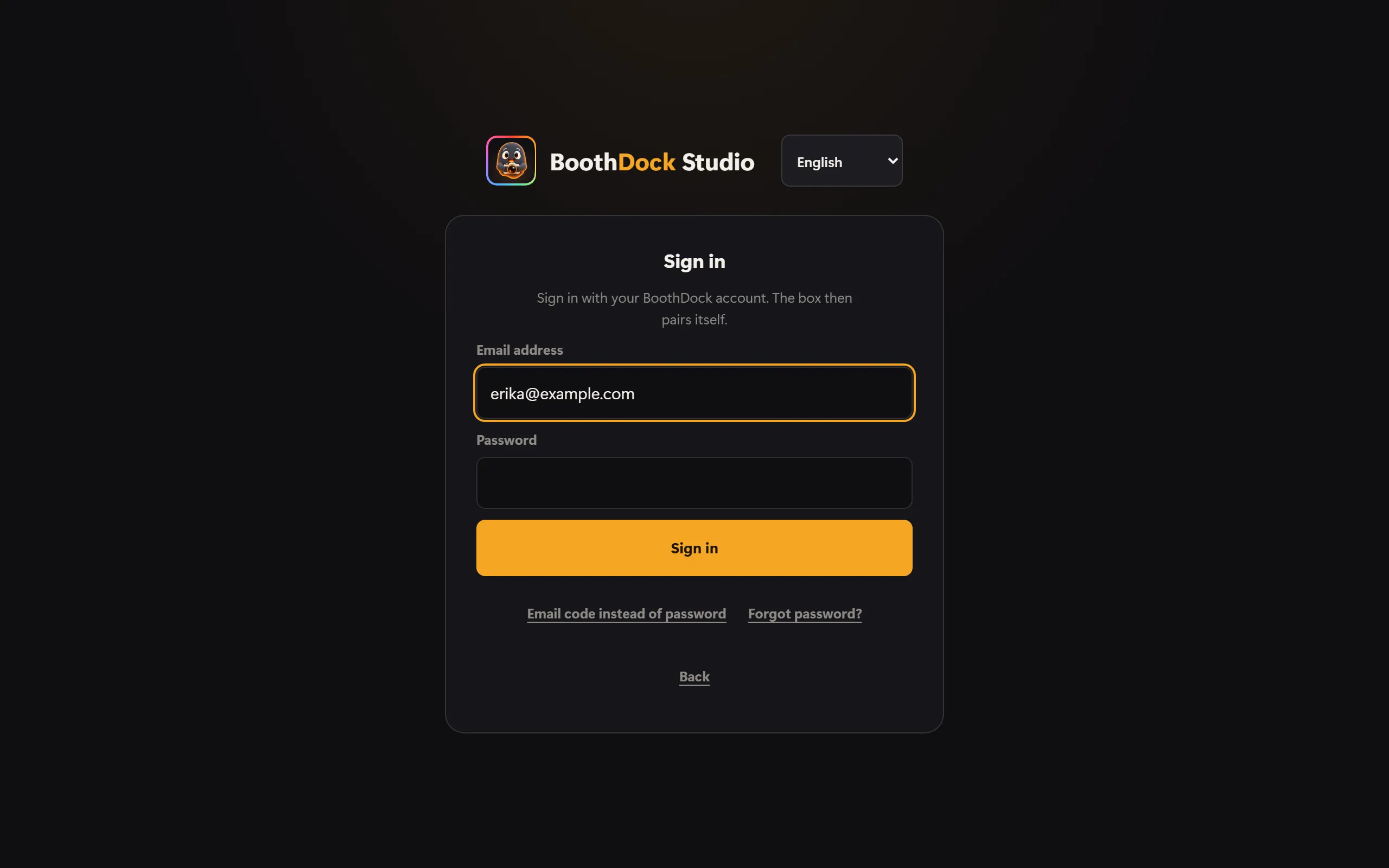
Forgot password? shows a QR code: you set the new password in the Hub, ideally on your phone.
Sign in with Apple
iPad, iPhone and Mac: Tap Apple's Sign in with Apple button and confirm with Face ID, Touch ID or your device passcode. The first time, you decide whether we see your e-mail address or Apple hides it and forwards messages. For a new account you then only accept the terms and conditions and the data processing agreement – you don't need a password.
Windows: Choose Sign in with Apple (in the browser). The box shows a QR code, an address and a short code.
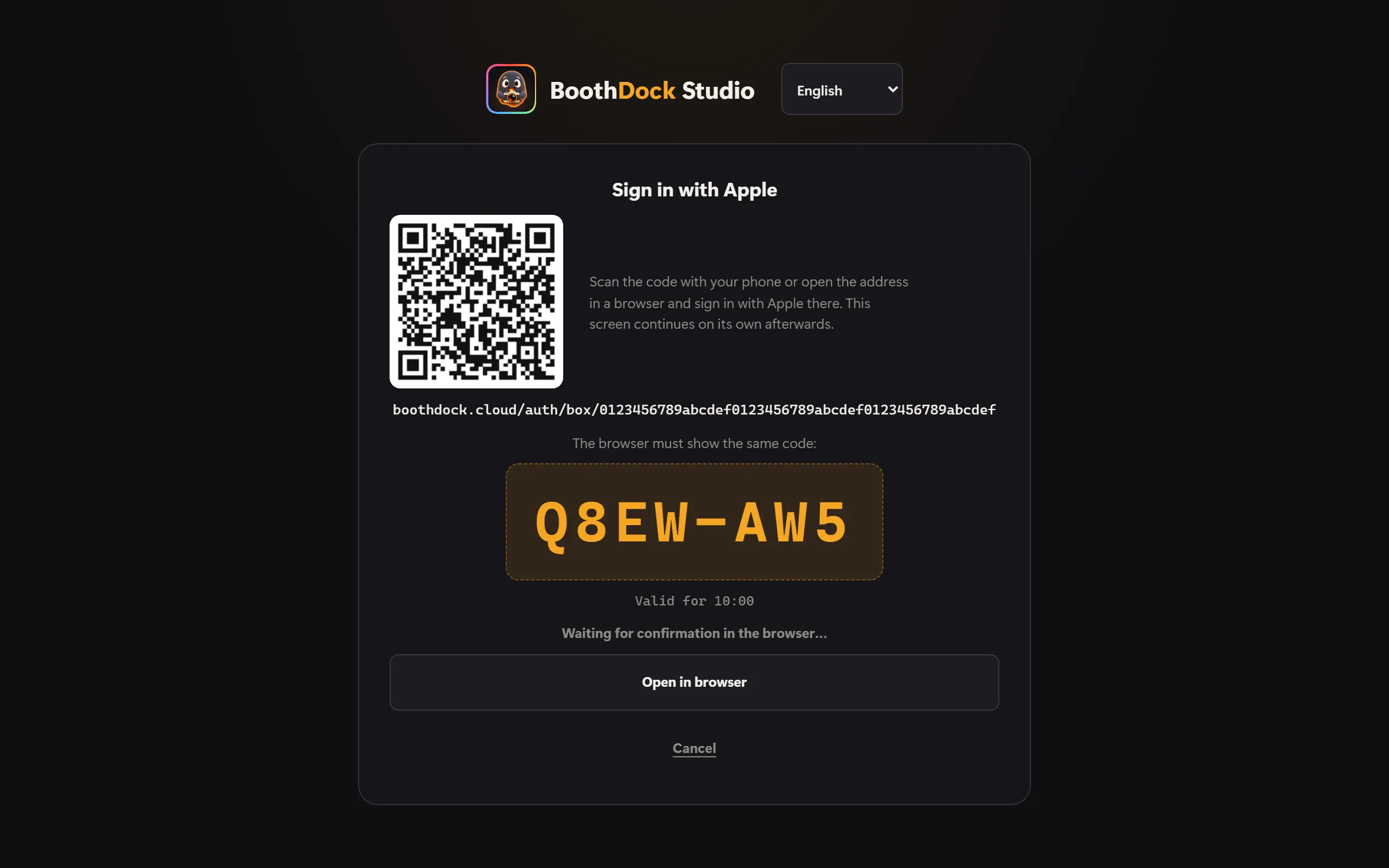
- Scan the QR code with your phone – or tap Open in browser to open the PC's browser.
- Sign in there with Apple.
- The browser shows Sign in the booth? with the box's name and a code. If it shows the same code as the box, tap Sign in. If it doesn't match, tap Decline.
- Done – the box continues by itself. You can close the browser window; you don't stay signed in to BoothDock in the browser.
The code is valid for 10 minutes. In kiosk mode, the box only opens the browser if you start the sign-in from the admin area – the QR code always works.
Already have an account with a password? Then, after signing in with Apple, choose I already have an account – link it and enter your password once. From then on, both work. We never link accounts silently via the e-mail address.
If Apple has hidden your address, our e-mails reach you through Apple's forwarding. In the Hub, under Account → Security, you can also add an address where we can reach you directly – this is optional.
Staying signed in – and signing out
The app stays signed in until you sign out. Account & Sync shows who the box is signed in as. Sign out only removes your account from this device – the box stays paired, and events and uploads keep running.
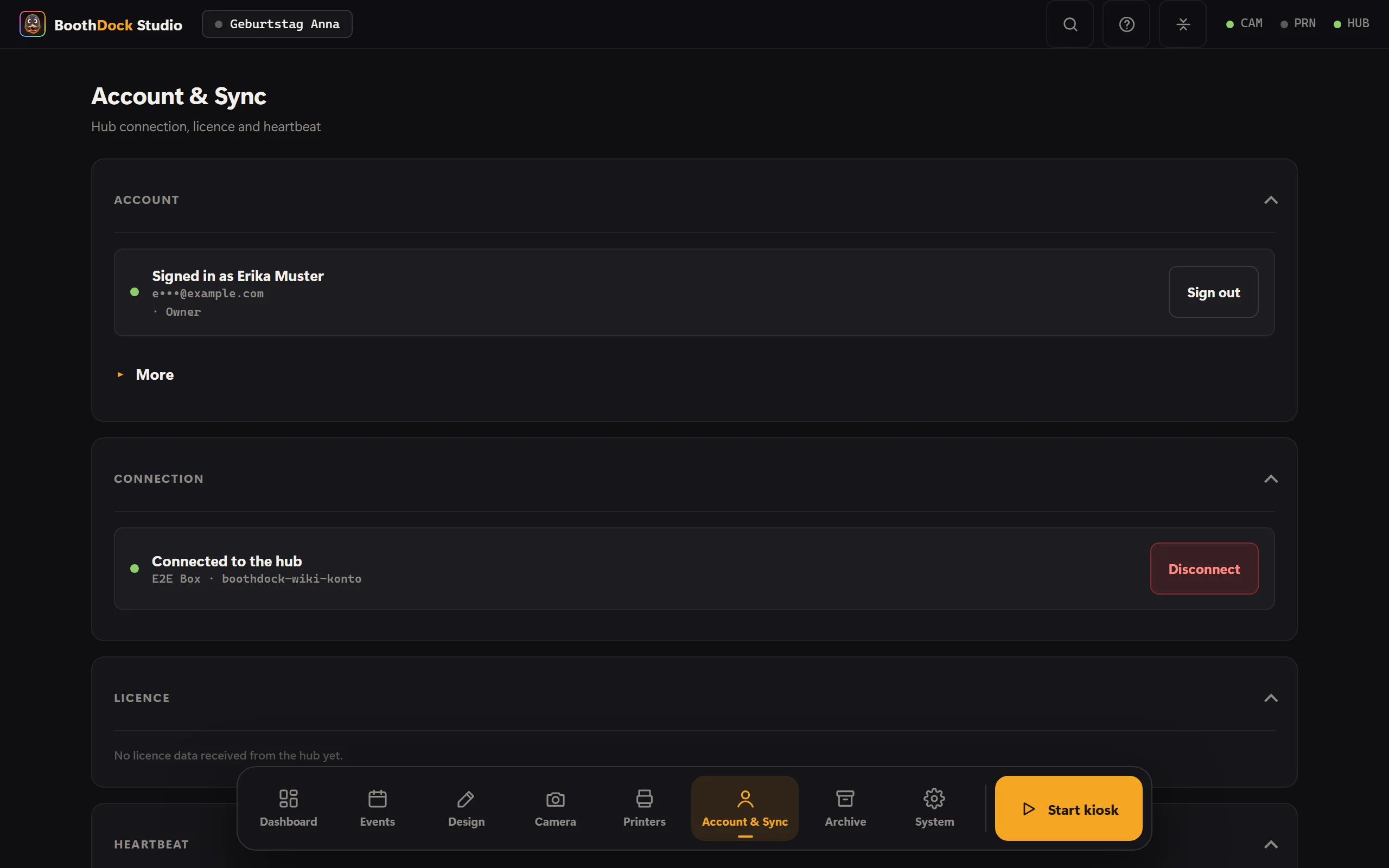
In the Hub, under Account → Security, the BoothDock Studio section lists all devices where the app is signed in with your account, and you sign out individual devices with Sign out. When a new device signs in, you get an e-mail. A device that hasn't been used for 90 days is signed out automatically.
If you lend or sell a device, sign it out first and protect the admin area with an Admin PIN.