If you use the booking page, the customer area or the guest gallery without a website of your own, you still need a legal notice and a privacy policy. BoothDock creates both pages for you on your own address – prefilled and freely editable. If you already have your own pages, you simply enter the link.
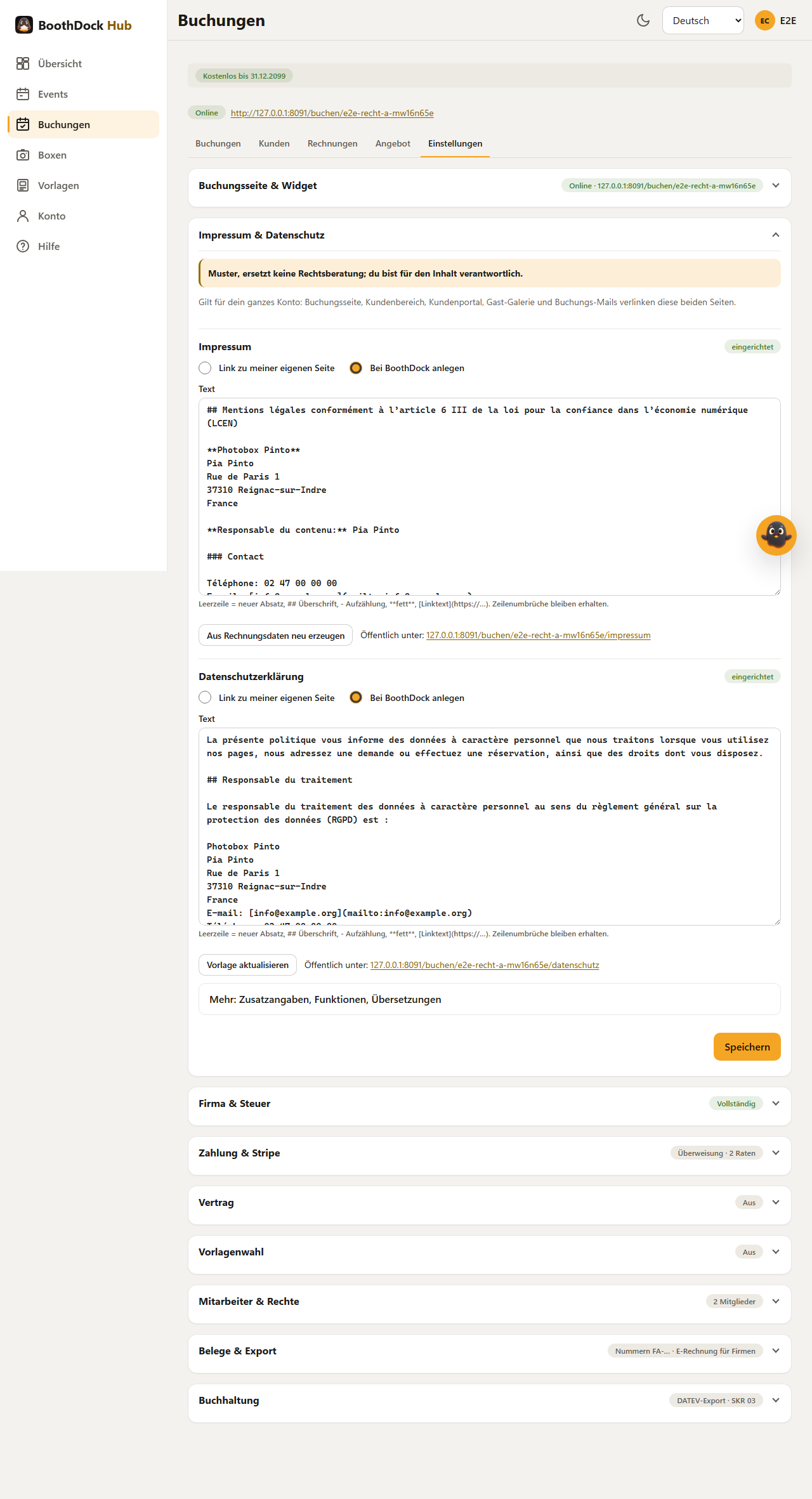
Where to set it up
Under Bookings → Settings → Legal notice & privacy. You can reach the same section in every event on the Branding tab under Business card, links & legal → Set up. The setting applies to your whole account.
For the legal notice and the privacy policy, you choose in each case:
- Link to my own page – you enter the address (https:// or http:// only).
- Create on BoothDock – the page lives on your address, e.g.
yourname.boothdock.cloud/impressumand/datenschutznext to/buchen. Without an address of your own, it lives under your booking page, e.g./buchen/yourname/impressum. It looks like your booking page.
Legal notice from your billing details
Generate template text creates the legal notice from your billing details: name or company, address, email, phone, VAT ID and tax number. Under More you add whatever applies to you: register and registration number, authorised representatives, object of the company, supervisory authority, chamber and capital.
Which information is mandatory depends on the country in your billing details. The Hub knows the rules for Germany, Austria, Switzerland, France, Belgium, the Netherlands, Italy and Spain; for other countries an EU standard applies. If something is missing, you see a notice with a link to your billing details. After that you can change the text freely; Regenerate from billing details shows you the difference first.
Consumer mediator: under More, enter the name, address and website of the dispute resolution body you have joined; the template adds them to the legal notice. In France this is mandatory (médiateur de la consommation): you join a mediator and name it on your site and in your terms. You choose the mediator yourself, e.g. from the list at economie.gouv.fr.
Privacy policy from building blocks
The template text only contains what you actually use: booking page, contact form, customer area, loyalty discount, payments via Stripe, guest payments, security deposit, travel cost estimate, guest gallery, guest form, photo challenges, AI styles, emails, invoices and accounting. The Hub preselects the building blocks based on your settings; under More → Features I use you adjust the selection. BoothDock is listed as your processor, together with the sub-processors from our data processing agreement. The paragraphs on rights, storage period and complaints are added automatically.
If you switch on a feature later, use Update template: you see the difference between your text and the new template and decide whether to apply it. Your text is never overwritten silently.
Important: The texts are templates and are no substitute for legal advice. You are responsible for the content.
Languages
The main text appears in the language you choose. Under More → Translations you add further languages, generate the template text there for each one and adapt it. Visitors see the translation in their language, otherwise your main text.
Where the links appear
- in the footer of the booking page, the customer area and the customer portal,
- next to the privacy policy checkbox in the booking and contact forms,
- in the footer of the booking emails to your customers,
- in the guest gallery.
For the guest gallery: if you have entered your own legal notice or privacy link on an event’s Branding tab, it takes precedence for that event. If you leave the field empty, your account setting applies.
Taking over your previous links
If you already had a privacy link on the booking page or a legal notice link in your brand defaults, the section takes over these addresses as Link to my own page. Save once to keep it. The fields in the individual events remain unchanged.
Notice in the Hub
If your booking page is online and the legal notice or privacy policy is missing, you see a notice on the overview and in the booking page settings – one click takes you to the right section.