Your booking page is online – but hardly anyone finds it by chance. It becomes known when its link appears wherever people come across you anyway: online, on paper and at every event. Here are ways you can take yourself that cost nothing but a little time.
1. Your link
You find the address of your booking page in the Hub under Bookings → Settings in the card Booking page and widget.
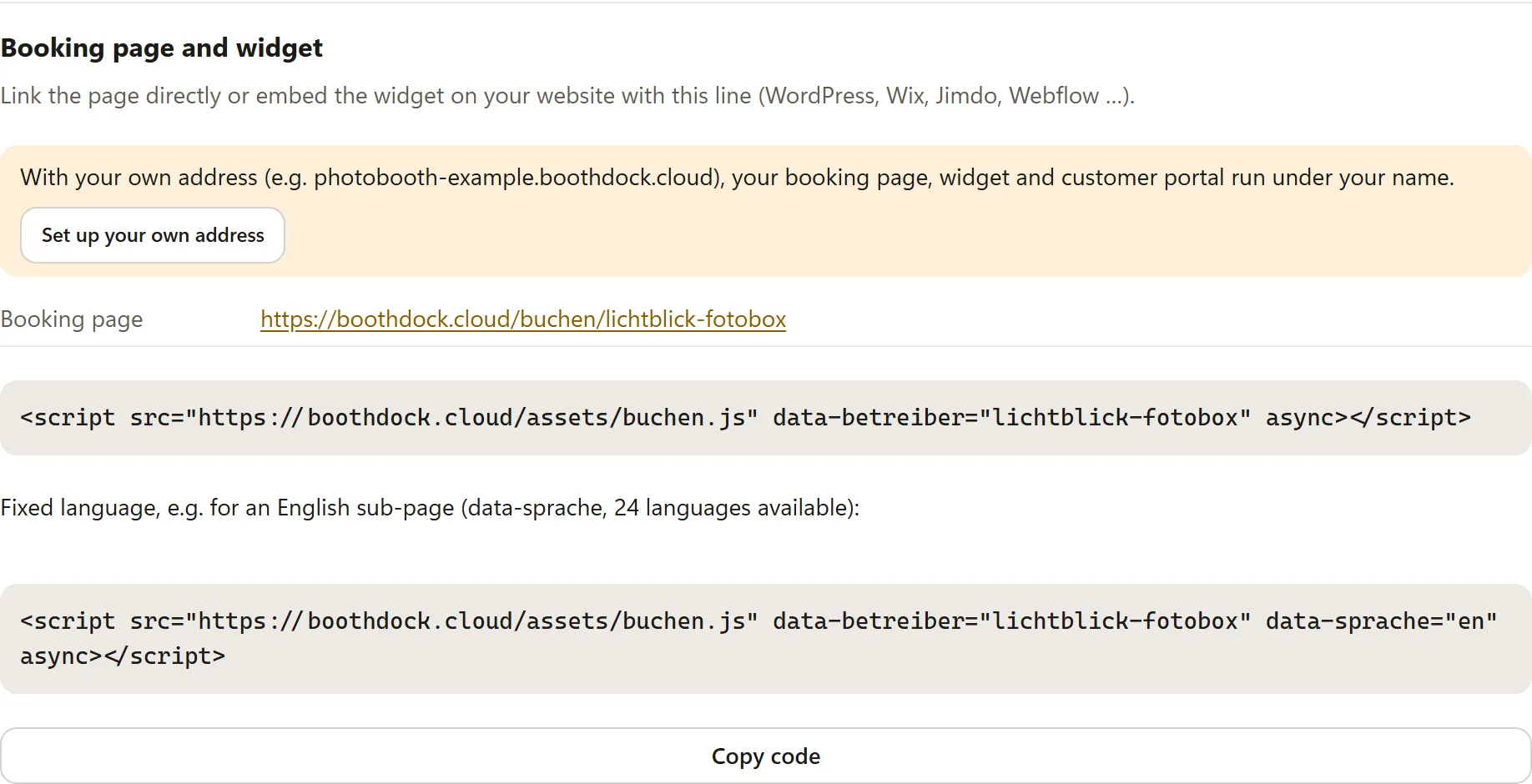
- You set the name in the address under Booking page & widget in the field Address. Keep it short and easy to read – and choose it before you hand out links or print QR codes, because they contain exactly this address.
- With your own address (Pro), the page runs under your name, for example
https://fotobox-muster.boothdock.cloud/buchen. Without your own address, the card offers Set up your own address. - The page can only be reached while Booking page online is switched on.
2. First make the page presentable
When you share the link in a messenger or on a social network, a preview appears: your Heading, your Introduction and the first photo of your first package. Take care of these three things before you spread the link – details under Set up the booking page – page, widget and settings.
3. Online
- Business profile: If you have a business profile with a search engine or a map service (for example a Google Business Profile), enter your booking page there as your website.
- Social media profiles: Put the link in your profile (Instagram, Facebook, TikTok …) and point to it in posts from your events.
- E-mail signature: A line such as “Request a photo booth” with your link under every e-mail.
- Messenger: Send interested people the link directly instead of typing out prices – the page shows your packages, prices and free dates.
- Your own website: Link to the booking page in a clearly visible place or embed the widget – you get the code in the card Booking page and widget with Copy code. If you have no website of your own, you create subpages such as “About us” or “FAQ” right on the booking page under Booking page & widget in the area Pages.
Search engines are allowed to read your booking page. Whether and where it appears there is decided by the search engines alone – nobody can promise that. So rely on the ways in this article: they bring visitors straight to you.
4. On paper and on site: QR code
A QR code takes people to your booking page with their phone in seconds. You get the print-ready card for it right in the Hub: under Booking page & widget, click Print QR card and choose the format (A6 table tent or A5), the language and, if you like, a line of your own above the QR code. The card carries your name, your logo and your colour. The button appears as soon as your booking page is switched on. For your own flyers or business cards, you can also create the code from your address with a QR code generator. In that case, make sure it contains your address directly and does not run through a short address of the generator – such codes can expire later.
Good places:
- flyers and business cards that you hand out at venues, at fairs or after an event
- a stand or sticker on the box – at every party, future hosts are standing in front of it
- quotes, invoices and your vehicle
Scan the code yourself once before printing.
5. At every event: your gallery advertises for you
Every guest who fetches their photos sees your gallery. In the event, in the tab Design under Branding → Business card, links & legal, you bring your booking page there:
- Business card: Enter your booking page in the field Website. A small contact card then appears at the bottom of the gallery; it is also part of the e-mail guests use to have their photos sent to them.
- Custom links: These links appear in the footer of the gallery.
- With Save as default for new events, this applies automatically to every new event.
More on this: Gallery in your own look (branding) and Designing the gallery – templates, cover photos and slideshow.
6. Partners and recommendations
- Partners: Venues, DJs, photographers, wedding planners and caterers are often asked about a photo booth. Give them your link and a few flyers with the QR code – and recommend them in return.
- Happy customers: After a successful event, ask personally for a recommendation and send the link along. In the tab Customers, Set follow-up reminds you to follow up – see Customers, notes and follow-ups.
- Regular customers: Those who book again can get a discount automatically – see Loyalty discount with loyalty tiers.
For advertising by e-mail to people who have not contacted you themselves, you need their consent in many countries.